

Encrypted push-to-talk voice calls over Tor with a one-button Android walkie-talkie
Let’s make a phone call without a phone. No SIM card, no account, no signup, no server rental, no port forwarding. Just a .onion address, a shared secret, and a spacebar.
Tor Party Line is a single Bash script that turns any Linux box, Mac, Docker host, or Android phone into an encrypted push-to-talk radio that works over the Tor network. Two people can call each other directly, or one person can host a relay and bridge a whole group onto the same line, like the old telephone party lines, but end-to-end encrypted and hidden inside Tor.
The whole project lives here, and everything in this post points back to it:
GitLab repo: https://gitlab.com/marcusholtz/tor-party-line
And yes, at the end of this post we get to the fun part: a one-button walkie-talkie on your Android homescreen that auto-dials the party line. Pressing one button is easier than dialing a phone number. Don’t let anyone tell you privacy has to be inconvenient.
OVERVIEW
What is this project? Tor Party Line is a terminal application for encrypted voice over Tor hidden services:
- Push-to-talk (PTT): hold SPACE, talk, release, and your clip is compressed with Opus, encrypted, and delivered. Half-duplex on purpose: Tor latency makes real-time full-duplex unreliable, but complete clips always arrive intact.
- End-to-end encryption: AES-256-CBC with PBKDF2 (100k iterations), plus optional HMAC signing of protocol messages. The only thing both sides need to agree on is a shared secret.
- No infrastructure: your
.onionaddress is your phone number. Tor hidden services punch through NAT, CGNAT, and firewalls automatically. - Group calls: relay mode forwards encrypted blobs between callers. The relay never sees the shared secret and never hears your audio.
- Auditable: the entire thing is one Bash file (
partyline.sh, about 5,600 lines). No binaries, no telemetry, no network calls except through Tor. You can read every line of what you are running.
Under the hood it wires together tools you already trust: tor for routing, opus-tools for voice compression (roughly 10x reduction), openssl for encryption, and socat to shove it all through the Tor SOCKS proxy. It runs on Linux, macOS, Android/Termux, and Docker.
INSTALL
Grab the script from the repo:
1
2
3
git clone https://gitlab.com/marcusholtz/tor-party-line.git
cd tor-party-line
chmod +x partyline.sh && ./partyline.sh
The script checks for its dependencies on first run and installs the missing ones for you (menu option 9 re-runs this any time). The cast of characters:
| Tool | Purpose |
|---|---|
tor | Anonymous routing and your .onion address |
opus-tools | Voice compression |
socat | Transport through the Tor SOCKS proxy |
openssl | AES-256-CBC encryption and HMAC signing |
pulseaudio-utils / alsa-utils | Audio capture and playback on Linux |
ffmpeg / ffplay | Audio on macOS and Android |
qrencode | QR code so you can share your address by pointing a camera at it |
termux-api | Microphone access on Android |
Prefer containers? There is a compose file in the repo:
1
docker compose run --rm partyline
Docker mode manages Tor inside the container and stores keys and config in mounted volumes, so your .onion address survives container restarts.
CONFIG
First run does three things: Tor bootstraps (give it 1-3 minutes), your permanent .onion address is generated and displayed, and the menu tells you the next required step in yellow. That step is the shared secret.
The shared secret is the whole security model. Both sides must enter the same one, and anyone who has it can join your line, so treat it like a password. Menu option 1 sets it interactively, or from the command line:
1
./partyline.sh --secret 'mysecret' --save-secret
--save-secret persists it encrypted at rest (file mode 600) so you never type it again. In Docker, drop it in a git-ignored file instead:
1
2
echo -n 'mysecret' > secrets/shared_secret.txt
chmod 600 secrets/shared_secret.txt
To hand the secret to the other caller, don’t paste it into a chat app that keeps history forever. Use a one-time self-destructing link like yopass, or better, exchange it in person.
Settings follow a sane precedence: built-in defaults, then .env (Docker only), then saved config, then CLI flags. The defaults worth knowing:
| Parameter | Default | Note |
|---|---|---|
OPUS_BITRATE | 16 kbps | Lower it for group calls on slow connections |
CIPHER | aes-256-cbc | 21 options including ChaCha20 and Camellia |
PTT_TOGGLE_MODE | 0 | 0 = hold-to-talk, 1 = tap-to-toggle |
HMAC_AUTH | 1 | Signs protocol messages, prevents replay |
MAX_PTT_SECONDS | 120 | Hard cap on a single recording |
AUTO_LISTEN | 0 | Start listening the moment Tor boots |
Every flag is documented in the repo README, including --exclude-nodes for skipping Tor nodes in specific countries, --snowflake for networks that block Tor, and --single-hop if you want speed more than you want server anonymity.
UP AND RUNNING
Before you call anyone, make sure the audio actually works. Silent calls are almost always a wrong audio device, not a broken install. Menu option 2 walks through mic and speaker setup, and Menu -> 7 -> Audio devices -> Test all outputs plays a tone through every output it can find until you hear one. There is also a full diagnostic:
1
./partyline.sh test
Now the button. Push-to-talk defaults to hold SPACE to record, release to send. If you’d rather tap once to start and tap again to stop (this is how it always works on Termux, where holding a key is awkward), flip PTT_TOGGLE_MODE to 1 in Settings. Once you are in a call, four keys run the whole show:
| Key | Action |
|---|---|
| SPACE (hold) | Record, send on release |
| T | Send an encrypted text message |
| S | Mid-call settings (cipher, PTT mode) |
| Q | Hang up |
One gotcha worth knowing up front: if the header shows a red dot next to the cipher, the two sides are using different ciphers and decryption is failing silently. Fix it mid-call with S.
USING: CALL, RECEIVE, RELAY
There are only three verbs to learn.
Receive. One side has to be listening. From the menu that is option 4, or from the shell:
1
./partyline.sh listen --secret 'shared-secret'
Set --auto-listen (or AUTO_LISTEN=1) and the script goes straight into listening mode as soon as Tor finishes bootstrapping. That plus a saved secret turns a spare machine into an always-on answering post.
Call. The other side dials the listener’s .onion address. Menu option 5, or:
1
./partyline.sh call abc123.onion --secret 'shared-secret'
Menu option 3 displays your address as a QR code, which beats reading 56 base32 characters over the phone you are trying to replace.
Relay. For a group, one machine hosts the party line (menu option 6):
1
./partyline.sh relay --secret 'group-secret'
Everyone else just calls the relay’s onion address with the group secret. The relay forwards encrypted blobs and rate-limits flooders, but it cannot decrypt anything: the secret never touches it. Tor bandwidth is the bottleneck, so 2-3 callers is rock solid, 3-5 is good, and past 10 you are pushing your luck. Dropping the Opus bitrate in Settings buys you headroom.
ANDROID: THE ONE-BUTTON WALKIE-TALKIE
Here is the payoff. When this is done, there is a single icon on your homescreen. You press it, Tor spins up, the script dials your party line with the stored secret, and you are talking. One button. Easier than dialing a number, easier than unlocking most apps.
We use three apps, all free and open source:
| App | What it does | Where it lives |
|---|---|---|
| Termux | The Linux terminal the script runs in | F-Droid |
| Termux:API | Gives Termux access to the microphone and other Android hardware | F-Droid |
| Script Runner for Termux | Manages scripts and gives them homescreen buttons | IzzyOnDroid repo |
Two things to know before you tap a single install button:
Get Termux from F-Droid, not the Play Store. The Play Store build of Termux is deprecated and broken. If you don’t have F-Droid yet, install it from f-droid.org. Termux and Termux:API must come from the same source or their signatures won’t match.
IzzyOnDroid is not in F-Droid by default. The IzzyOnDroid repo is a separate, well-respected F-Droid-compatible repository, but the stock F-Droid app does not know about it until you add it. You have two ways in:
Add the repo to F-Droid. In the F-Droid app go to
Settings -> Repositories, tap+, and paste:1
https://apt.izzysoft.de/fdroid/repo
Pull down to refresh the package index and IzzyOnDroid apps show up in search like anything else.
Or just use Droid-ify. Droid-ify is a cleaner F-Droid client that ships with the IzzyOnDroid repo already built in, flip it on under
Repositoriesand you are done. If the F-Droid repo settings dance sounds like a chore, this is the easy road.
THEN you can download Script Runner for Termux. We will do that in Step 2, Termux itself comes first.
Step 1: Prep Termux
Install Termux and Termux:API from F-Droid. Termux:API has no icon of its own and nothing to open, it is a plugin that sits quietly until Termux needs the microphone. Open Termux.
 The Termux icon on your homescreen

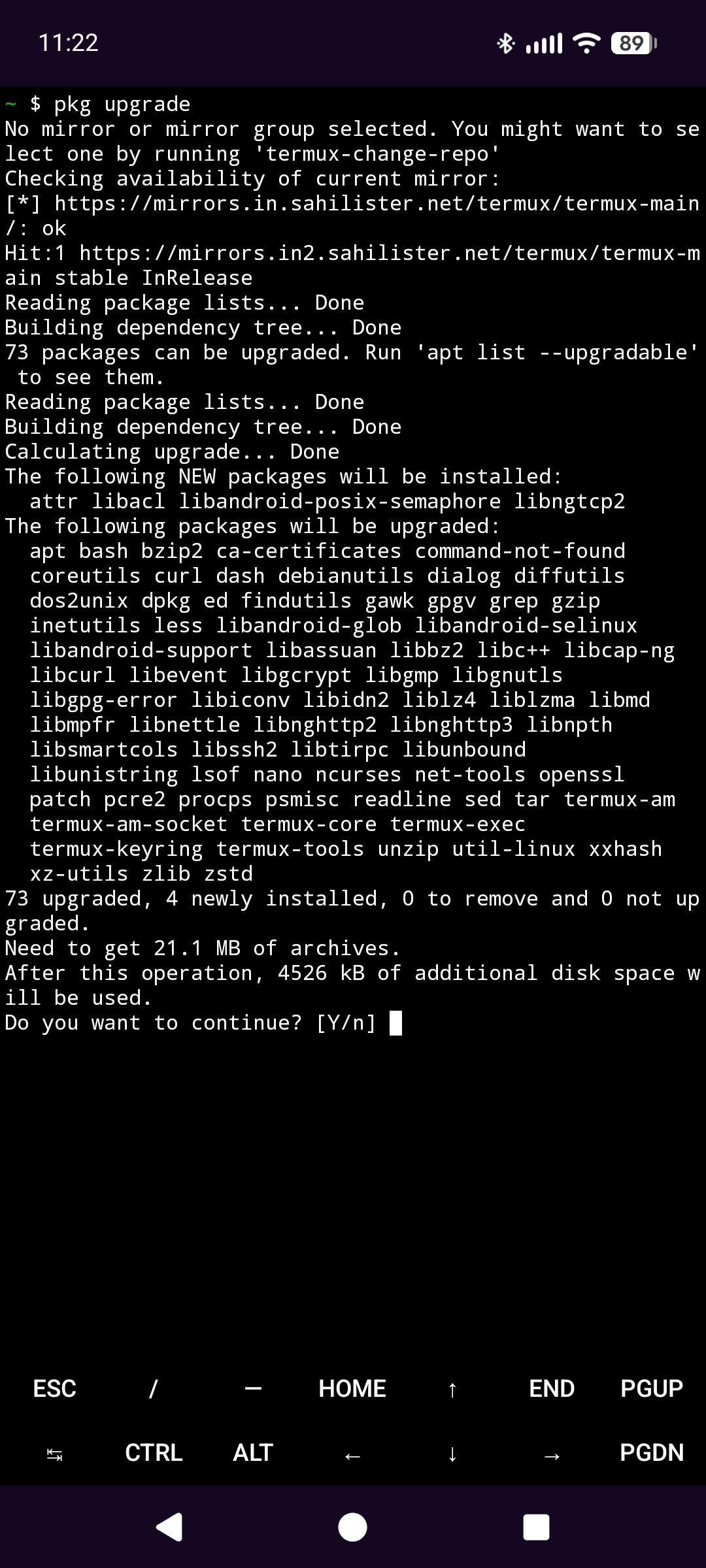
Update the package lists and upgrade whatever is stale:
1
2
pkg update
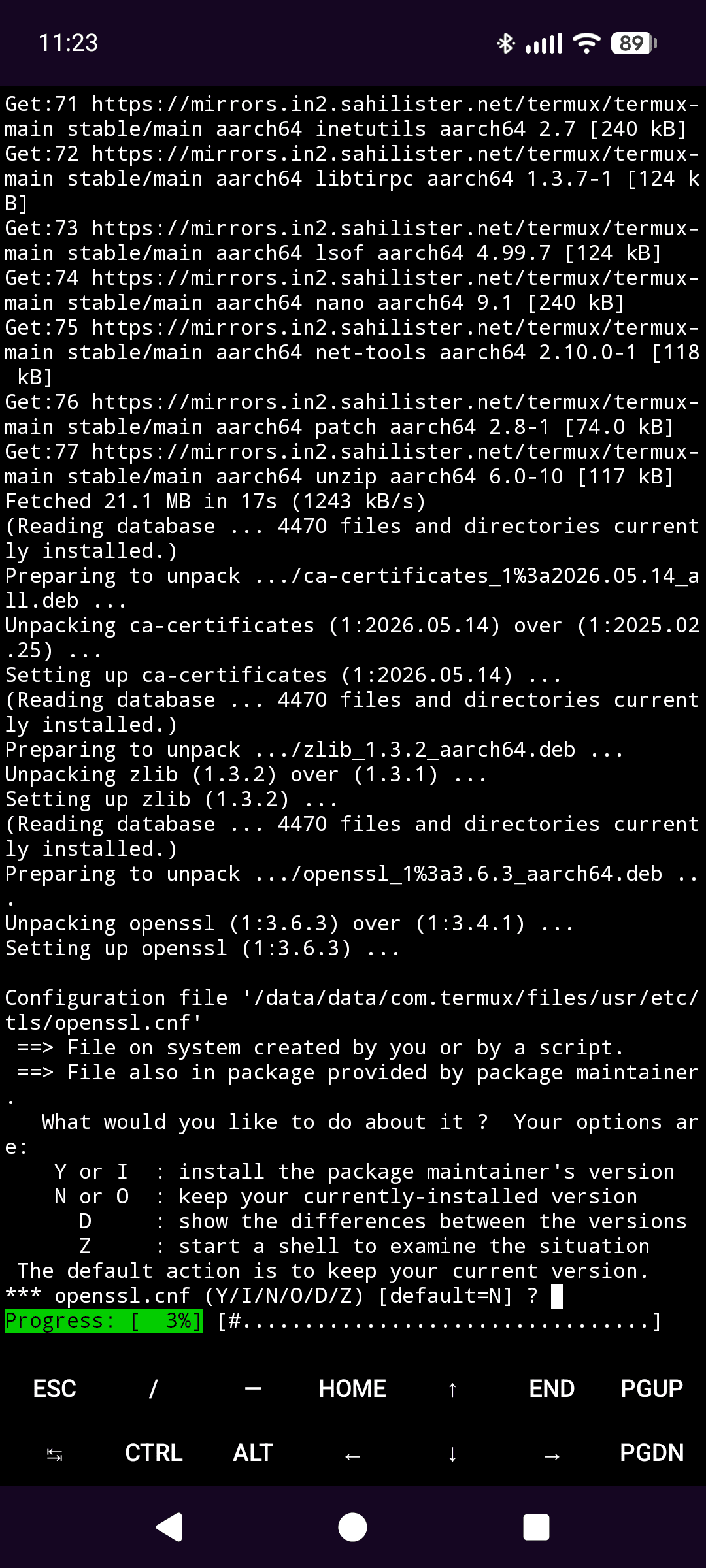
pkg upgrade
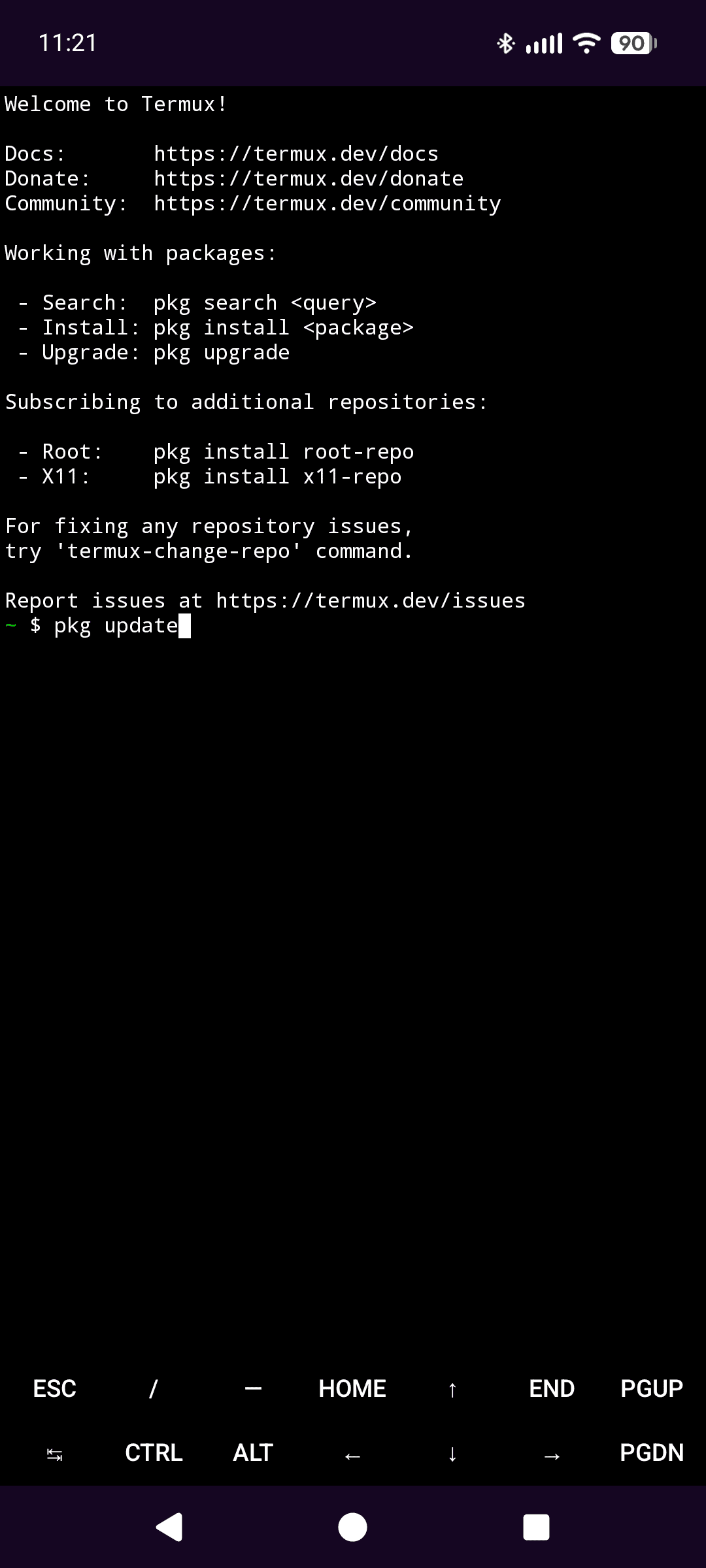
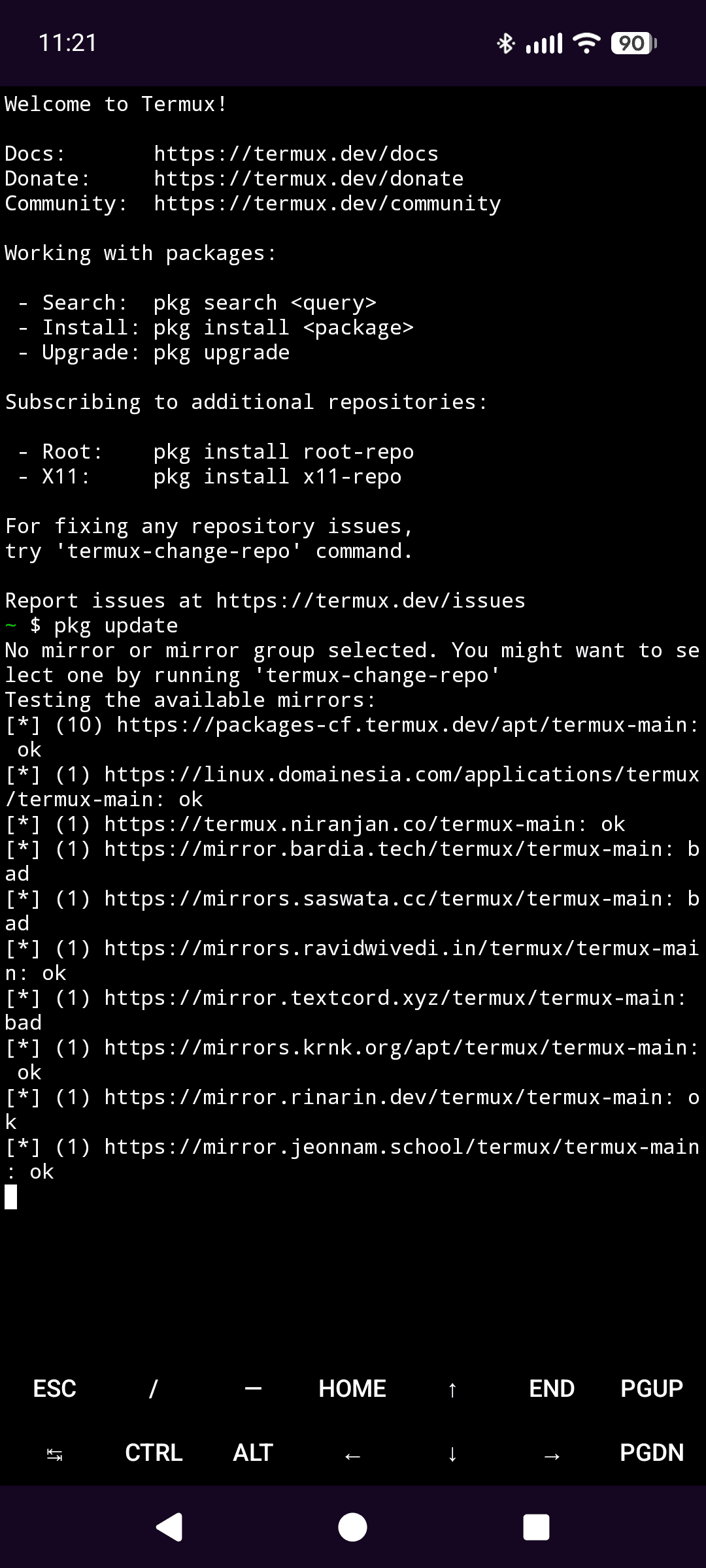
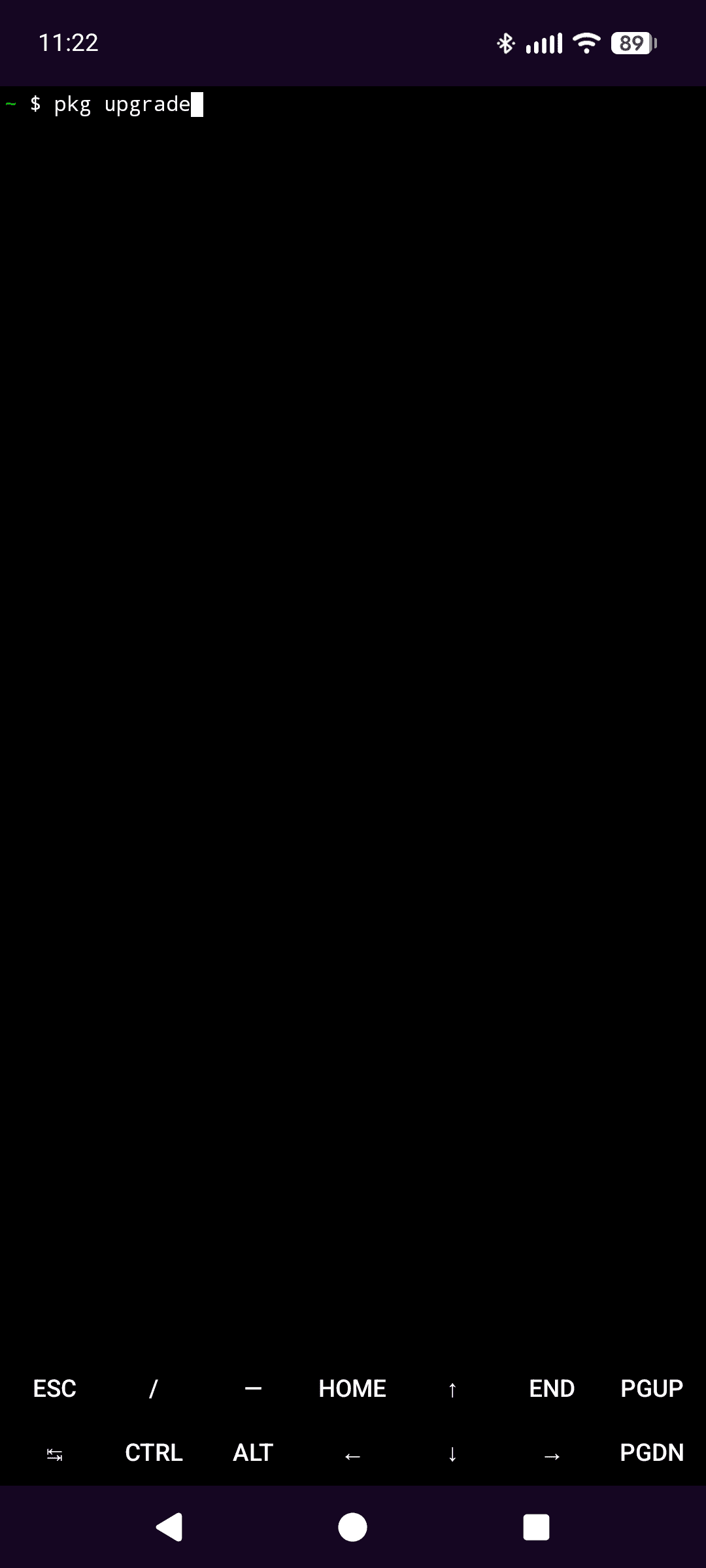
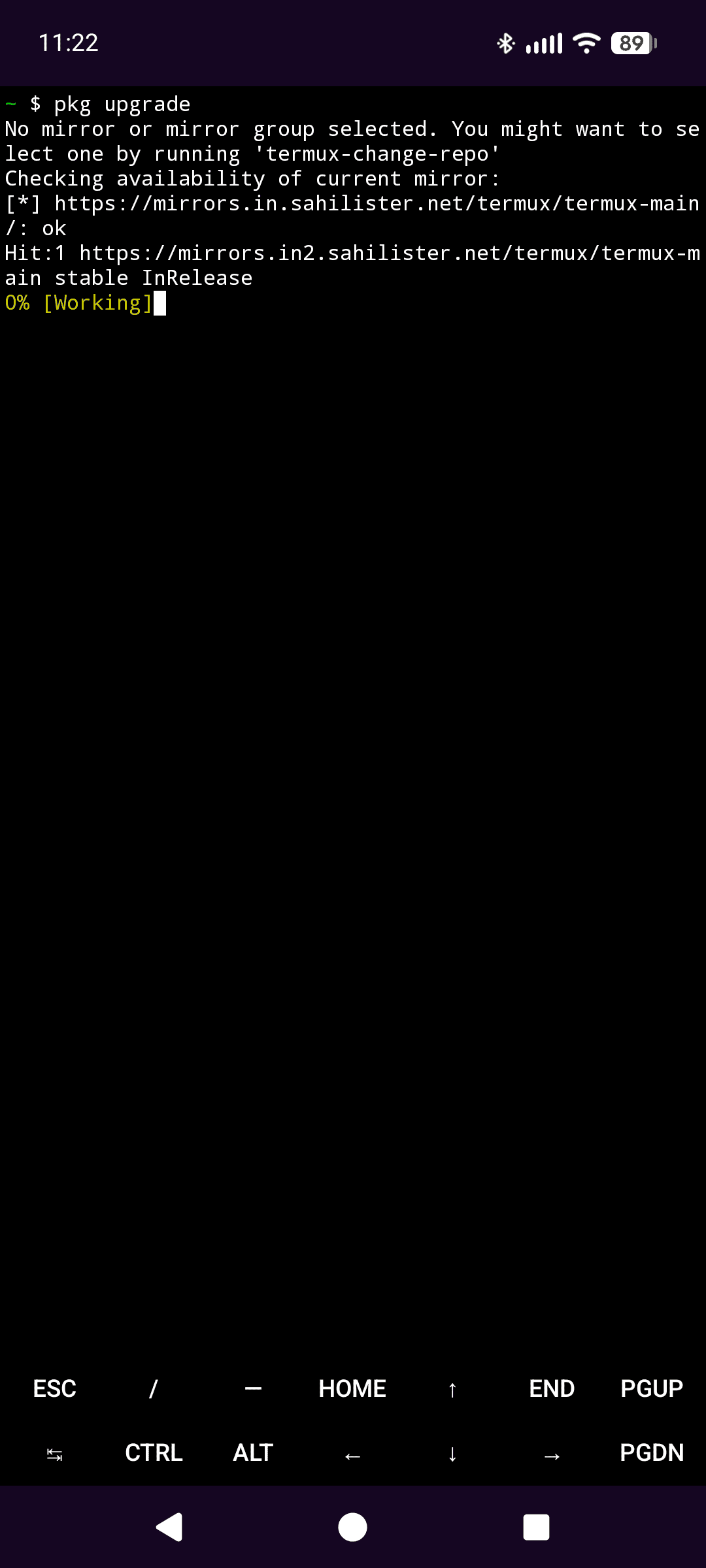
If the upgrade asks about config files, the default answer is fine, just keep hitting Enter.
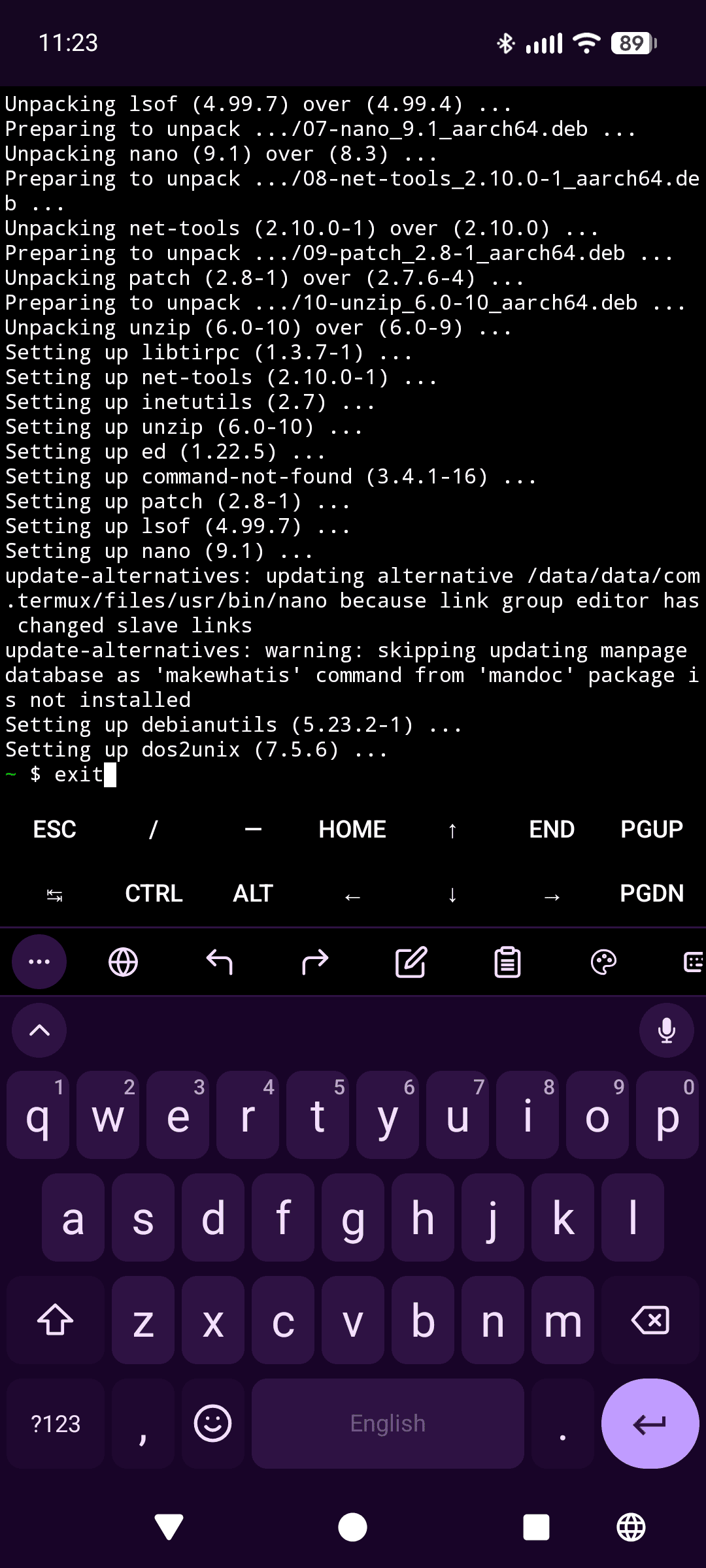
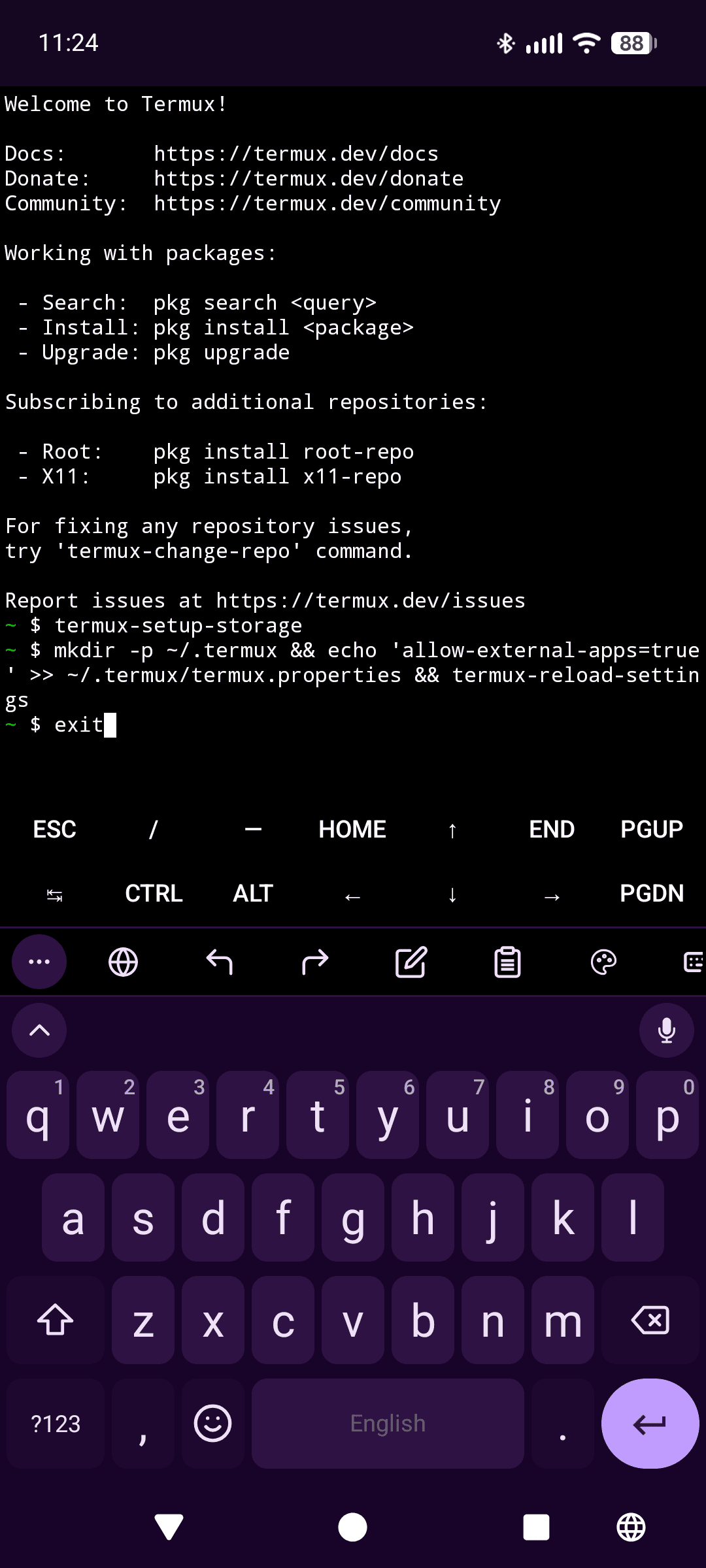
Done here for now. Type exit and hit Enter to close the session cleanly.
Step 2: Install Script Runner for Termux
With the IzzyOnDroid repo enabled (via F-Droid’s repository settings or Droid-ify, see above), search for and install Script Runner for Termux. It is a GPL-3.0 bridge app that manages scripts, runs them through Termux, and pins them to your homescreen. If search comes up empty, the repo index has not refreshed yet: pull down to refresh and try again.
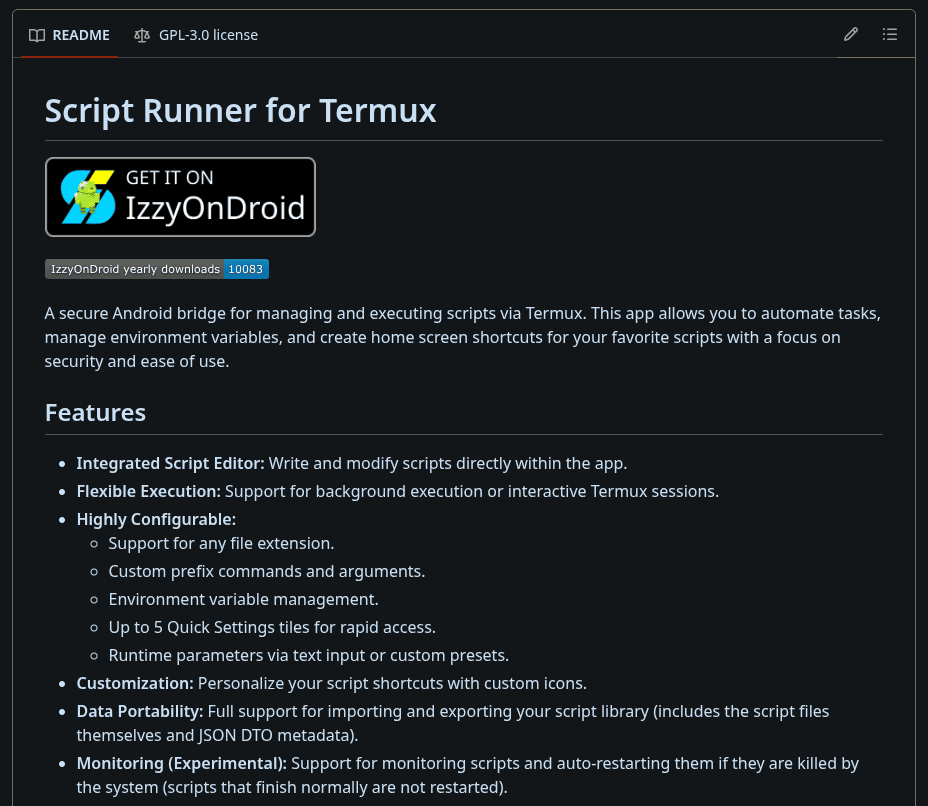 Script Runner for Termux, served from the IzzyOnDroid repo

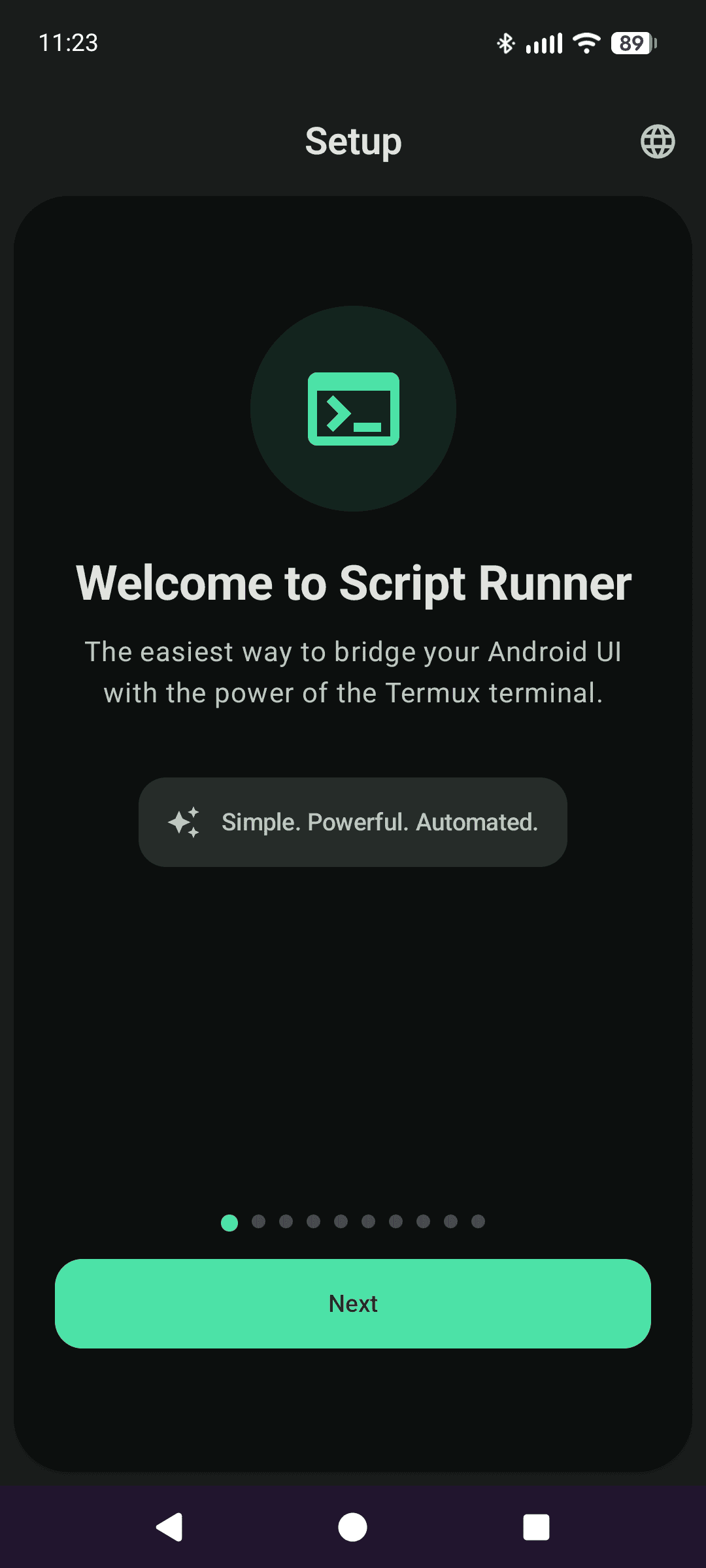
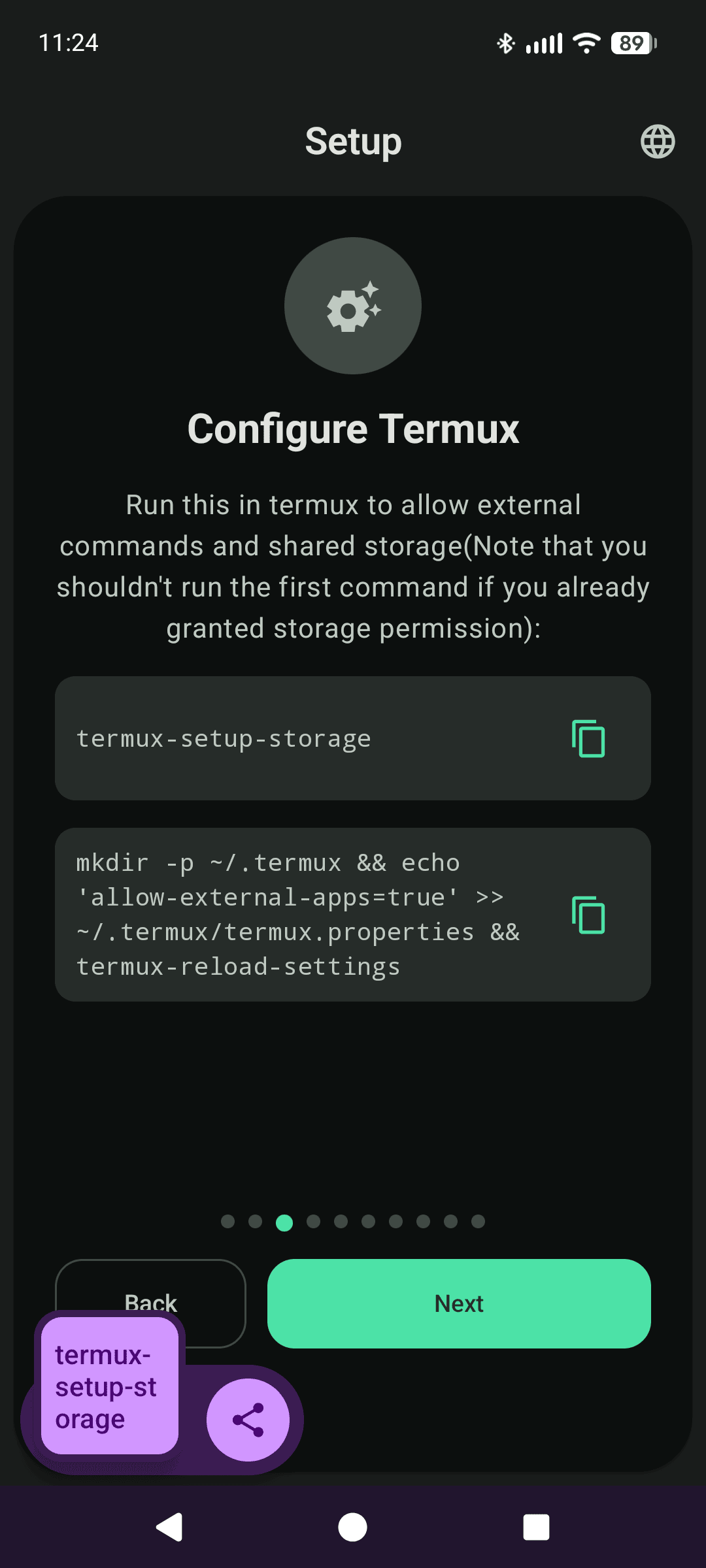
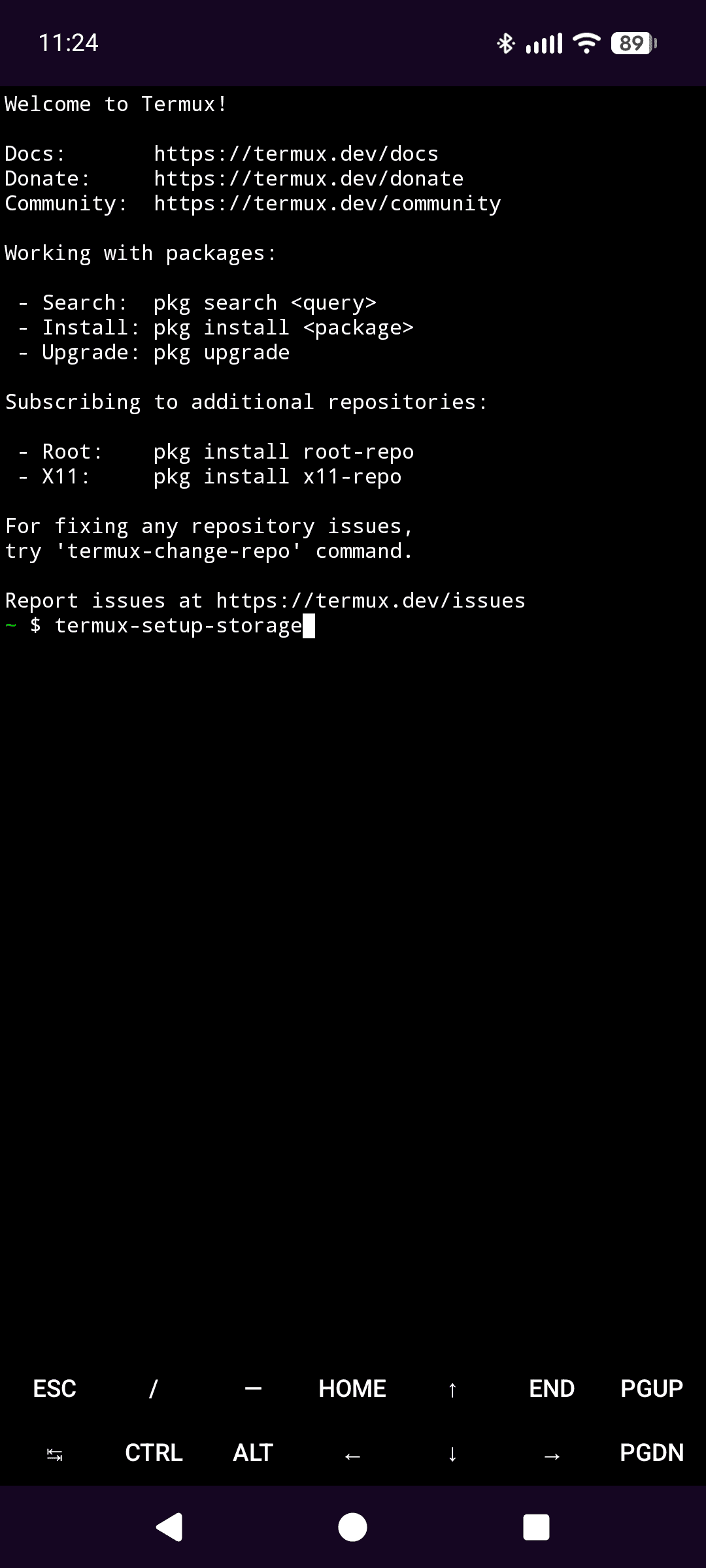
The setup wizard hands you two commands to run inside Termux. The first grants storage access, the second lets external apps (Script Runner) start Termux commands. Copy the first one:
1
termux-setup-storage
Switch back to Termux and paste it in:
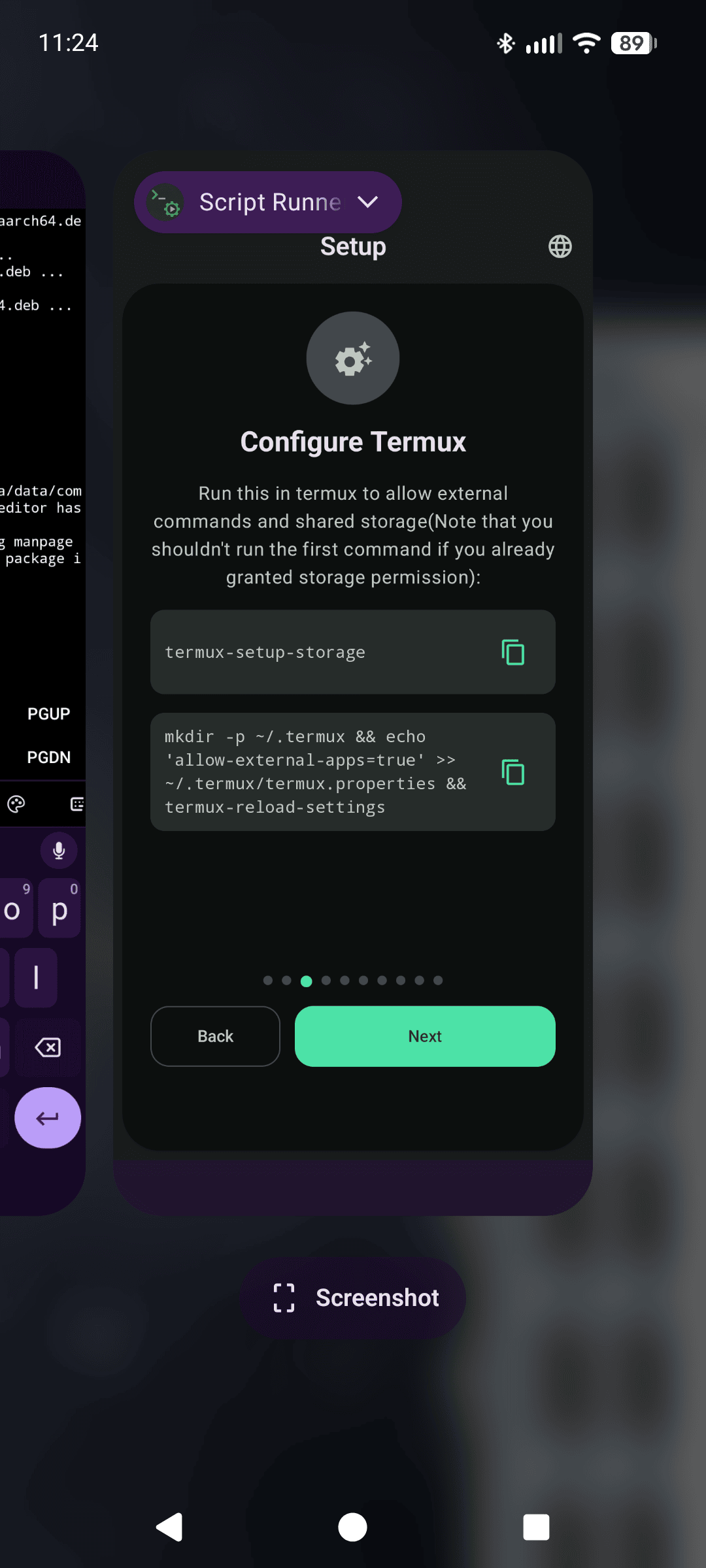
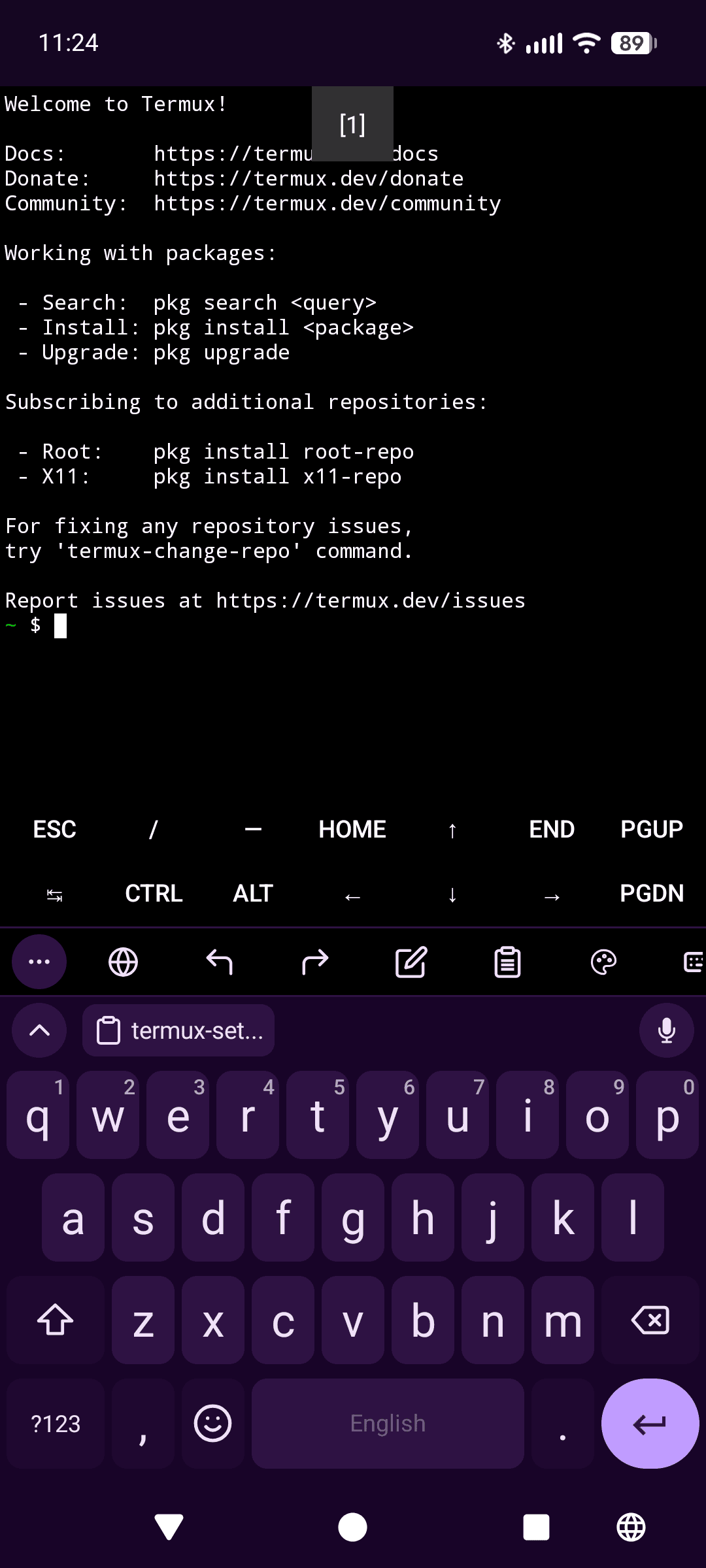
Now back to Script Runner for the second command:
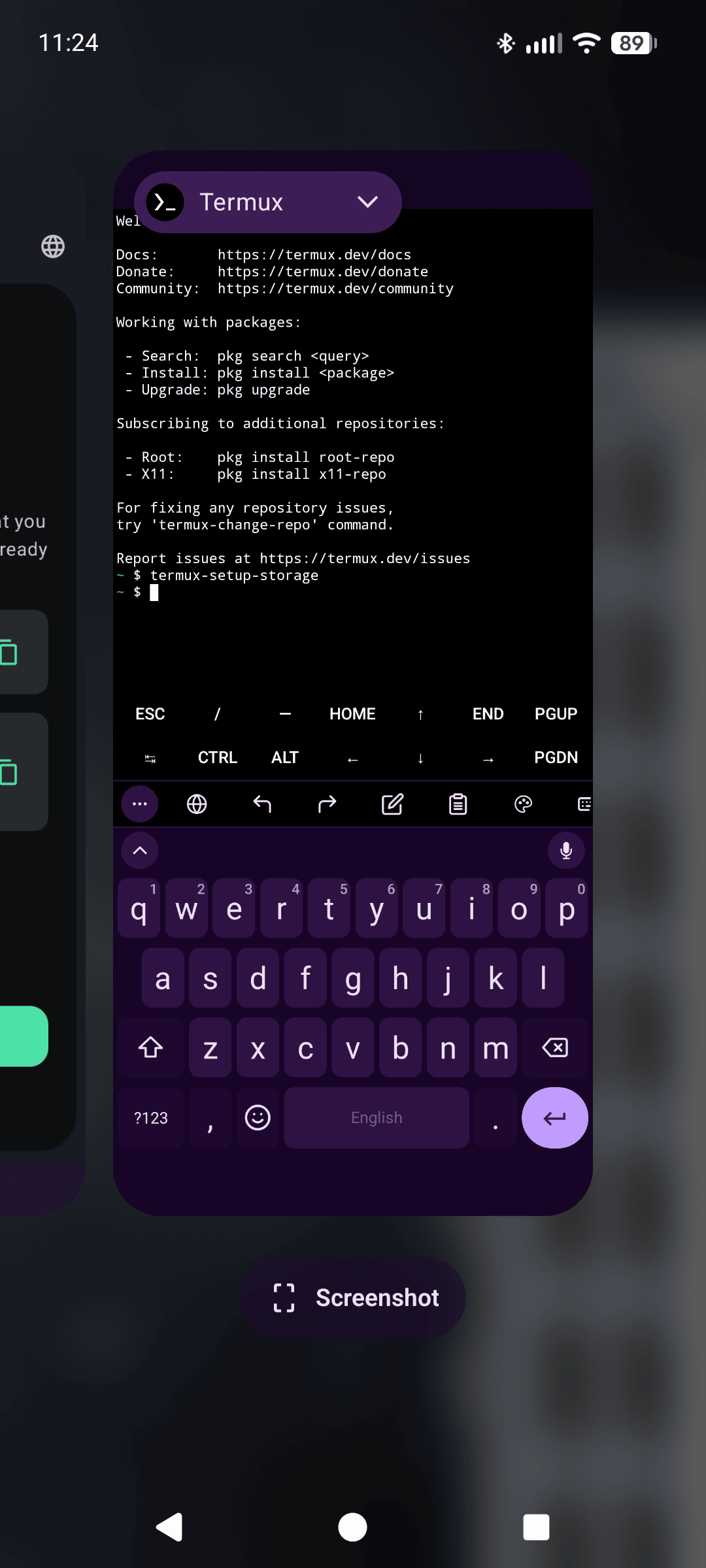
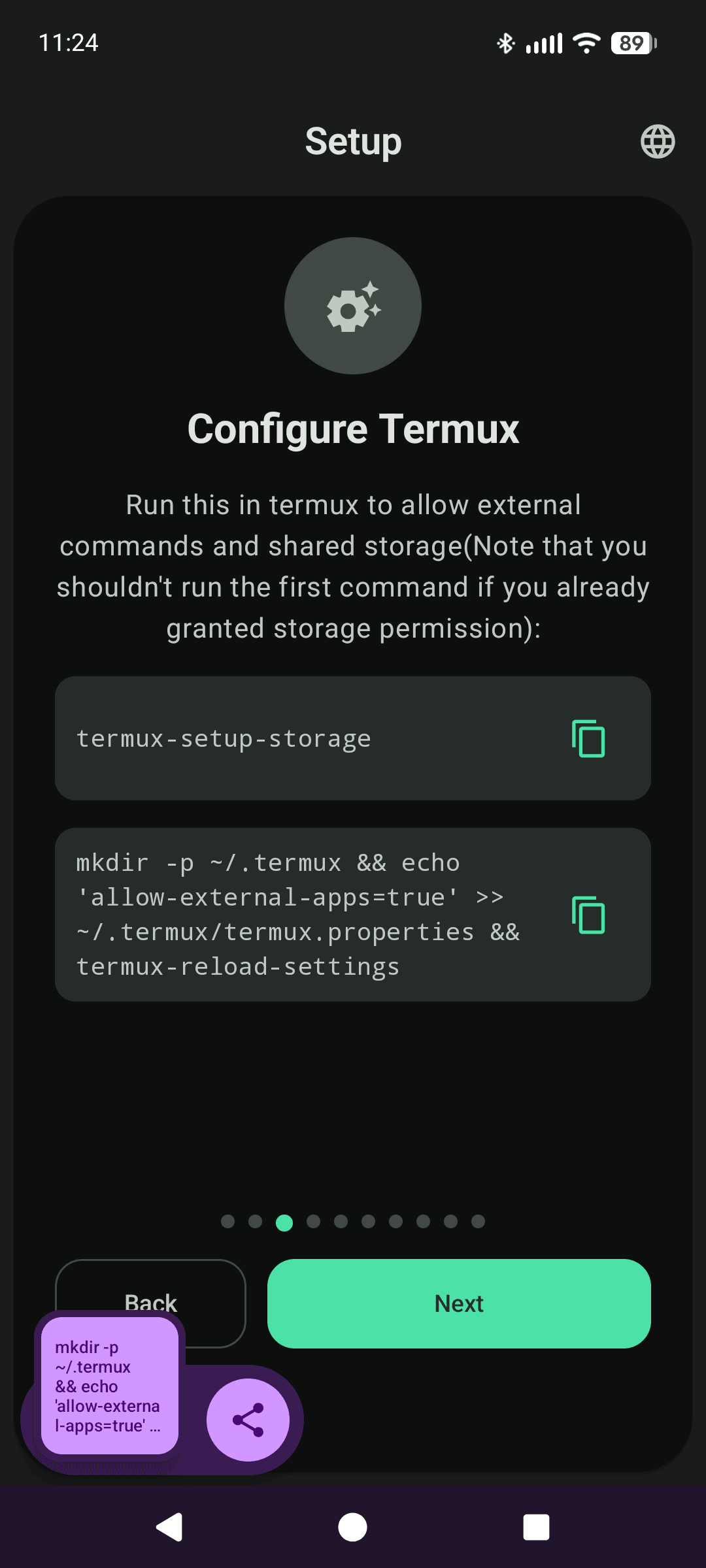
1
mkdir -p ~/.termux && echo 'allow-external-apps=true' >> ~/.termux/termux.properties && termux-reload-settings
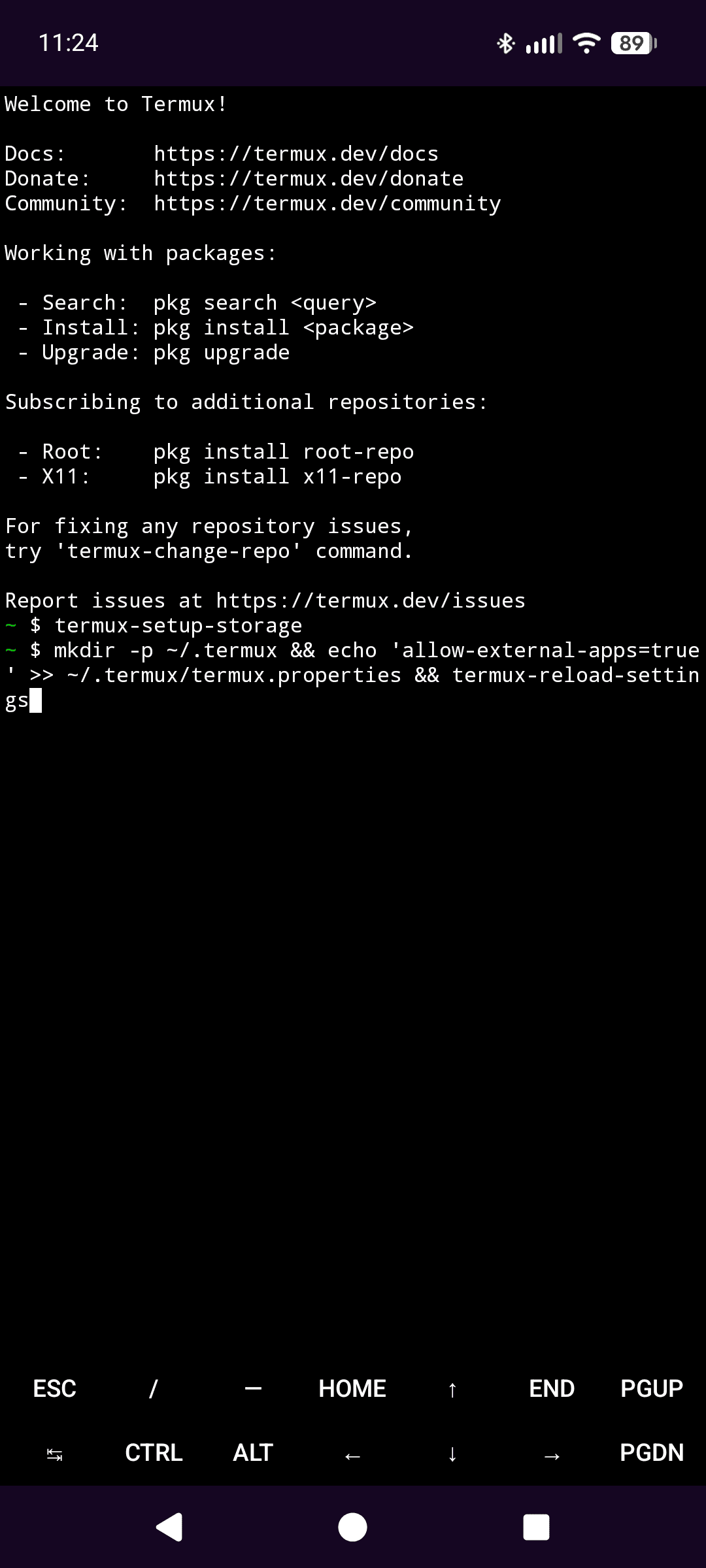
Finish the wizard:
Android will ask you to bless the connection between the two apps. Allow both the Termux permission and the Android-level one:
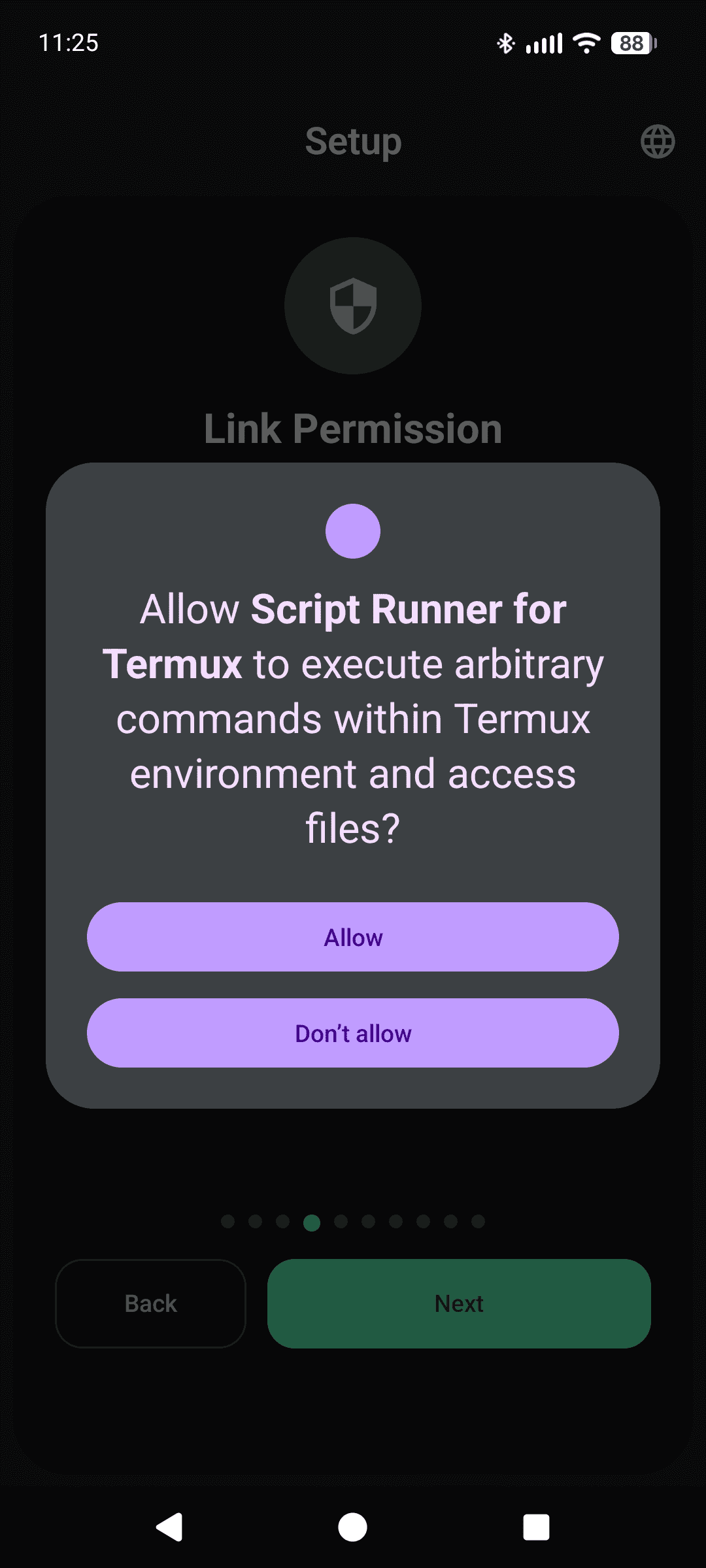 Tap Allow so Script Runner can drive Termux
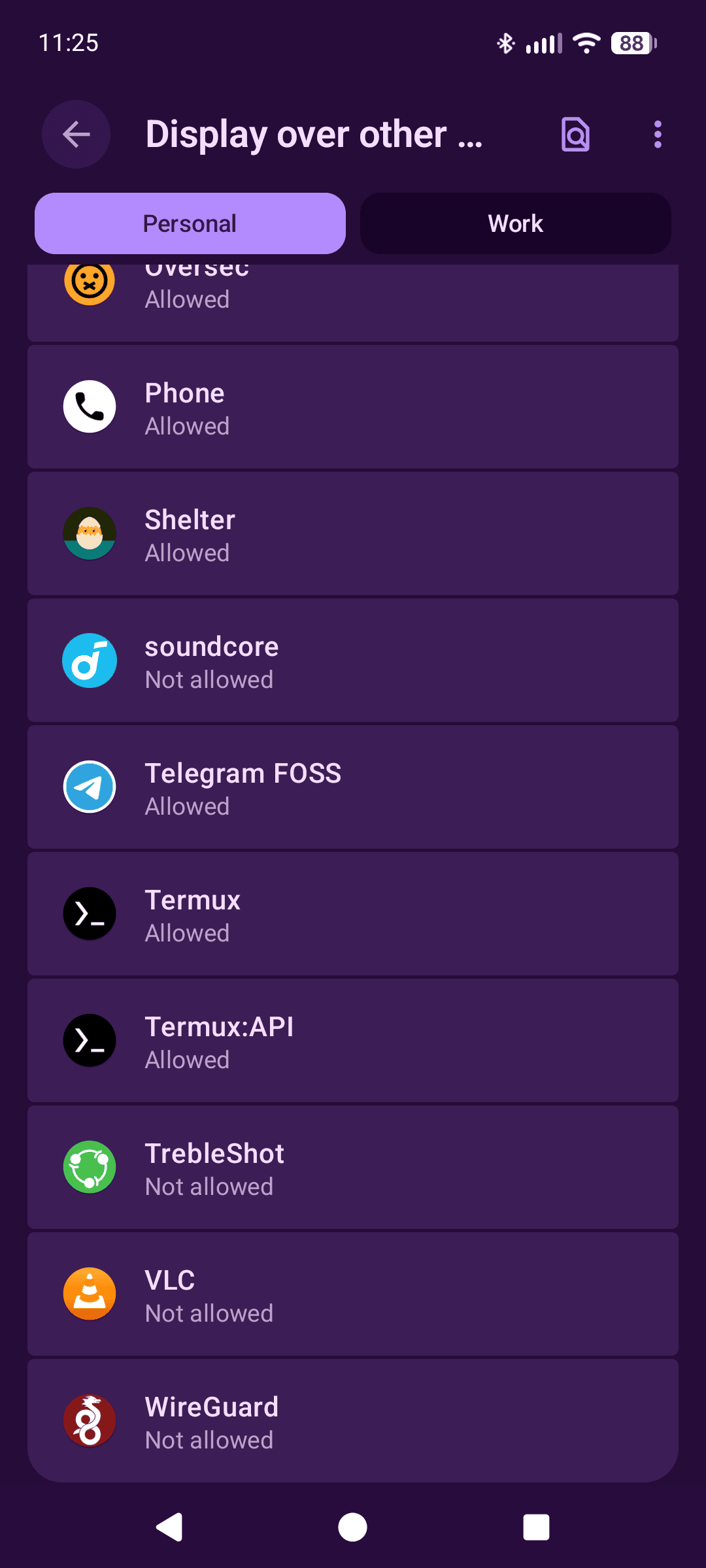 Then grant the Android-level permission
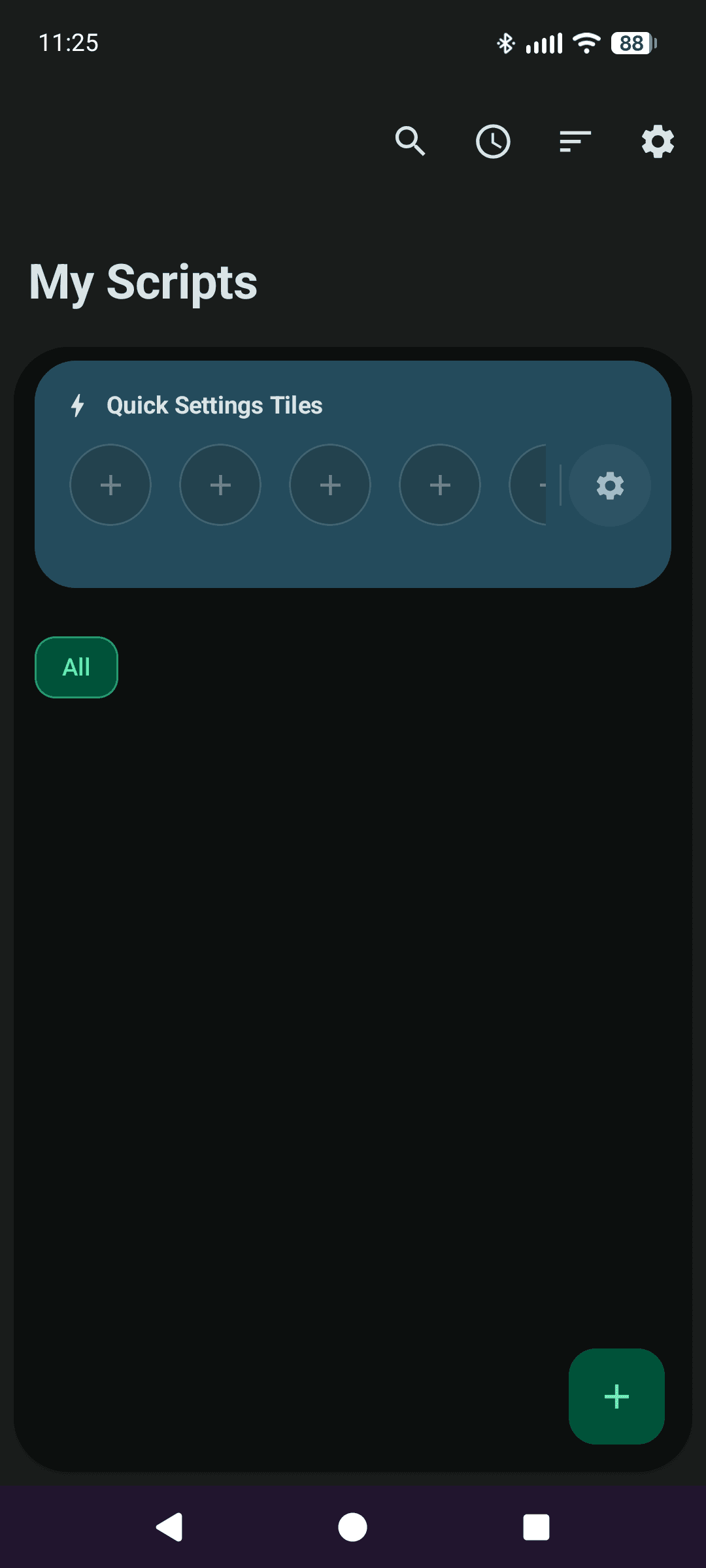
Step 3: Get partyline.sh onto the phone
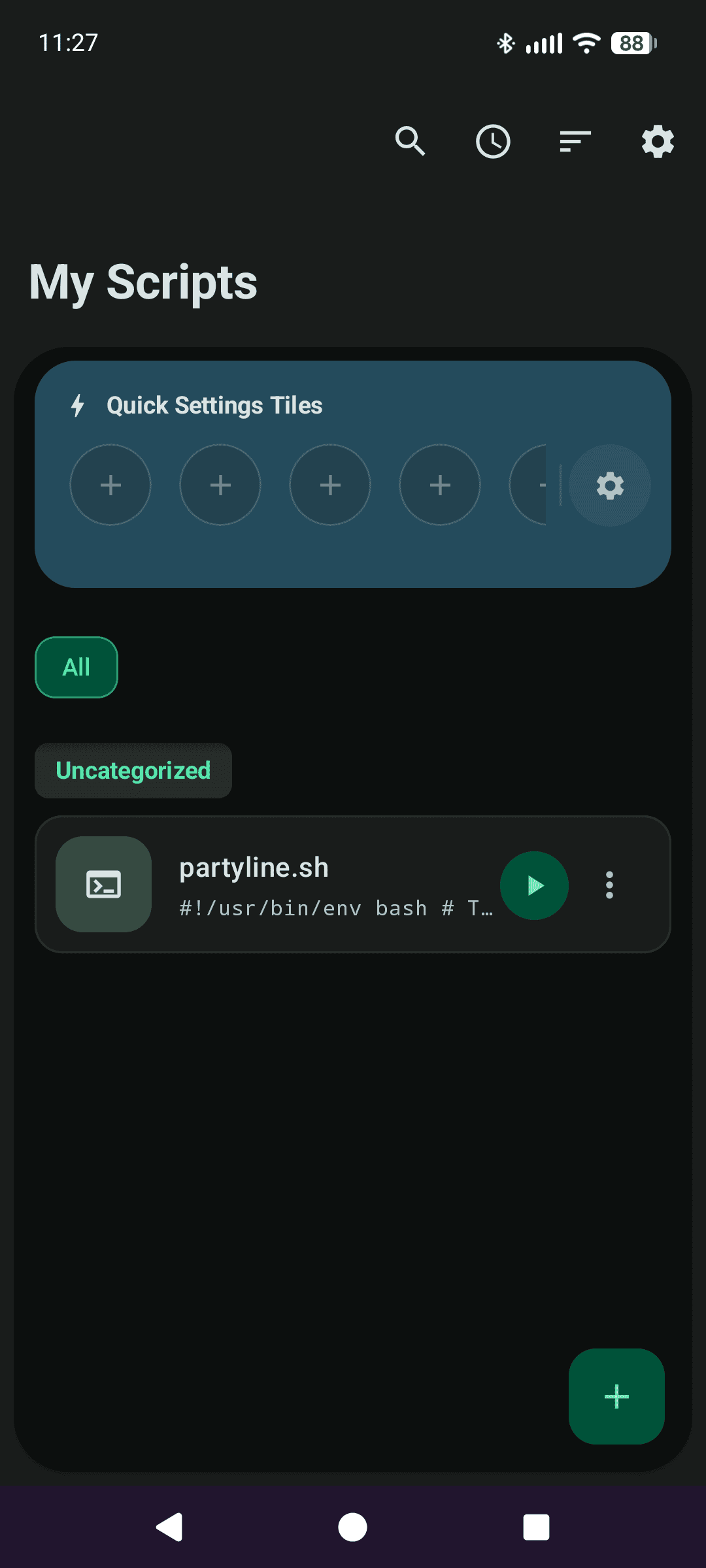
In Script Runner, create a new script:
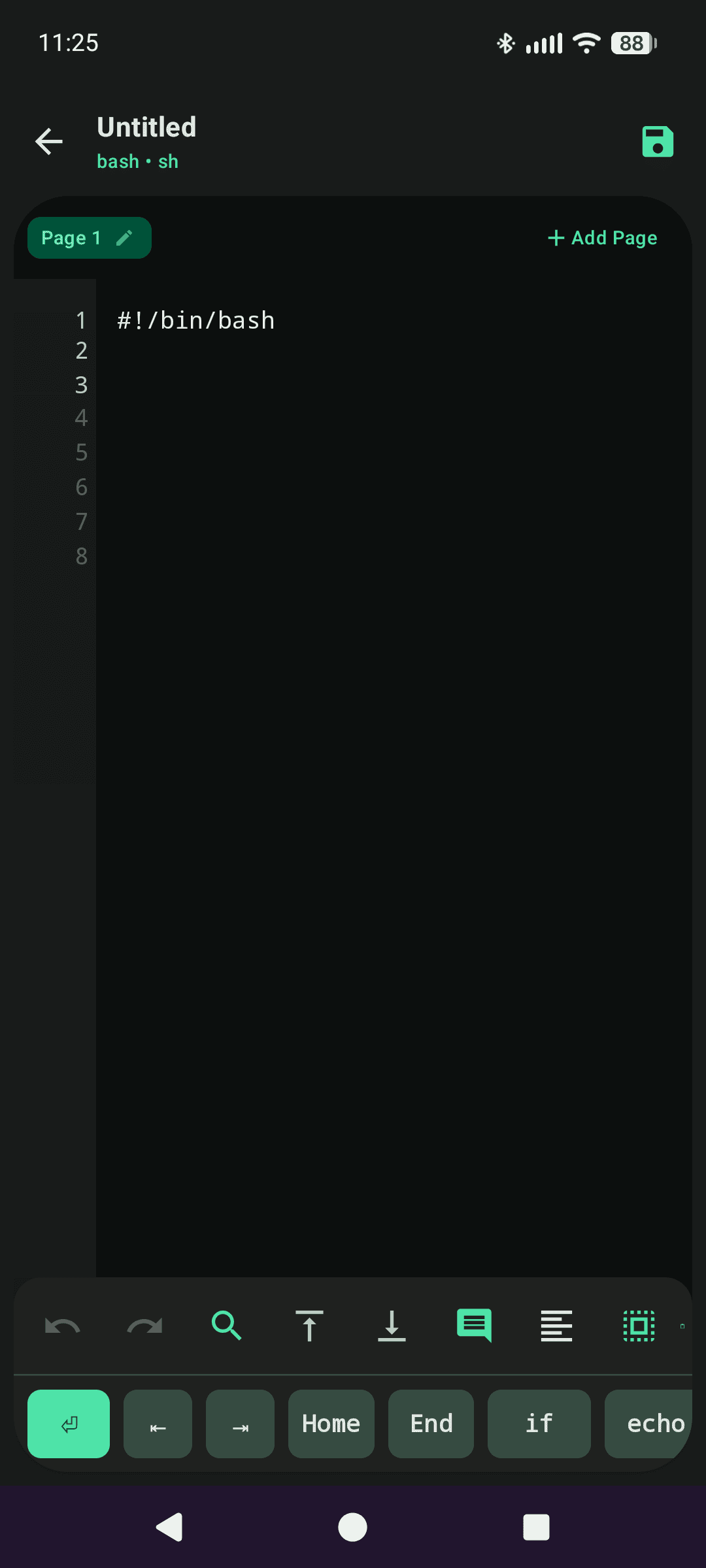
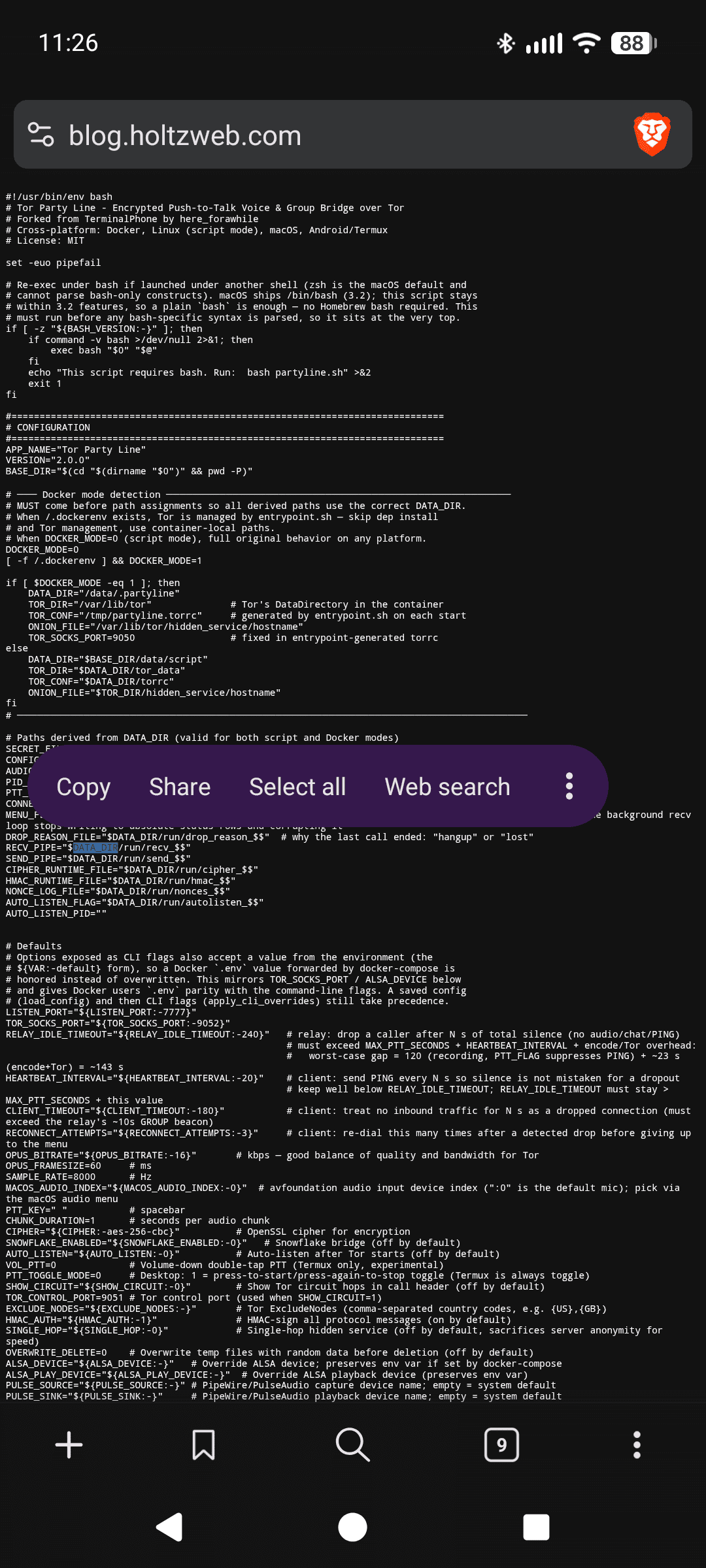
Open the raw script in your phone’s browser, straight from the repo:
1
https://gitlab.com/marcusholtz/tor-party-line/-/raw/main/partyline.sh
Select all, copy:
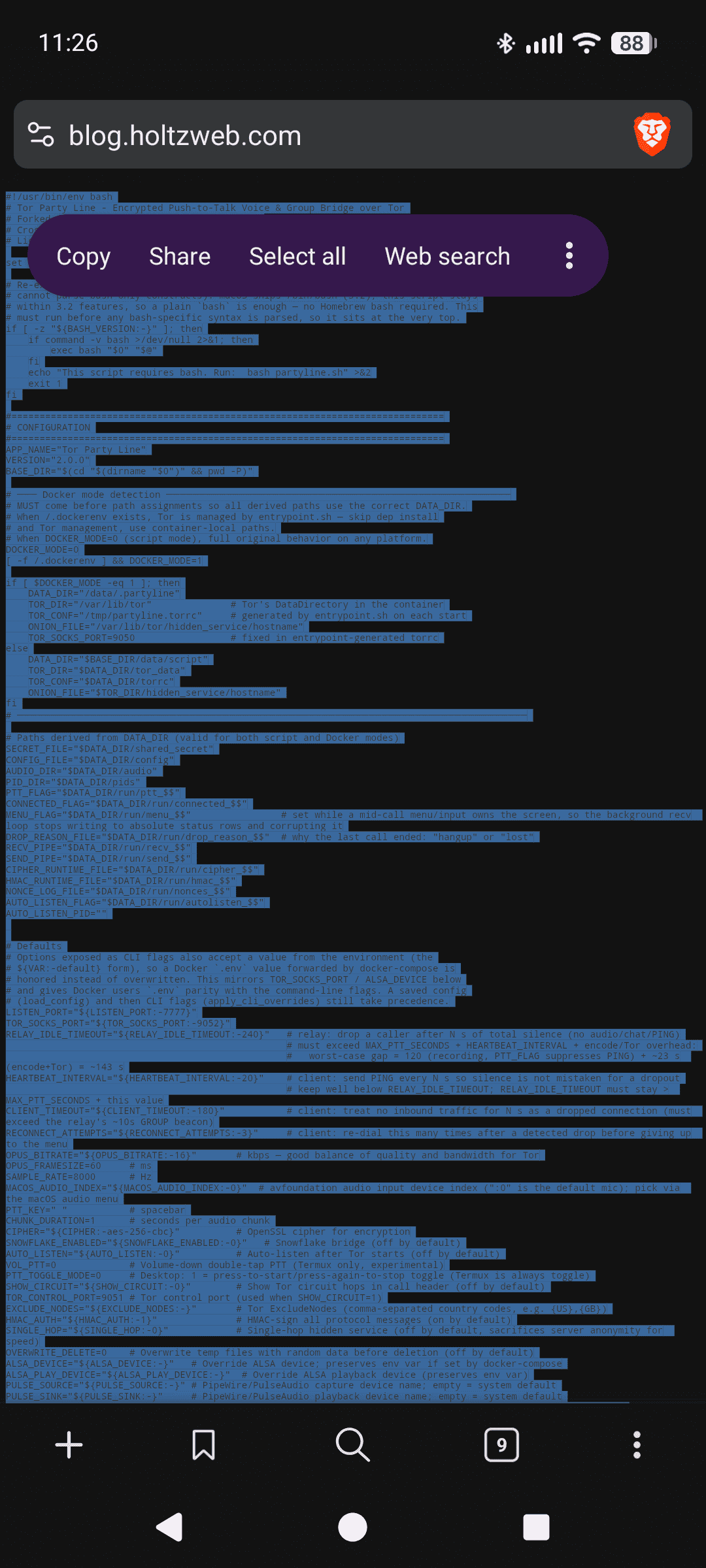
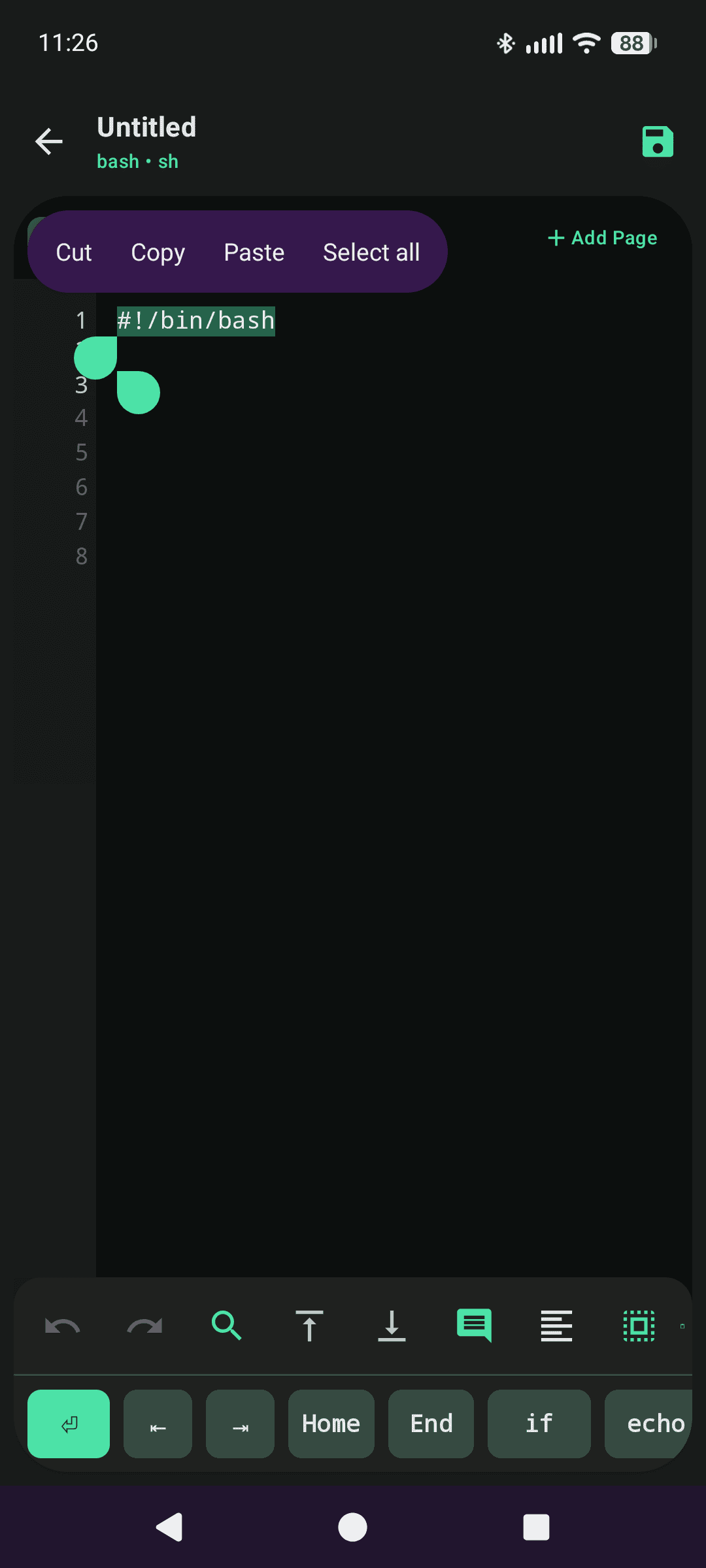
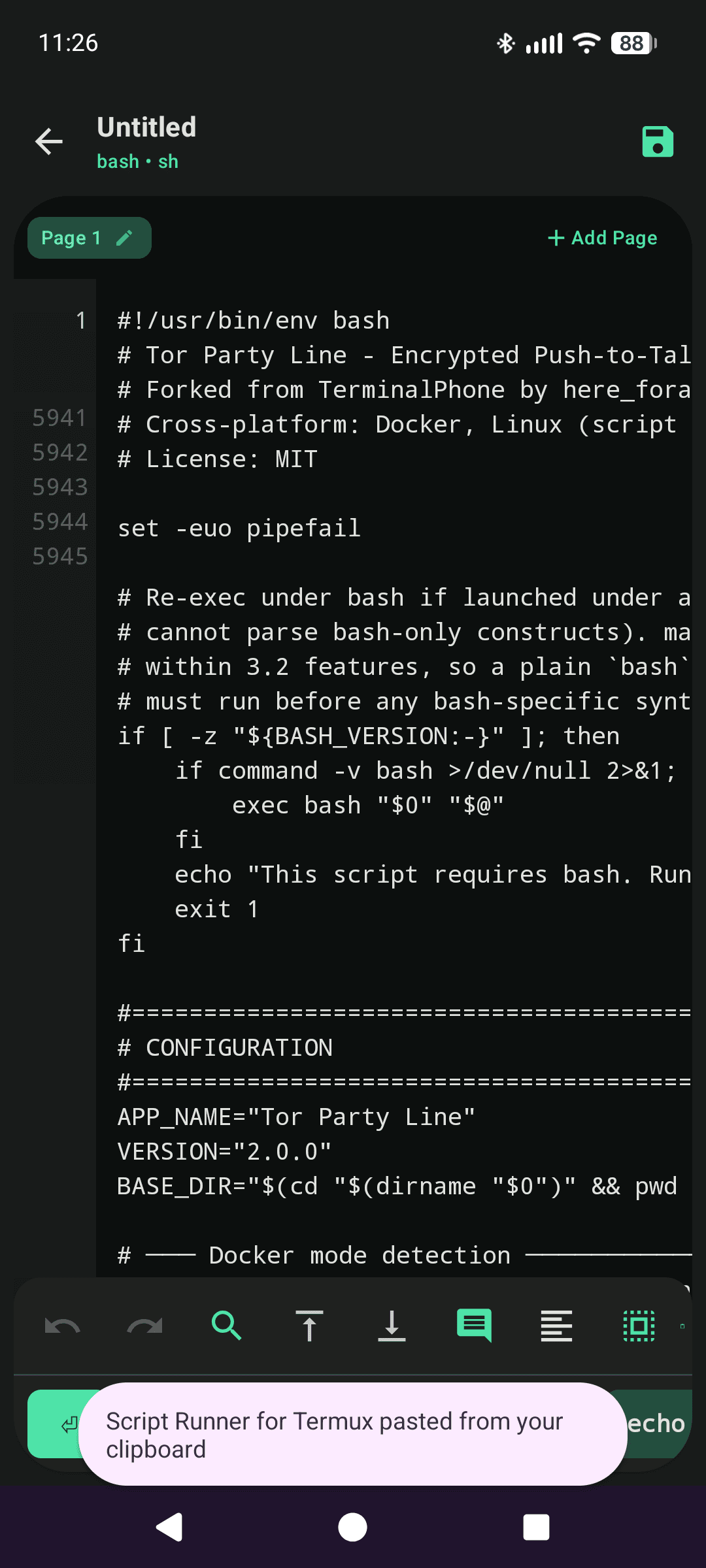
Paste the whole thing into Script Runner’s editor and name it partyline.sh:
Step 4: First run, install dependencies, set the secret
Open the script’s configuration. Set the Interaction Mode to None (Instant) and leave Background Execution and Interactive Session toggled off. The script draws its own menus inside the Termux session, so it does not need Script Runner to hold the terminal open afterward.
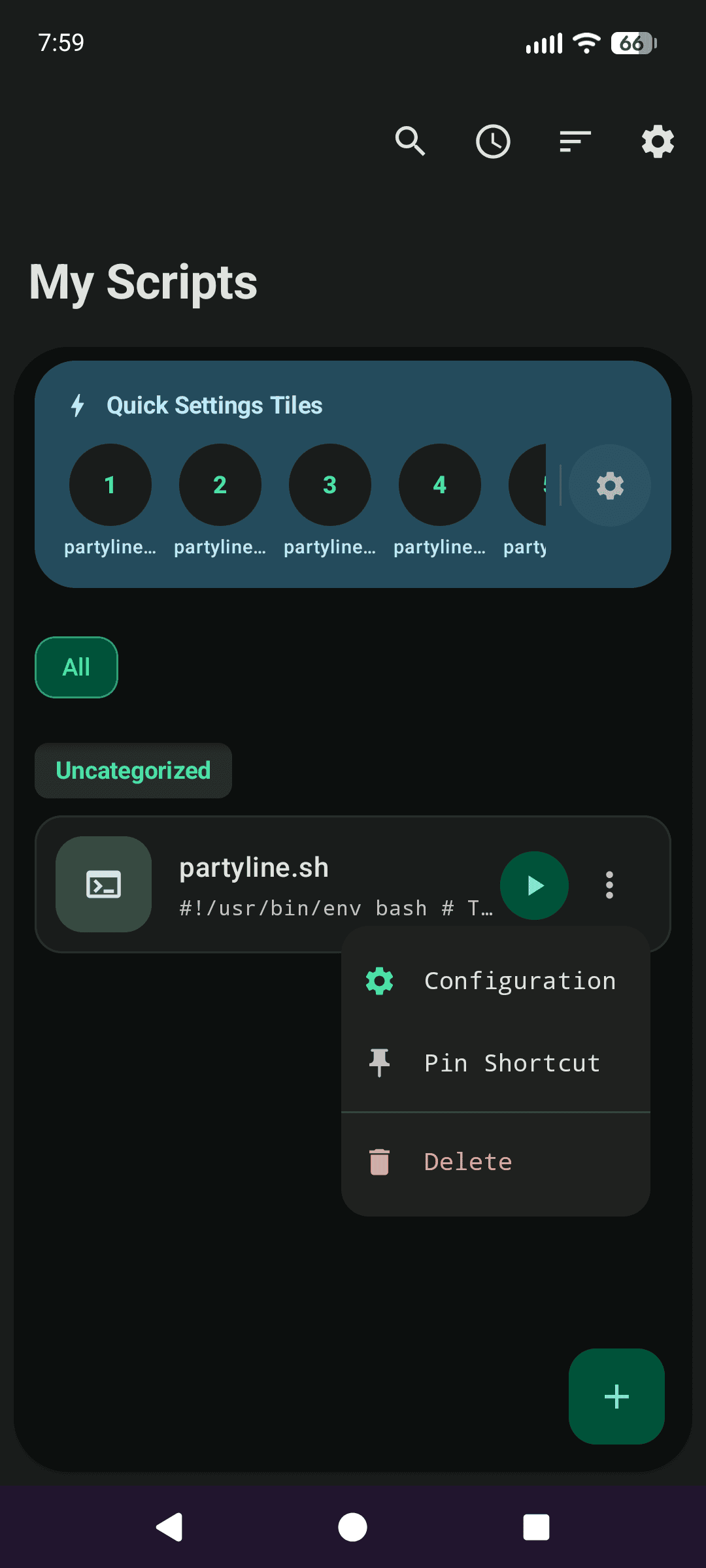
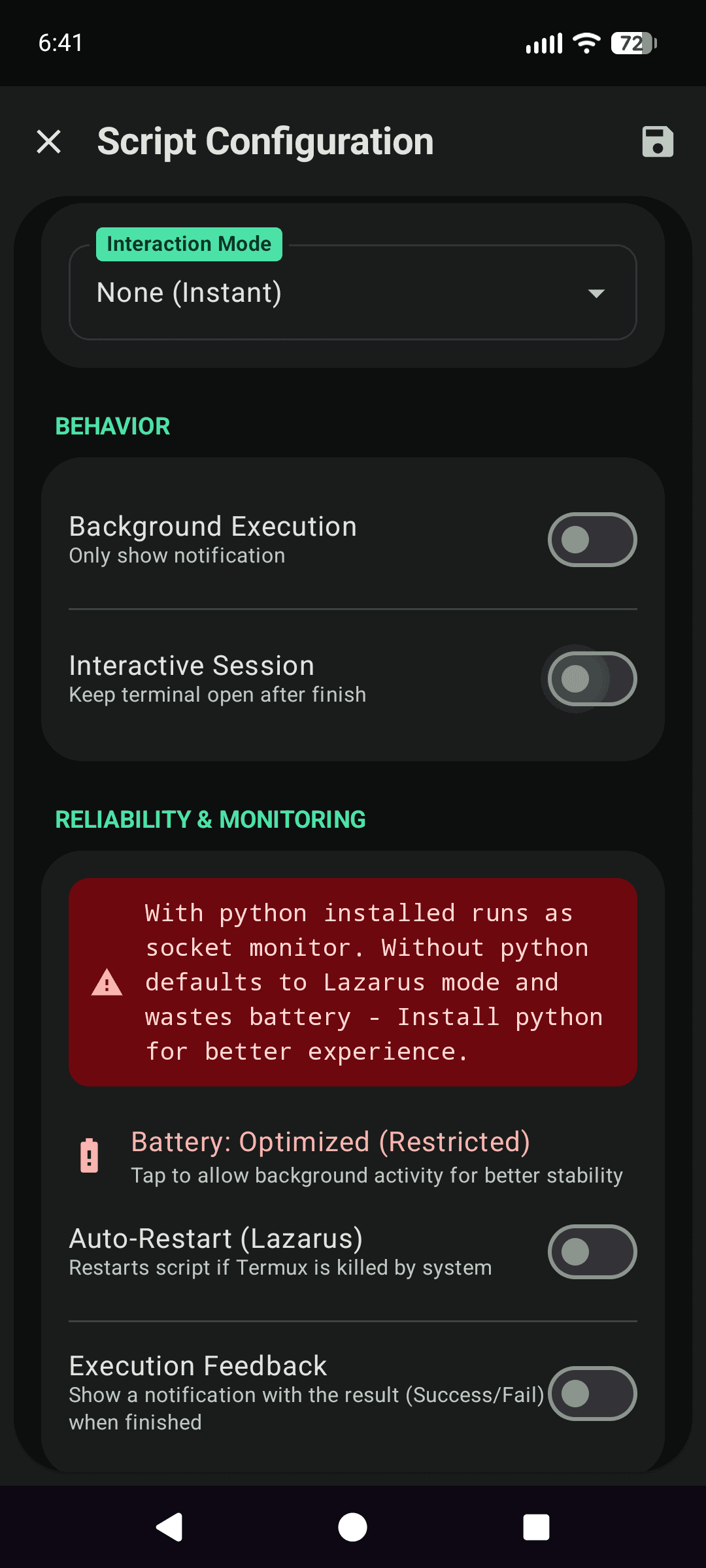 Interaction Mode: None (Instant); leave Background Execution and Interactive Session off
Hit the play button:
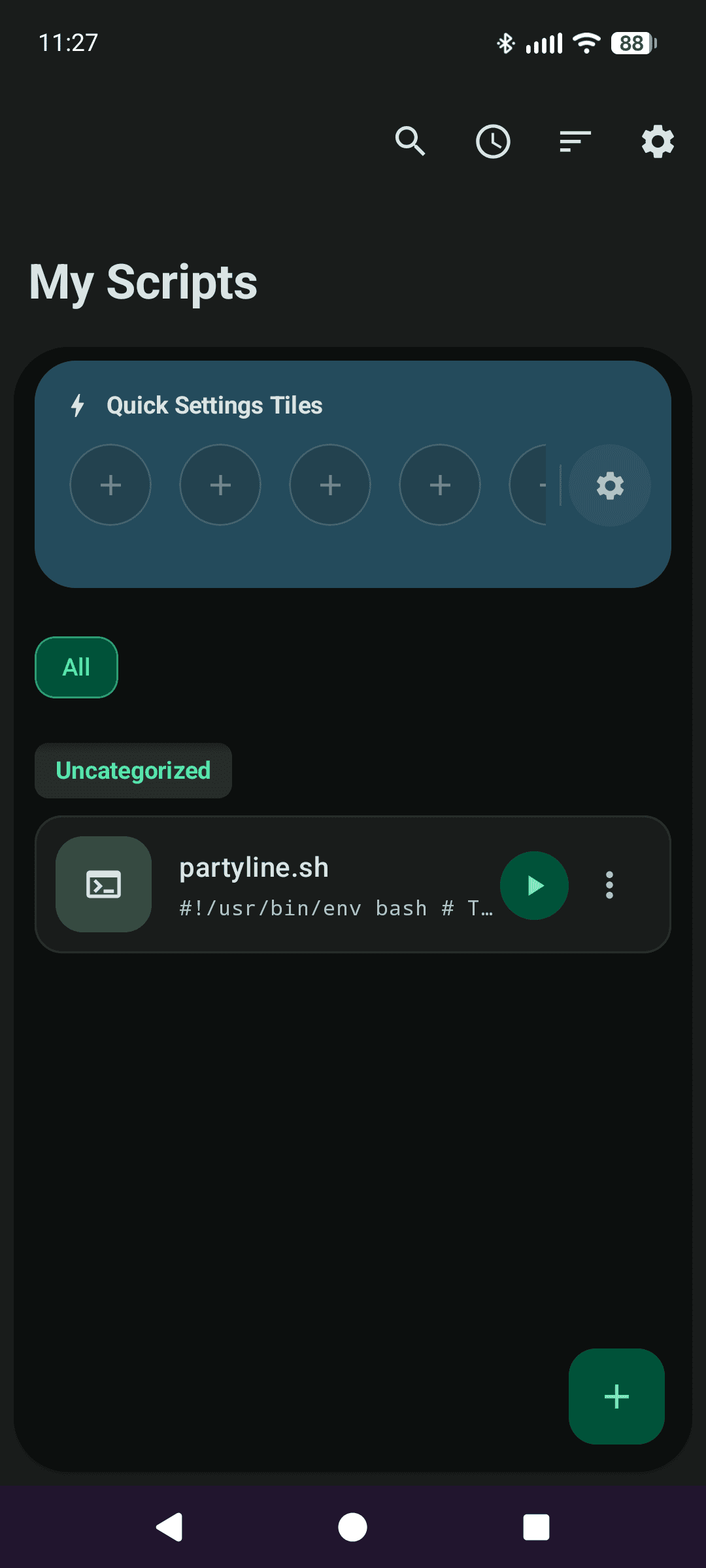 The play button that launches partyline.sh
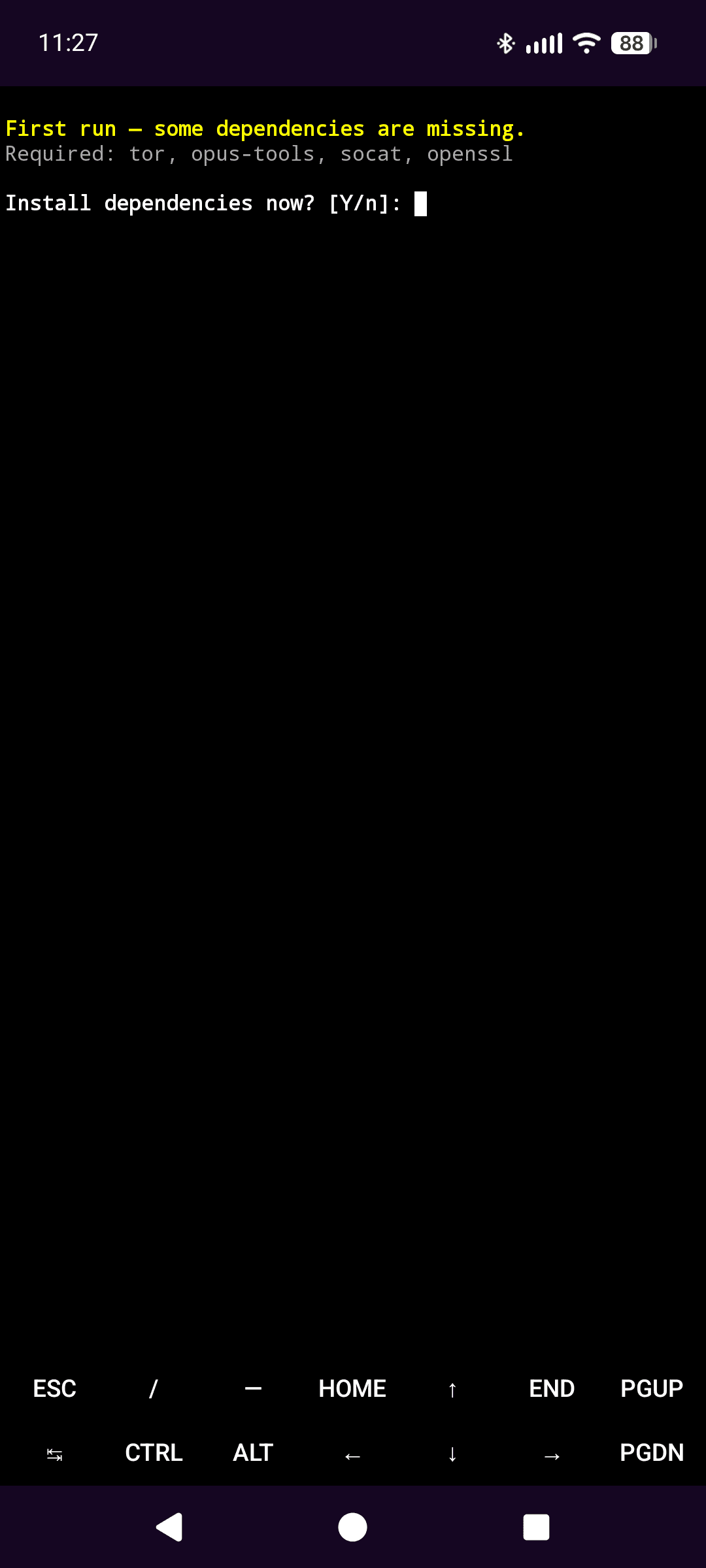
First launch detects what is missing and offers to install it. Say yes and let it work:
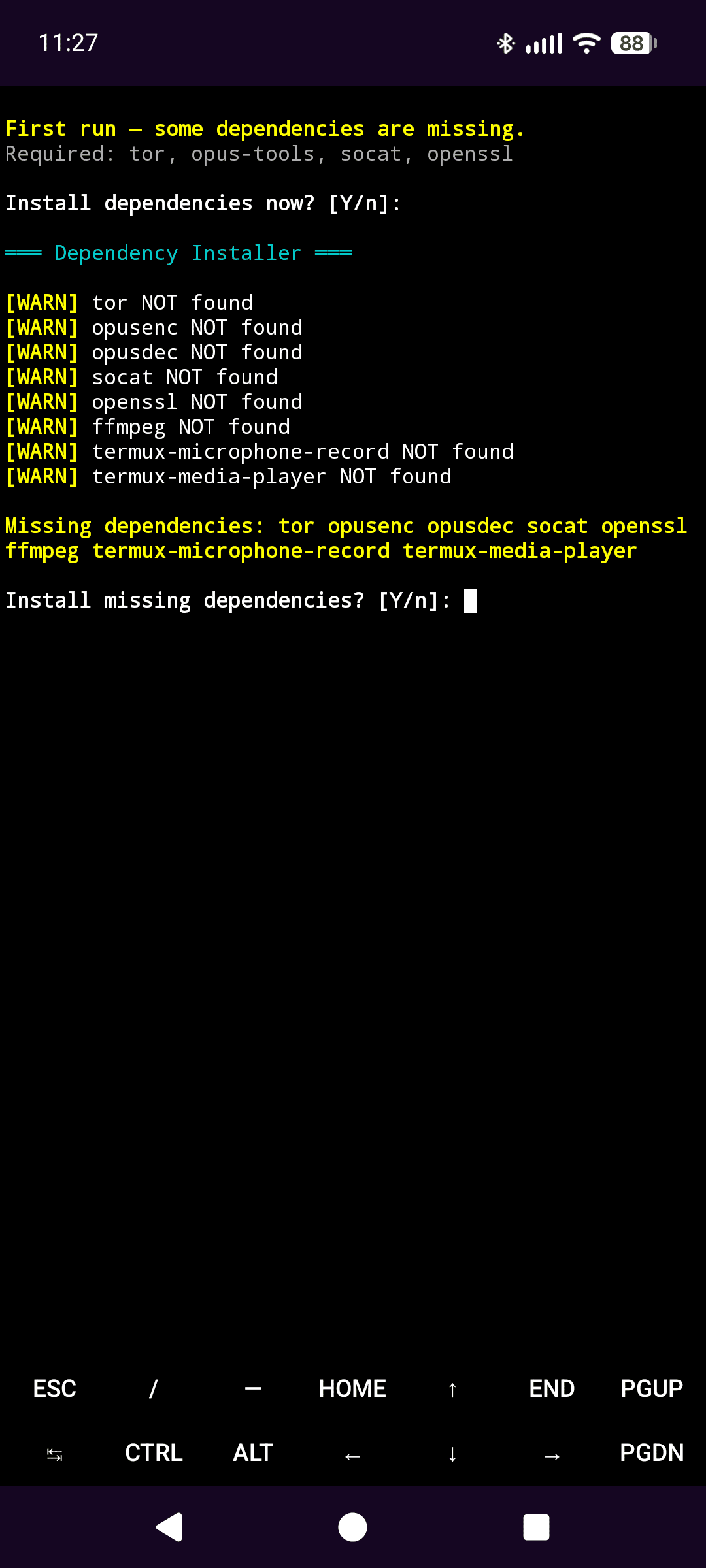
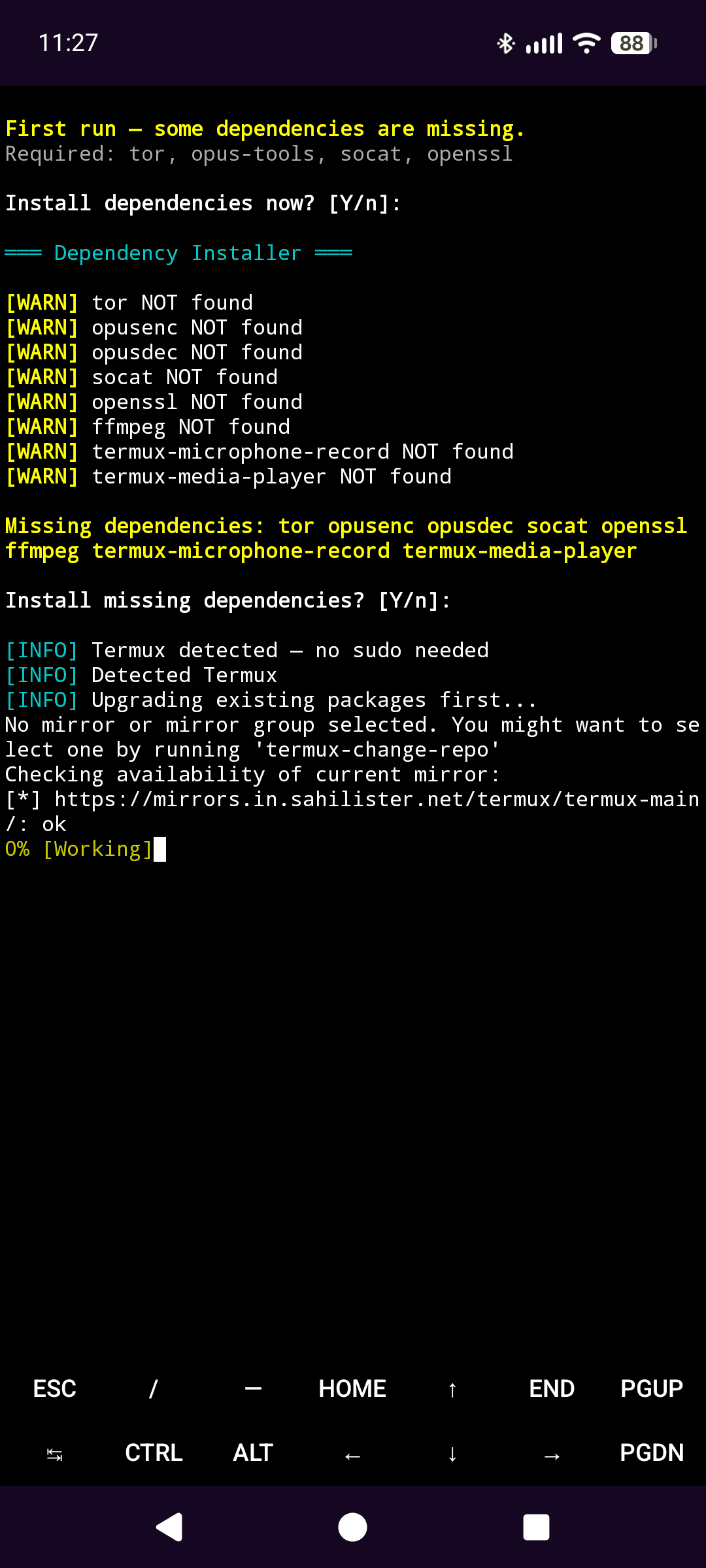
Then the main screen appears, Tor bootstraps, and your permanent .onion address is printed at the top. That address is your phone number now, write it down or share the QR code from menu option 3.
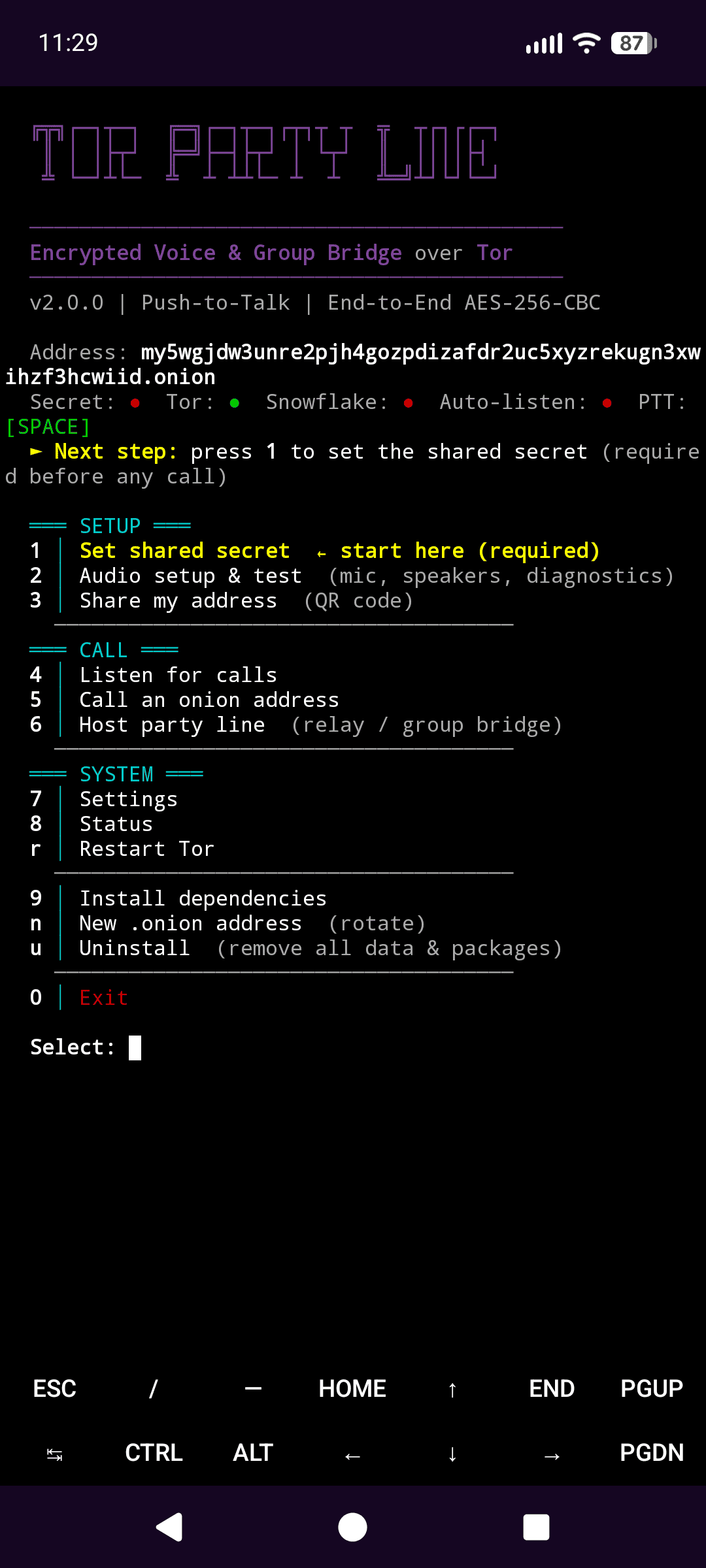 Your permanent .onion address prints at the top of the main screen
Press 1 and set the shared secret. Both parties must use the same one.
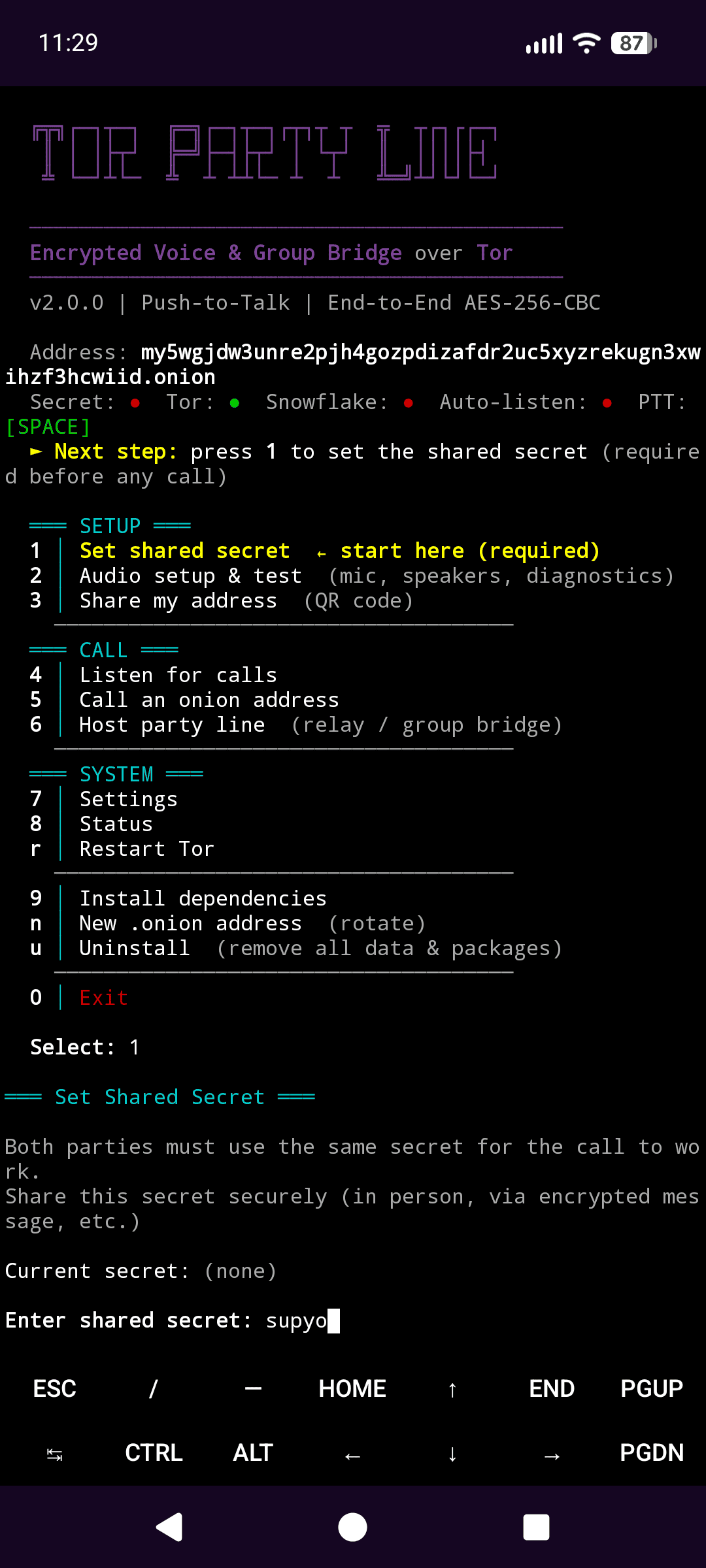 Press 1 to set the shared secret, both sides must match
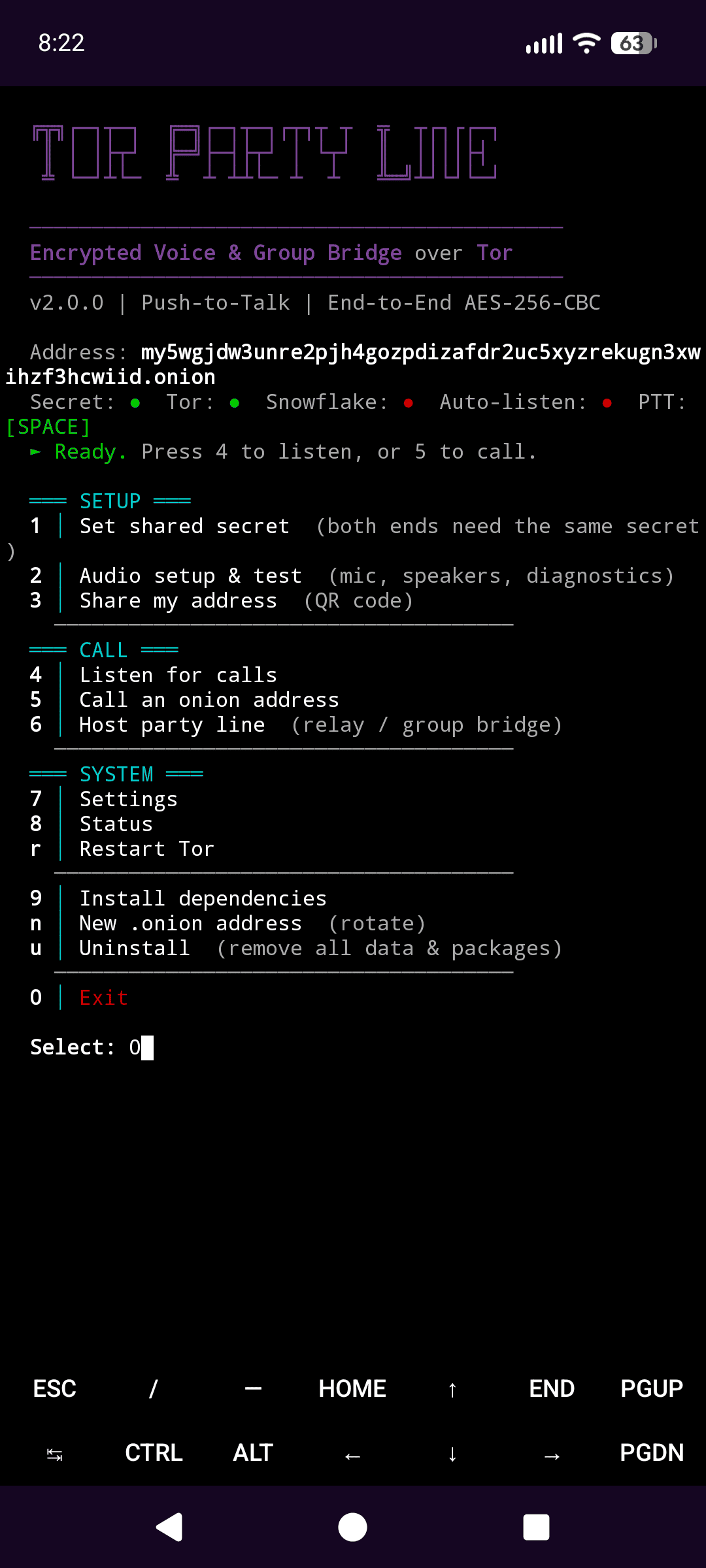
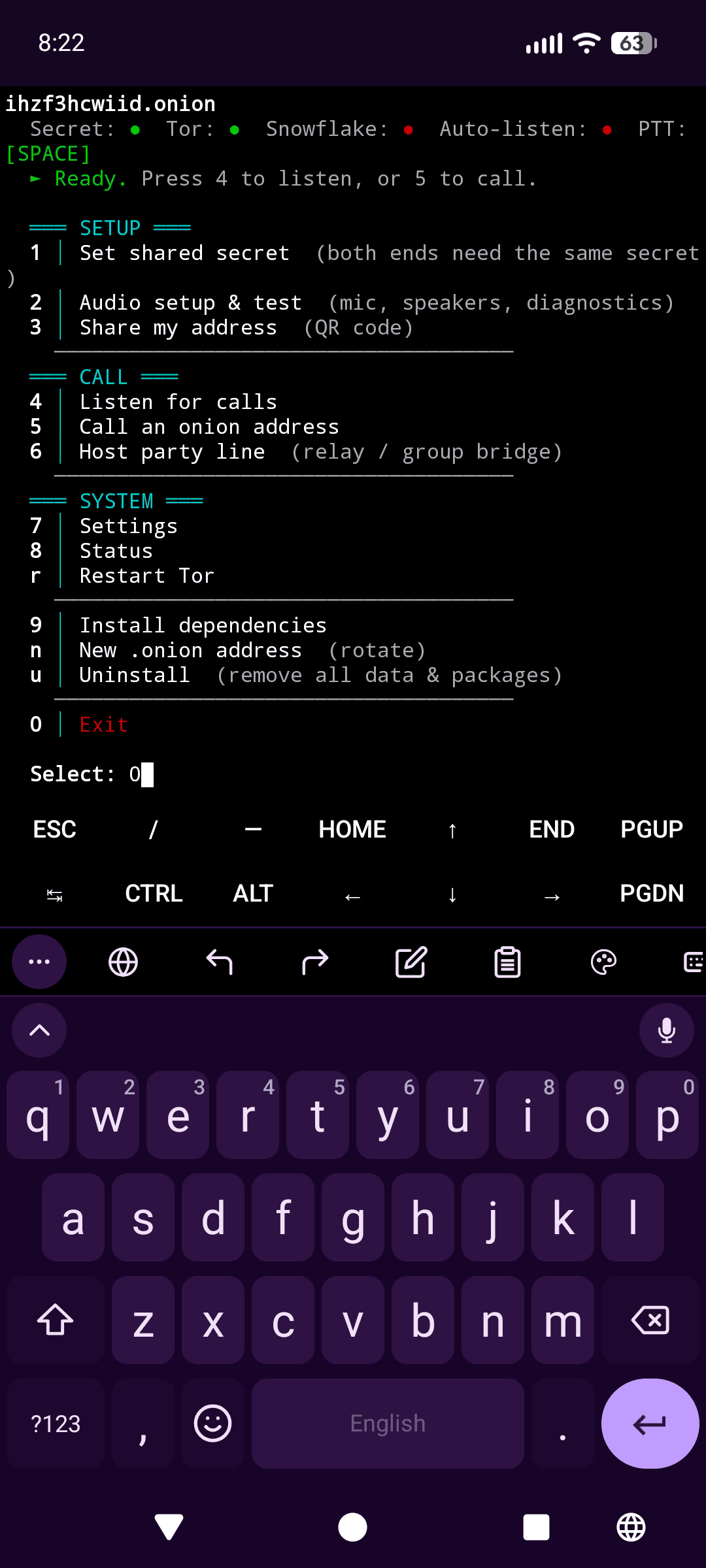
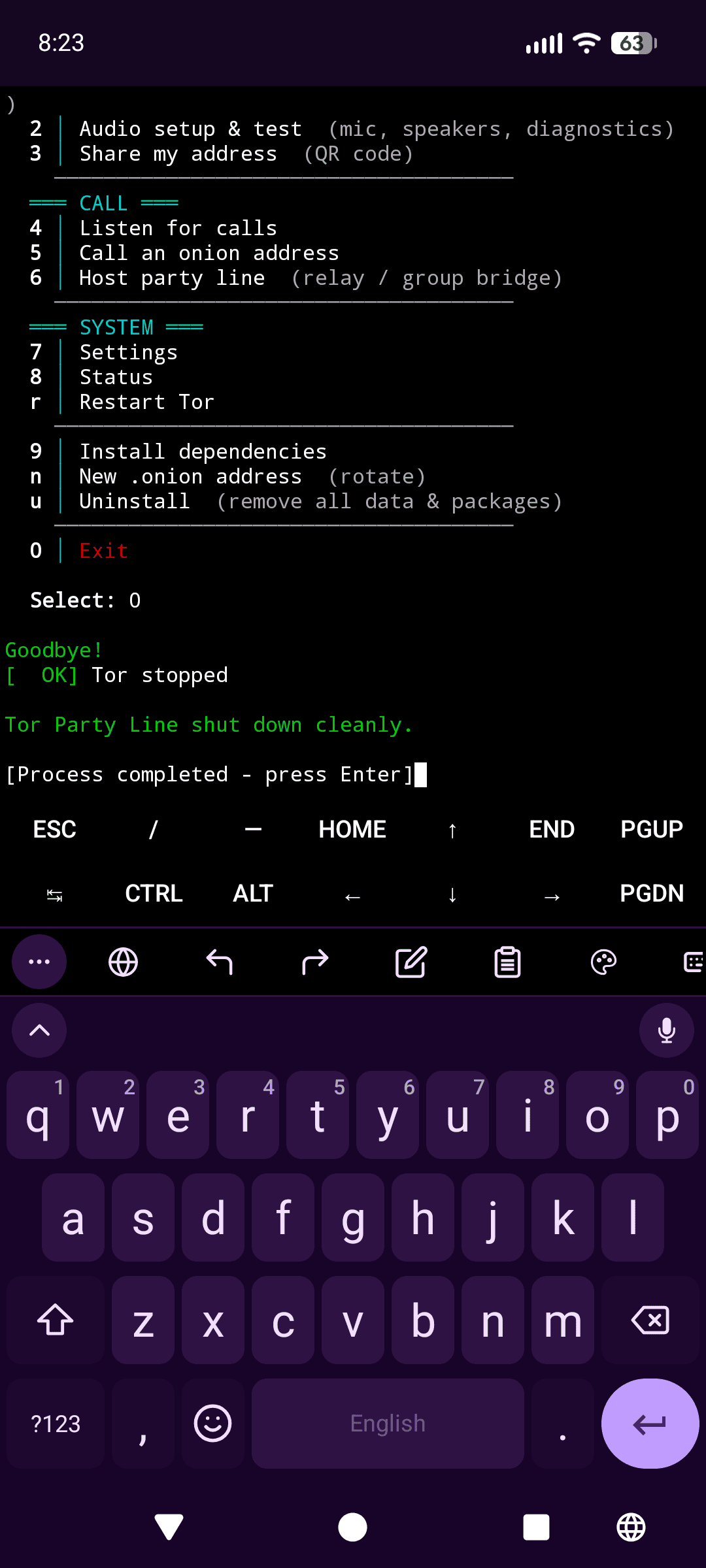
That is the one-time setup done. Press 0 to exit cleanly.
Step 5: The auto-dial button
Now we turn a menu-driven app into a one-press speed dial. Edit the partyline.sh entry in Script Runner again:
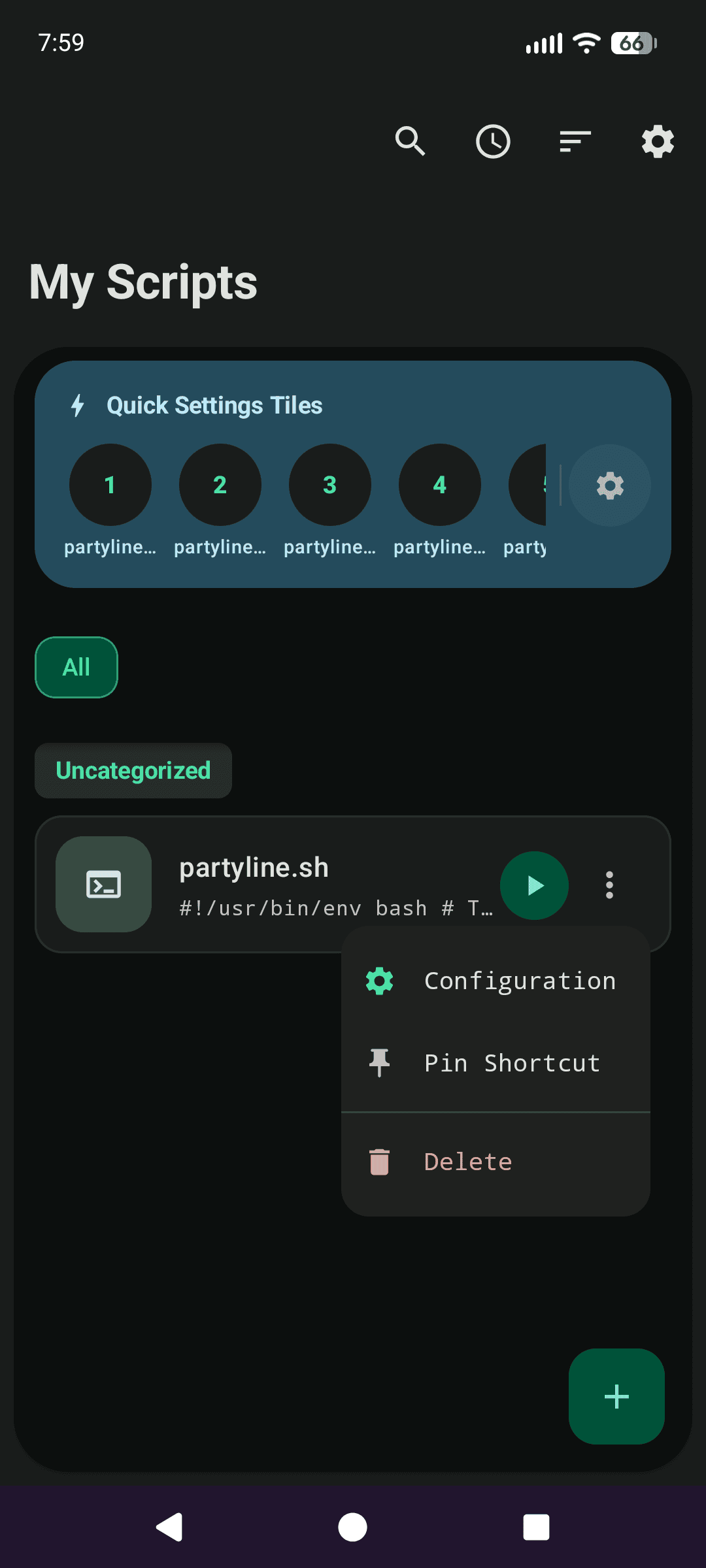
In the Arguments field, tell the script to skip the menu and dial straight out to your party line:
1
call --address youronionaddresshere.onion
The secret you saved in Step 4 is loaded from disk automatically, so the arguments stay clean and nothing sensitive lands in a launcher shortcut.
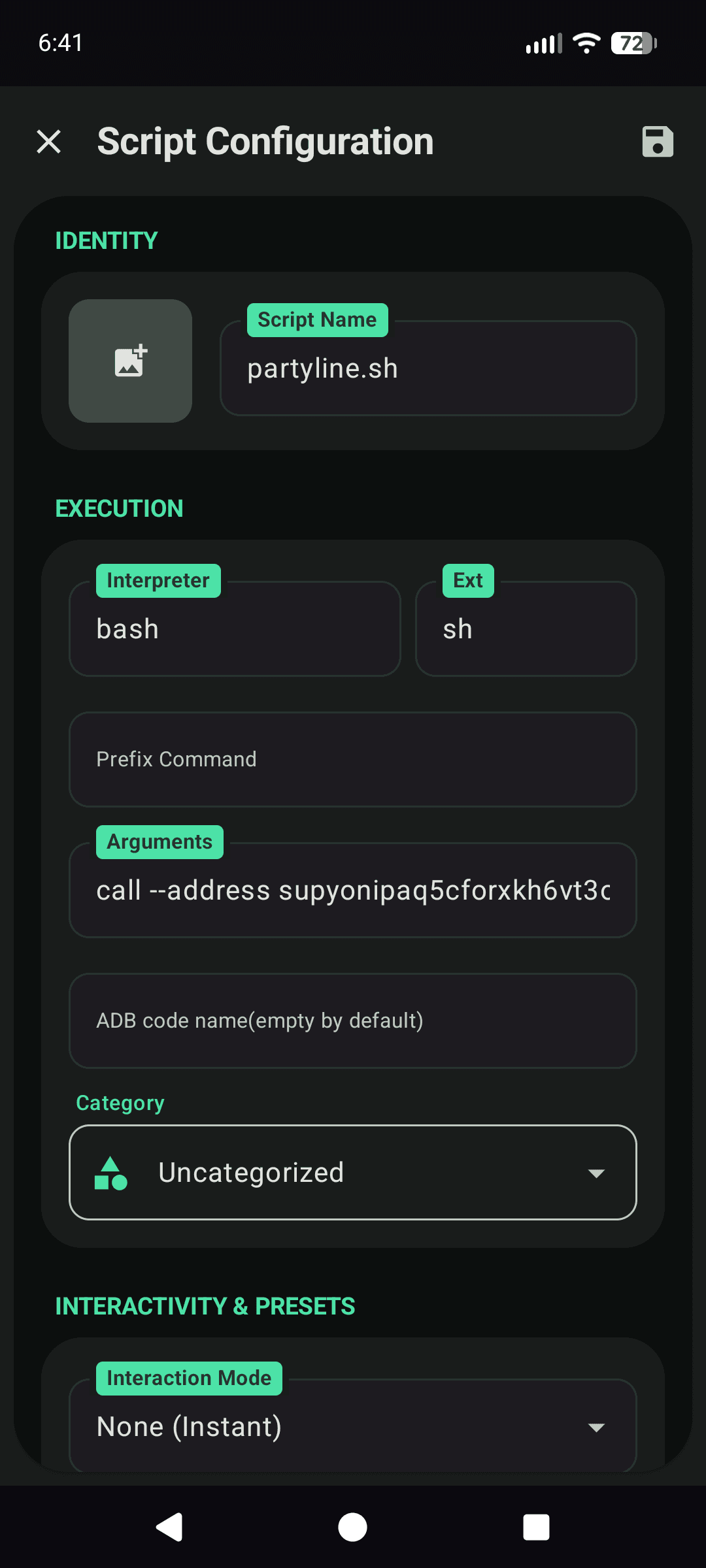 The Arguments field, set to dial straight to your onion address
Long-press Script Runner’s icon (or use its share/pin option) to drop a widget for partyline.sh on the homescreen:
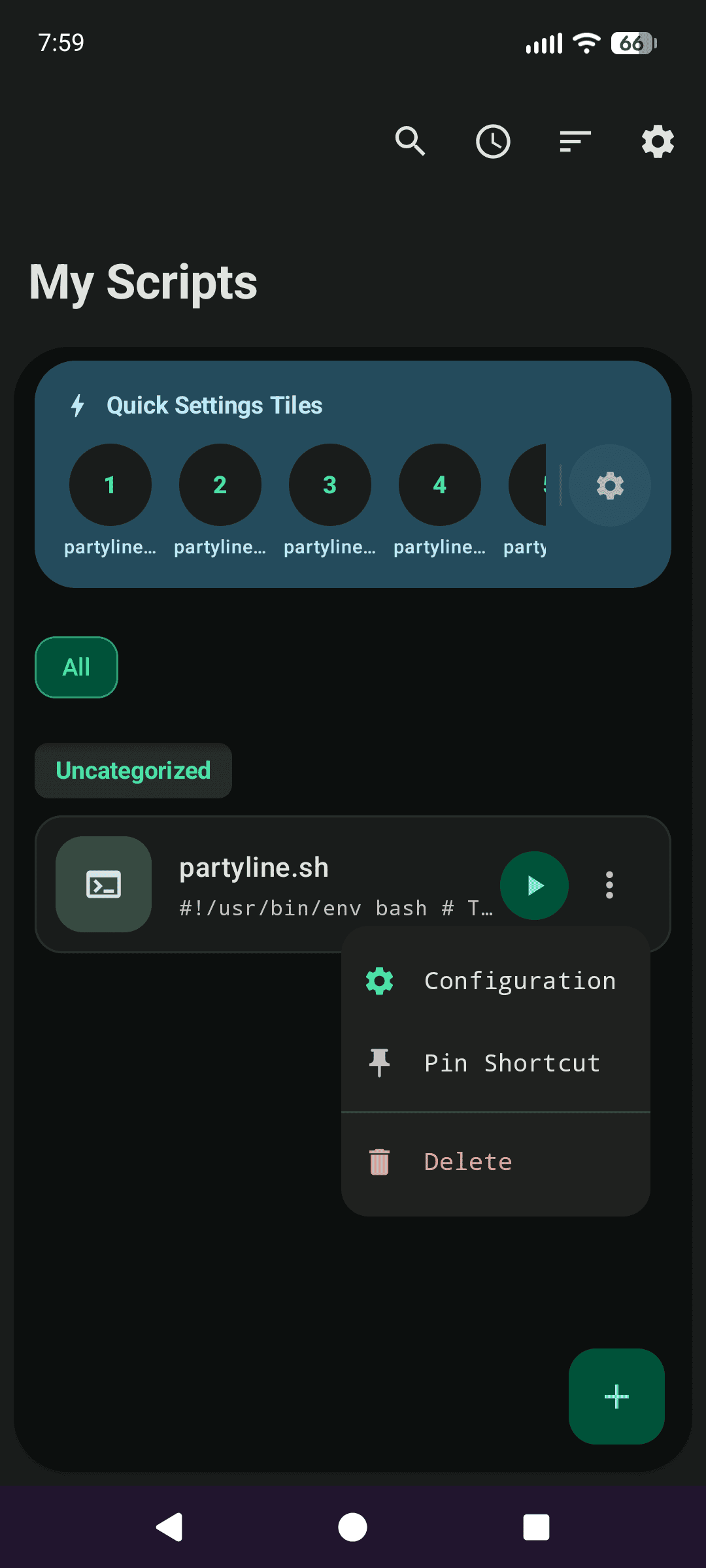 Long-press to pin partyline.sh to the homescreen
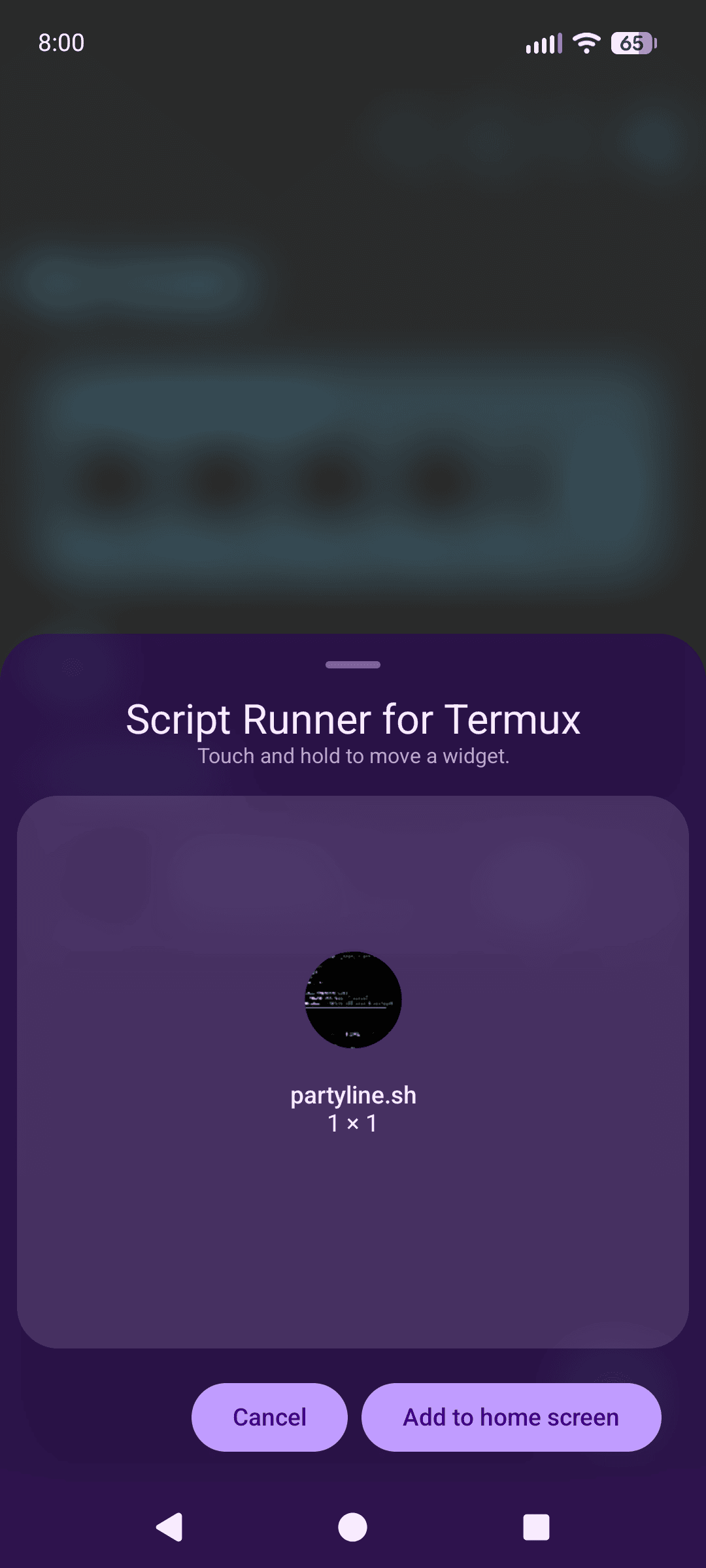
 The one-button walkie-talkie, now on your homescreen
And that is it. Press the button: Tor comes up, the hidden service goes active, and the script dials the onion address with your stored secret.
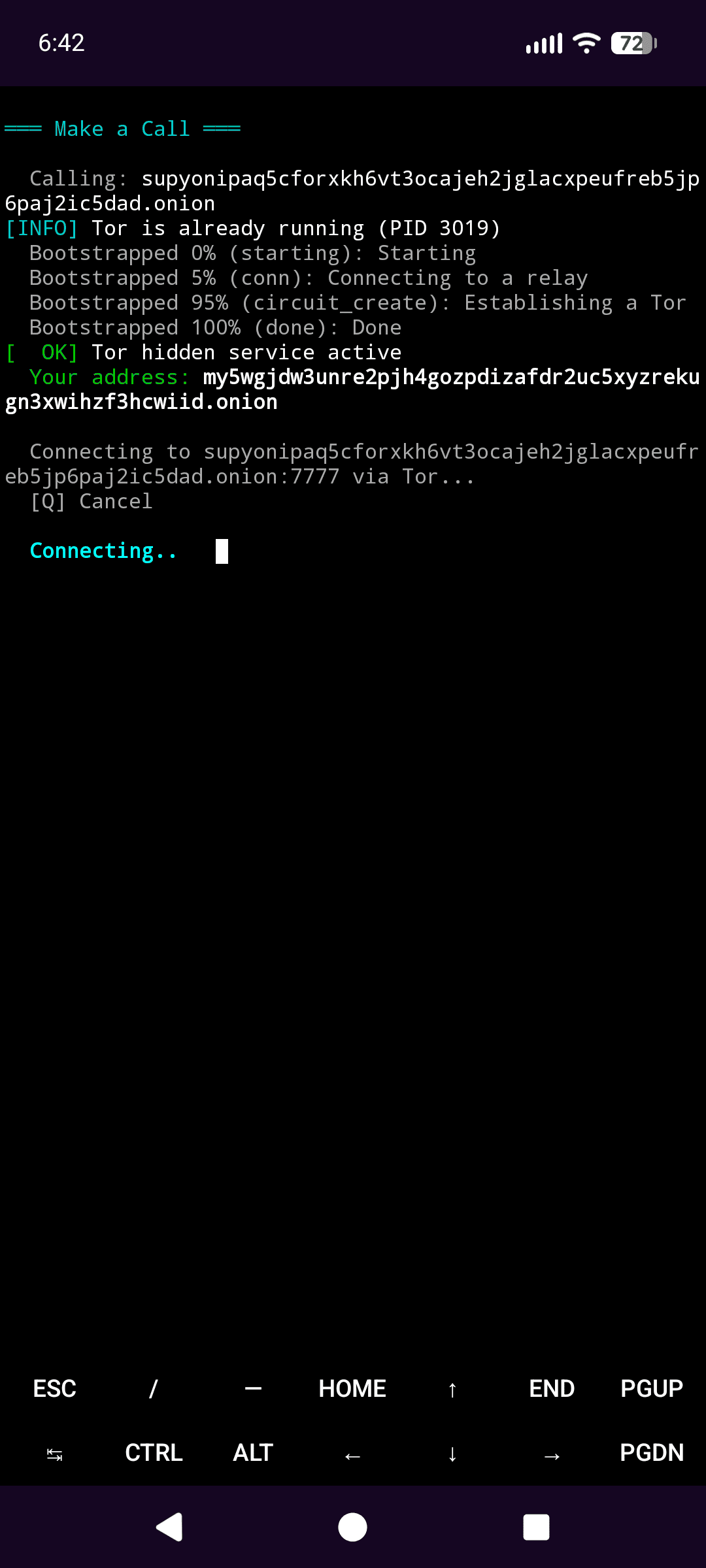
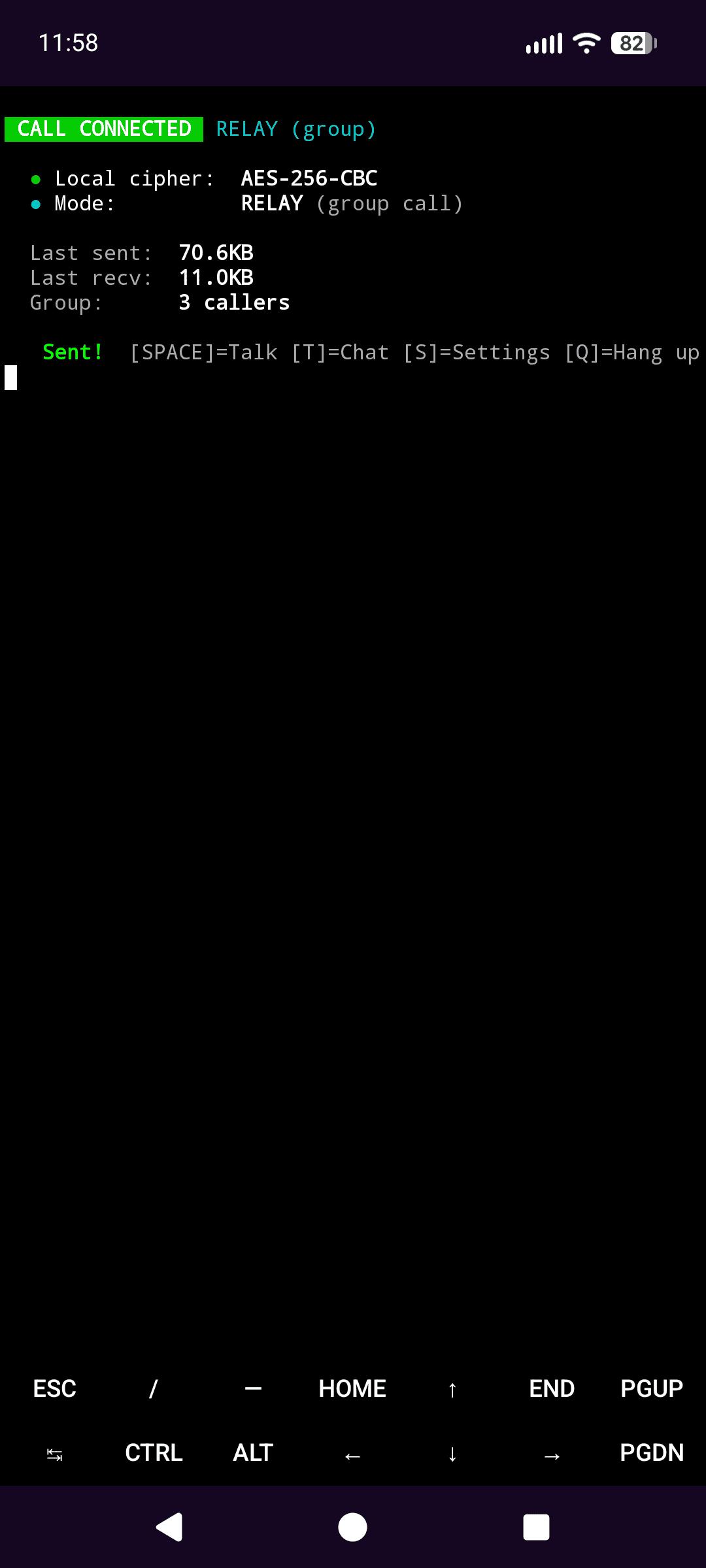
On Termux, push-to-talk is always tap-to-toggle: tap SPACE to start recording, tap again to send. T sends encrypted text, Q hangs up.
Step 6: Keep it alive (always-on walkie-talkie)
Android loves killing background processes, and a dead Termux session is a dead phone line. Three fixes:
- You already installed the Termux:API app back in Step 1. Now install its command-line half inside Termux:
pkg install termux-api. The app and the package work as a pair, and together they give the script proper microphone access. - When Android asks whether Termux can always run in the background, allow it.
- In Android Settings -> Apps -> Termux -> Battery, set Unrestricted. Script Runner’s config screen even nags you about this one.
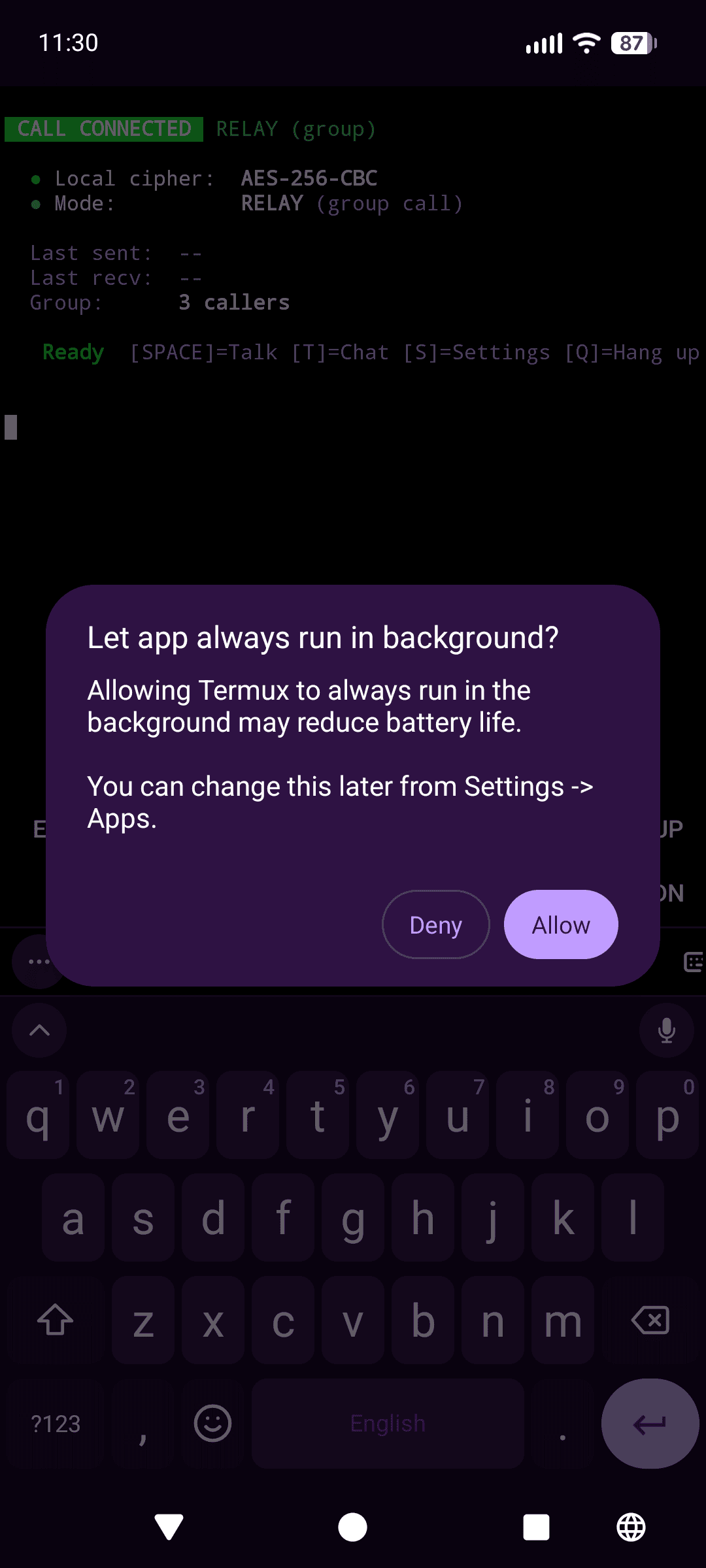 Allow Termux to always run in the background
Worried about the battery and data cost of an always-on Tor voice line? Opus at 16 kbps is tiny. A 10 second message is around 20 KB on the wire. Here is the actual data usage after setup and testing:
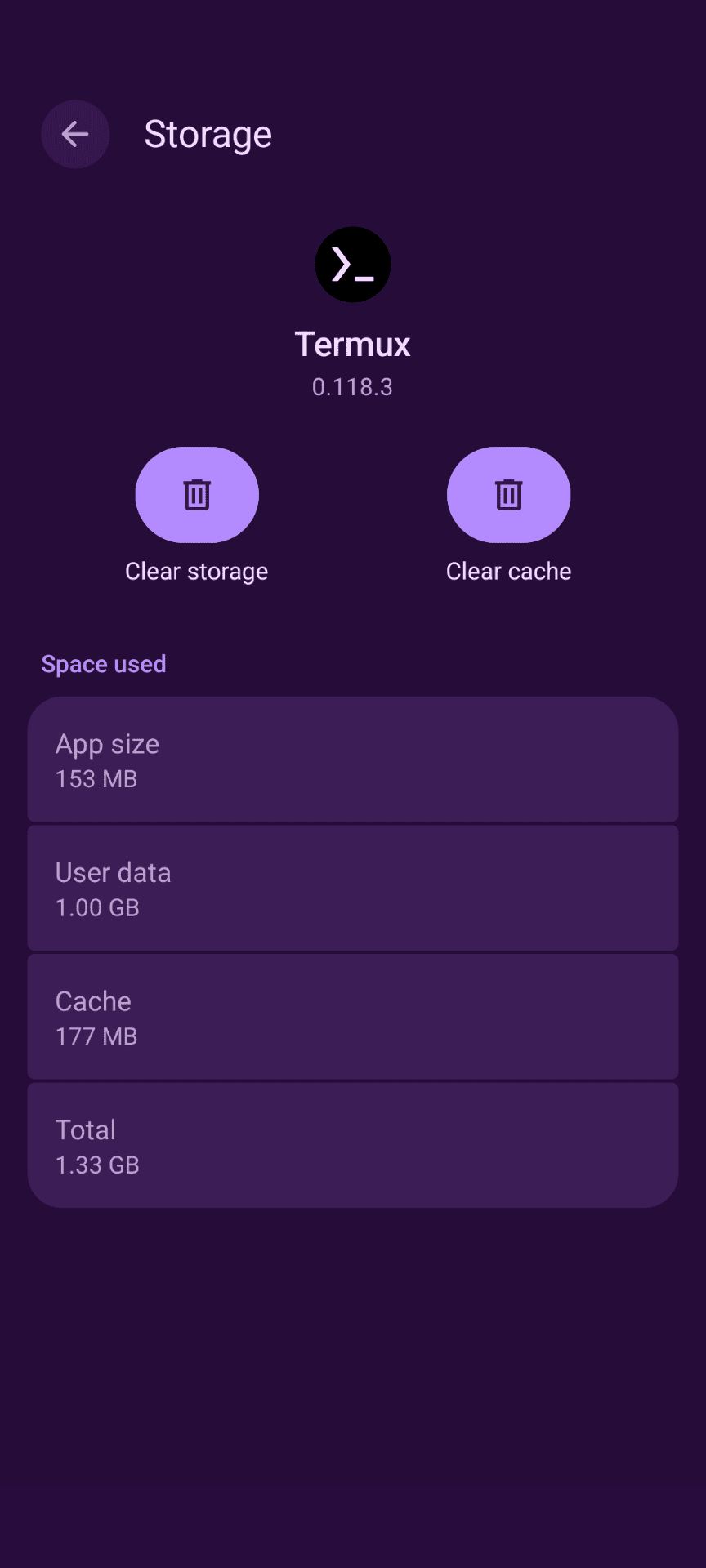 Real data use after setup and testing: barely a blip
If you want to see it moving, there are two short clips in the repo: a terminal capture of the script in action and a shakycam recording of a live call.
A FEW HONEST CAVEATS
- No forward secrecy. If a shared secret leaks, every call made with it is exposed. Rotate secrets between sensitive conversations.
- Latency is real. This is a walkie-talkie, not a phone call. Clips arrive complete but a few seconds late. That is the price of Tor.
- The relay is blind but not invisible. It cannot hear you, but it does know how many callers are connected and when they talk.
Everything else, the full flag reference, the security model, vanity .onion address generation, Snowflake for Tor-blocked networks, and the troubleshooting guide, lives in the repo:
https://gitlab.com/marcusholtz/tor-party-line
If push-to-talk voice is not your thing, OnionShare covers anonymous file drops and chat over the same hidden service idea, and a self-hosted Mumble server behind Tor gets you low-latency group voice if you are willing to run real infrastructure. But for “two people, zero servers, one button on a phone”, the party line is hard to beat.