

Homelab Guide to Setting up Docker Secrets with GitLab
If you’re running GitLab in Docker, you’ve probably stored your root password in an .env file. This works, but anyone inside the container or with Docker access can see your credentials in plain text.
This guide was written to help you set up GitLab Omnibus with Docker Secrets stored outside of an .env file or in Gitlab.rb.
Click to visit the setting-up-docker-secrets-in-gitlab repository that goes along with this guide.
Requirements
Be sure you have Docker and the compose plugin installed.
If not, I have included 0-install-docker.
The script in that folder is for a fresh Debian LXC - to setup a new user, docker, some additional software.
Each Section Builds on Previous Example
The setting-up-docker-secrets-in-gitlab repository contains three folders.
Each demonstrating a different approach.
We will be going through each one, in order.
Every folder will require edits to run.
Example 1). Basic .env Setup
Folder: 1-basic-env
This is the insecure method. Everything, including your password, lives in the .env file and gets loaded into the container environment. The docker-compose.yml contains all the GitLab configuration inline using GITLAB_OMNIBUS_CONFIG.
Example 2). Docker Secrets
Folder: 2-docker-secrets
Your password moves to ./secrets/gitlab_root_password.txt. Docker mounts it securely at /run/secrets/ inside the container, where GitLab reads it using Ruby’s File.read(). The password never appears in environment variables.
Yes, the password is still stored in plain text, be sure you’ve restrcted it accordingly. Other options inlcude secrets and privileged access management system, Valut .
Example 3). External Configuration File
Folder: 3-secrets-in-gitlab.rb
Extending Docker Secrets by moving all GitLab configuration out of docker-compose.yml into the gitlab-config.rb file. Your .env file expands to include all the tuning parameters, making everything configurable without touching Ruby or YAML files after initial setup.
1). Docker Compose Env Files
Head into the 01-basic-env folder.
Here we have a docker-compose.yml file. It is super messy, we wont pay attention to it for now.
We’ll take a look at the .env file.
The .env file holds all of the settings you can use inside of the docker-compose.yml
Docker loads the environment variables from the file into the docker compose project.
Look for the:
GITLAB_HOST_IP
GITLAB_ROOT_PASSWORD
Env File
1
2
3
4
5
6
7
8
9
10
11
12
13
14
15
16
17
18
19
20
21
22
23
24
25
26
# ============================================================================
# GITLAB ACCESS
# ============================================================================

# Hostname for GitLab - use your docker server's IP
GITLAB_HOST_IP=192.168.1.55

# Port to access GitLab web interface on your host machine
GITLAB_PORT=80

# SSH port for Git operations (git clone, push, pull via SSH)
GITLAB_SSH_PORT=2222

# ============================================================================
# GITLAB AUTHENTICATION
# ============================================================================

# Root admin password - CHANGE THIS to a strong password before deploying
GITLAB_ROOT_PASSWORD=HEYOUchangeThisPassword

# ============================================================================
# BACKUP CONFIGURATION
# ============================================================================

# Path on host machine where GitLab backups will be stored
BACKUP_PATH=/mnt/backups/borg/gitlab
Please change the GITLAB_HOST_IP to that of your Docker host you’re running the compose file on, and and the GITLAB_ROOT_PASSWORD to that of your choice.
Container Env Var from Docker
The .env file loads our .env file, all of it, into the container for use inside the container.
Let’s take a look from the Docker perspective…
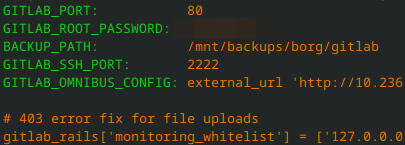
Whoopsie. We’ve exposed a lot of information most of it not important, except, wait, there’s a password. Oh no! Good thing someone blured that out! Phew.
2). Separate Docker Secrets
What changes: Remove the password from .env and create a secrets file.
Env file
As you can see we no longer have our gitlab root password in this file.
But you will still need to edit GITLAB_HOST_IP to match your Docker host you’re running the compose file on.
1
2
3
4
5
6
7
8
9
10
11
12
13
14
15
16
17
18
19
20
21
22

# ============================================================================
# GITLAB ACCESS
# ============================================================================

# Hostname for GitLab - use your server's IP
GITLAB_HOST_IP=192.168.1.55

# Port to access GitLab web interface on your host machine
GITLAB_PORT=80

# SSH port for Git operations (git clone, push, pull via SSH)
GITLAB_SSH_PORT=2222

# ============================================================================
# BACKUP CONFIGURATION
# ============================================================================

# Path on host machine where GitLab backups will be stored
BACKUP_PATH=/mnt/backups/borg/gitlab
Where is our password? SHHHHHH. Secret.
Secrets folder
A secrets folder allows us to set fine grain permissions ontop an area where we want to keep data safe, and then access only directly from Docker’s secrets.
1
2
3
4
5
.
|-- .env
|-- docker-compose.yml
`-- secrets
    `-- gitlab_root_password.txt
And there’s our secret. In the ./secrets folder inside the gitlab_root_password.txt file.
1
2
$ cat ./secrets/gitlab_root_password.txt
HEYOUchangeThisPassword
Amazing.
Compose Changes to Support a Secret File
We were able to do this because we made some changes in the docker-compose.yml to support this new secrets file.
Step 1: Docker Secrets File
First step to get the secret into the container is to tell your docker compose project what file you want to use, and what to call this secret. We’ll call our secret gitlab_root_password
1
2
3
secrets:
  gitlab_root_password:
    file: ./secrets/gitlab_root_password.txt
Step 2: Put the secret inside the container
The second step is to mount the secret we named in our compose file inside our container. Docker does this by mounting it as a file inside container at: /run/secrets/ (the location is automatically chosen by Docker)
1
2
secrets:
  - gitlab_root_password
Step 3: Put the secret into our config
Docker uses yaml for configuration, but GitLab uses Ruby.
So you need to be sure you’re putting your secret in correctly.
We’re just using a docker compose file, so we have to place the config in this file.
The new addition will read secrets from mounted files via File.read() into the Omnibus config, and then removing any extra lines:
1
2
GITLAB_OMNIBUS_CONFIG: |
  gitlab_rails['initial_root_password'] = File.read('/run/secrets/gitlab_root_password').gsub("\n", "")
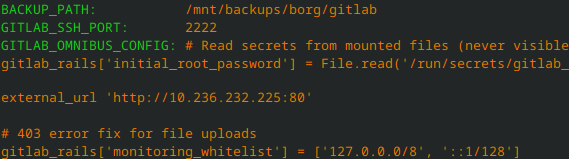
Container Env Var from Docker with Secrets File
Now that we have a docker secret we dont see our secret inside the container anymore
Let’s take a look…
3). Secrets in the gitlab.rb
Your docker-compose file can be cumbersome to maintain without adding other software’s configuration to it.
We should put the GITLAB_OMNIBUS_CONFIG into it’s own file.
Luckily there’s a file made just for that, gitlab.rb
This will additionally allow us to put the rest of the values we saw in the docker-compose file into our .env file and never mess with the gitlab.rb after it’s been initialy edited.
But you will still need to edit GITLAB_HOST_IP to match your Docker host you’re running the compose file on.
1
2
3
4
5
6
7
8
9
10
11
12
13
14
15
16
17
18
19
# ============================================================================
# GITLAB ACCESS
# ============================================================================
# Hostname for GitLab - use your server's IP
GITLAB_HOST_IP=192.168.1.55

# Port to access GitLab web interface on your host machine
GITLAB_PORT=80

# SSH port for Git operations (git clone, push, pull via SSH)
GITLAB_SSH_PORT=2222


# ============================================================================
# BACKUP CONFIGURATION
# ============================================================================
# Path on host machine where GitLab backups will be stored
BACKUP_PATH=/mnt/backups/borg/gitlab
gitlab.rb
The new file is the gitlab.rb. We’re using that to take the GitLab config out of docker-compose.
The config is packed full of comments to help explain what each part does.
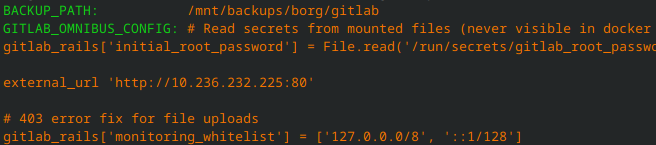
What does this look like now
Now that we have a docker secret we dont see our secret inside the container and we’re not using docker compose to manipulate the docker secret, we’re doing it with our gitlab.rb
Let’s take a look…
Great job!!
Complete
You made sure to keep a password out of your working enviornment. Well done.
Next Steps
Once complete you can continue to the second half of this project, GitLab Omnibus with Runner and TLS.