
OPNsense Caddy Nginx-WAF to Traefik
If you want an NGINX WAF with failover capabilities, but also need the advanced features of Caddy and Traefik, this stack will deliver you all three.
This article combines Caddy’s TLS tools, Nginx’s WAF capabilities, and Traefik’s container-aware routing into a single system with multi-device failover.
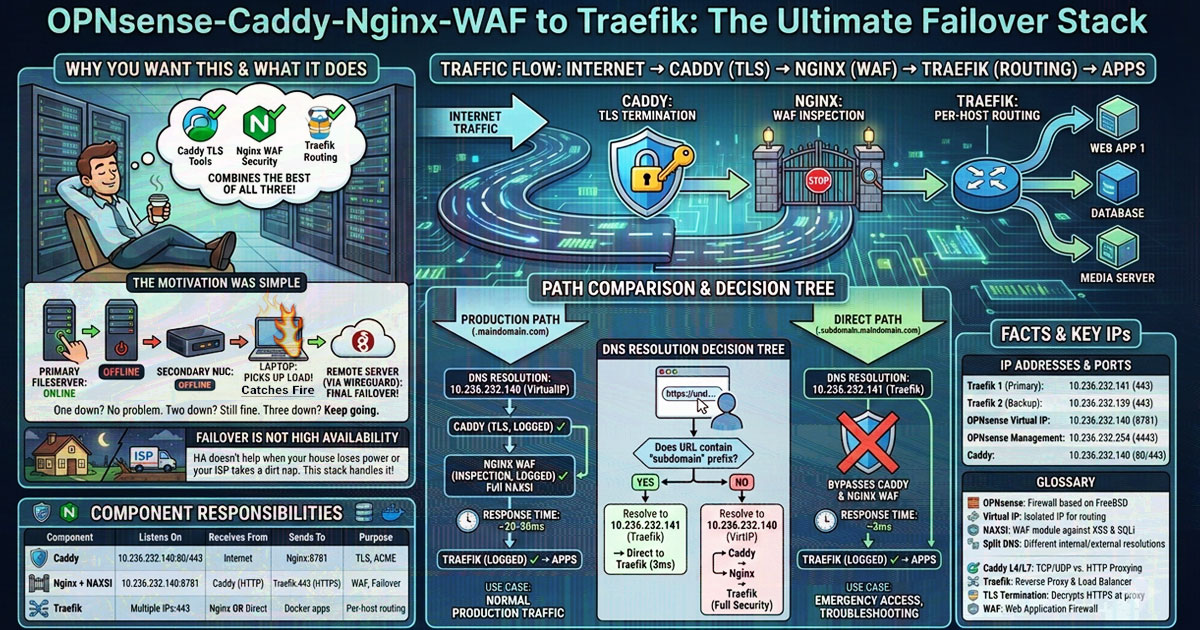
Traffic Flow: Internet → Caddy (TLS termination) → Nginx (WAF inspection) → Traefik (per-host routing) → Apps
The motivation was simple
When the primary fileserver reboots, traffic routes to a secondary system. When that’s offline, a random laptop picks up the load. That old laptop catches on fire from the load? No problem. Still fine. We can keep going on a remote connected server via WireGuard.
The implementation
Traefik runs on each device that hosts applications. Nginx maintains an upstream pool of all Traefik instances with priority-based failover. Caddy handles TLS termination and routes traffic to Nginx for WAF inspection before reaching Traefik.
Each device also has its own subdomain that bypasses the proxy stack entirely, providing direct <3ms access to that specific Traefik instance when needed.
Failover is not high availability
This started as a homelab project where I got tired of services dying when one machine went offline. Everyone talks about HA (High Availability) like it’s the holy grail. Cool story, but HA doesn’t help when your entire block loses power or your ISP takes a severed-cable-in-the-dirt nap.
DNS Resolution Decision Tree
1
2
3
4
5
6
7
8
9
10
11
12
13
14
15
16
17
18
19
20
21
22
User types URL in browser
         │
         ▼
    ┌─────────────────────┐
    │ Does URL contain    │
    │ "subdomain" prefix? │
    └──────┬──────┬───────┘
           │      │
      YES  │      │  NO
           │      │
           ▼      ▼
    ┌──────────┐ ┌──────────┐
    │ Resolves  │ │ Resolve  │
    │   to      │ │   to     │
    │ Traefik   │ │ OPNsense │
    │   IP      │ │Virtual IP│
    └────┬─────┘ └────┬─────┘
         │            │
         ▼            ▼
    Direct to     Caddy → Nginx
     Traefik       → Traefik
 (3ms or less)    (Full Security)
Path Comparison Table
| Aspect | Production Path (.maindomain.com) | Direct Path (.subdomain.maindomain.com) |
|---|---|---|
| URL Example | https://app.maindomain.com | https://app.subdomain.maindomain.com |
| DNS Resolution | 10.236.232.140 (VirtualIP) | 10.236.232.141 (Traefik) |
| Goes Through Caddy? | ✓ Yes | ✗ No - bypassed |
| Goes Through Nginx WAF? | ✓ Yes | ✗ No - bypassed |
| TLS Terminated By | Caddy | Traefik |
| WAF Protection | ✓ Full NAXSI inspection | ✗ None |
| Response Time | ~20-50ms | ~3ms |
| Use Case | Normal production traffic | Emergency access, troubleshooting |
| Logged In Caddy | ✓ Yes | ✗ No |
| Logged In Nginx | ✓ Yes | ✗ No |
| Logged In Traefik | ✓ Yes | ✓ Yes |
Component Responsibilities
| Component | Listens On | Receives From | Sends To | Purpose |
|---|---|---|---|---|
| Caddy | 10.236.232.140:80/443 | Internet (*.maindomain.com only) | Nginx:8781 | TLS termination, ACME certs |
| Nginx + NAXSI | 10.236.232.140:8781 | Caddy (HTTP) | Traefik:443 (HTTPS) | WAF inspection + Multi-device failover |
| Traefik | Multiple IPs:443 (one per device) | Nginx OR Direct (*.subdomain.maindomain.com) | Docker apps | Per-host routing |
Facts
IP Addresses and Port references
| Component | IP Address | Port(s) | Purpose |
|---|---|---|---|
| Traefik 1 (Primary) | 10.236.232.141 | 443 | Backend HTTPS, VLAN 232 |
| Traefik 2 (Backup) | 10.236.232.139 | 443 | Backend HTTPS, VLAN 232 |
| OPNsense Virtual IP | 10.236.232.140 | 8781 | Nginx WAF listener |
| OPNsense Management | 10.236.232.254 | 4443 | WebGUI (non-standard port) |
| Caddy | 10.236.232.140 | 80/443 | Public-facing TLS termination |
Glossary
OPNsense: An open-source firewall based on monowall/FreeBSD.
Virtual IP: An isolated IP address created on OPNsense for routing traffic, like to Nginx WAF.
NAXSI: WAF module for Nginx that protects against XSS & SQL injection.
Split DNS: DNS setup where internal and external resolutions differ - allows *.subdomain.domain.com to resolve to Traefik IPs internally.
Caddy Layer 4: Raw TCP/UDP proxying without inspection (bypasses WAF).
Caddy Layer 7: HTTP protocol proxying with full inspection (goes through WAF).
Traefik: Modern reverse proxy and load balancer, often used in clusters with containers.
Reverse Proxy: A server that forwards client requests to backend servers.
TLS Termination: Decrypting HTTPS traffic at the proxy, before it hits backend servers.
SSL Certificate Creation Using DNS: Using DNS records to prove domain ownership for SSL certificate validation.
WAF (Web Application Firewall): Security system that filters HTTP traffic to protect web apps from attacks.
Step 1. Setup Traefik
Ok, if you made it past the forward - you’re ready to go!
Traefik runs on every machine that needs reverse proxy capabilities. Each Traefik instance gets its own subdomain.
Traefik Prerequisites
Traefik needs 3 files, a docker-compose.yml file, a traefik.yml configuration file, and a acme.json to store the TLS crypto certificates you obtain. The last two should reside in their own traefik directory.
See below:
1
2
3
4
5
6
7
.
|-- docker-compose.yml
`-- traefik
    |-- acme.json
    `-- traefik.yml

1 directory, 3 files
Traefik’s TLS certificate
Traefik will only accept a acme.json cert if 600 permissions are set, and it’ll fail out if anything else.
So create the ACME certificate file with correct permissions, in the ./traefik directory:
Optional Script: Use this script in the directory where you need an acme.json
1_use_this_for_acme.json.sh
1
2
3
4
5
6
7
8
9
10
11
12
13
14
15
16
17
18
19
#!/bin/bash
FILE="acme.json"

if [ -f "$FILE" ]; then
    echo "$FILE exists."
    PERMISSIONS=$(stat -c %a "$FILE")
    if [ "$PERMISSIONS" -ne 600 ]; then
        echo "Setting permissions to 600..."
        chmod 600 "$FILE"
        echo "Permissions set to 600."
    else
        echo "Permissions already 600."
    fi
else
    echo "Creating $FILE..."
    touch "$FILE"
    chmod 600 "$FILE"
    echo "$FILE created with permissions 600."
fi
Traefik Configuration Files
File located in your traefik directory
Below is my traefik.yml, you will have to change the subnet in trustedIPs to match your network.
traefik.yml
Critical: The forwardedHeaders and proxyProtocol sections preserve the originating client IP through the proxy chain, please provide the IP address of any server sending header data or proxy protocol to Traefik.
1
2
3
4
5
6
7
8
9
10
11
12
13
14
15
16
17
18
19
20
21
22
23
24
25
26
27
28
29
30
31
32
33
34
35
36
37
38
39
40
41
42
43
44
45
46
47
48
49
50
51
52
53
54
55
56
57
58
59
60
61
62
63
64
65
66
67
68
69
70
71
72
73
74
75
76
77
78
79
80
81
82
83
84
85
86
87
88
89
90
91
92
93
94
95
96
97
98
99
100
101
################################################################
# Global Configuration
################################################################
global:
  checkNewVersion: true
  sendAnonymousUsage: false

################################################################
# Logging
################################################################
log:
  level: DEBUG  # Use INFO for production

################################################################
# API and Dashboard
################################################################
api:
  dashboard: true
  insecure: true  # REMOVE in production, use HTTPS router with auth

################################################################
# Docker Provider
################################################################
providers:
  docker:
    endpoint: "unix:///var/run/docker.sock"
    exposedByDefault: false
    watch: true

################################################################
# EntryPoints
################################################################
entryPoints:
  web:
    address: ":80"
    proxyProtocol:
      trustedIPs:
        - "10.236.0.0/16"
    forwardedHeaders:
      trustedIPs:
        - "10.236.0.0/16"
    http:
      redirections:
        entryPoint:
          to: websecure
          scheme: https
          permanent: true

  websecure:
    address: ":443"
    transport:
      respondingTimeouts:
        readTimeout: 300s
        writeTimeout: 300s
        idleTimeout: 320s
    proxyProtocol:
      trustedIPs:
        - "10.236.0.0/16"
    forwardedHeaders:
      trustedIPs:
        - "10.236.0.0/16"

################################################################
# Servers Transport (Allow self-signed backend certificates)
################################################################
serversTransport:
  insecureSkipVerify: true

################################################################
# Access Logging
################################################################
accessLog:
  filePath: "/opt/access-logs/access.json"
  format: json
  fields:
    defaultMode: keep
    headers:
      defaultMode: keep
      names:
        User-Agent: keep
        Referer: keep
        Forwarded: keep

################################################################
# Certificate Resolvers - Cloudflare DNS Challenge
################################################################
certificatesResolvers:
  cloudflare:
    acme:
      email: "email@provider.com"  # CHANGE THIS
      storage: "/letsencrypt/acme.json"
      # TESTING: caServer: "https://acme-staging-v02.api.letsencrypt.org/directory"
      # PRODUCTION:
      caServer: "https://acme-v02.api.letsencrypt.org/directory"
      dnsChallenge:
        provider: cloudflare
        propagation:
          delayBeforeChecks: 30s
        resolvers:
          - "1.1.1.1:53"
          - "1.0.0.1:53"
Set the variables used for Traefik
You need to edit a file named .env. It is used to store secret information.
Outside of the subnet on the trustedIPs in your traefik.yml file, .env is where you need to put the info for your setup.
Please modify everything after the = for your own setup:
.env file
1
2
3
4
DOMAIN=maindomain.com
SUBDOMAIN=subdomain.maindomain.com
CF_DNS_API_TOKEN=your_cloudflare_api_token_here
CF_API_EMAIL=email@provider.com
Once you have your .env file ready, there’s one more file we need…
Start up Traefik and Friends
This compose file - includes Traefik, whoami test containers, Grafana, Loki, Promtail, and other monitoring services.
You dont have to use it all, I just think it can be helpful seeing the connections and troubleshooting when you’re just getting a service up and running.
Traefik’s access logs are exported in JSON format for monitoring and troubleshooting.
Later, we may do Loadbalancing, so I’m going refer to this version of Traefik as Traefik on VLAN 224.
Traefik on 224 VLAN
This is the config for Traefik across 224 VLAN on the UnRAID fileserver.
HEADS UP: You can modify this to use on any server, but for my UnRAID it is:
docker-compose.yml file location:
/boot/config/plugins/compose.manager/projects/traefik.224/files mounted into container:
/mnt/user/appdata/traefik.224/VLAN 224 on br1
Oh? What? You dont have a VLAN 224 on br1? Are you sure? Did you check under the couch cusions?
Well, if you dont - you can add it. Or just change the network interfaces to match your network!
To setup the docker networkng:
1
2
3

docker network create -d macvlan --subnet=10.236.224.0/24 --gateway=10.236.224.254 -o parent=eth0 br1.224
docker-compose.yml
Please keep in mind, this compose file has TWO networks. Again, please edit to meet your needs:
1
2
3
4
5
6
7
8
9
10
11
12
13
14
15
16
17
18
19
20
21
22
23
24
25
26
27
28
29
30
31
32
33
34
35
36
37
38
39
40
41
42
43
44
45
46
47
48
49
50
51
52
53
54
55
56
57
58
59
60
61
62
63
64
65
66
67
68
69
70
71
72
73
74
75
76
77
78
79
80
81
82
83
84
85
86
87
88
89
90
91
92
93
94
95
96
97
98
99
100
101
102
103
104
105
106
107
108
109
110
111
112
113
114
115
116
117
118
119
120
121
122
123
124
125
126
127
128
129
130
131
132
133
134
135
136
137
138
139
140
141
142
143
144
145
146
147
148
149
150
151
152
153
154
155
156
157
158
159
160
161
162
163
164
165
166
167
168
169
170
171
172
173
174
175
176
177
178
179
180
181
182
183
184
185
186
187
188
189
190
191
192
193
194
195
196
197
198
199
200
201
202
203
204
205
206
207
208
209
210
211
212
213
214
215
216
217
218
219
220
221
222
223
224
225
226
227
228
229
230
231
232
233
234
235
236
237
238
239
240
241
242
243
244
245
246
247
248
249
250
251
252
253
254
255
256
257
258
259
260
261
262
263
264
265
266
267
268
269
270
271
272
---
services:
  traefik:
    image: traefik:latest
    container_name: traefik
    restart: unless-stopped
    security_opt:
      - no-new-privileges:true
    env_file:
      - .env
    environment:
      - CF_DNS_API_TOKEN=${CF_DNS_API_TOKEN}
      - CF_API_EMAIL=${CF_API_EMAIL}
    ports:
      - "80:80"
      - "443:443"
      - "8080:8080"  # Dashboard - REMOVE THIS IN PRODUCTION
    volumes:
      - "/var/run/docker.sock:/var/run/docker.sock:ro"
      - "/mnt/user/appdata/traefik.224/traefik/access-logs:/opt/access-logs"
      - "/mnt/user/appdata/traefik.224/traefik/traefik.yml:/etc/traefik/traefik.yml:ro"
      - "/mnt/user/appdata/traefik.224/traefik/acme.json:/letsencrypt/acme.json"
    depends_on:
      - grafana
    labels:
      - "traefik.enable=true"
      - "traefik.http.routers.traefik.tls.domains[0].main=${DOMAIN}"
      - "traefik.http.routers.traefik.tls.domains[0].sans=*.${DOMAIN}"
      - "traefik.http.routers.traefik.tls.domains[1].main=${SUBDOMAIN}"
      - "traefik.http.routers.traefik.tls.domains[1].sans=*.${SUBDOMAIN}"
    networks:
      br1.232:
        ipv4_address: 10.236.232.141
      br1.224:
        ipv4_address: 10.236.224.141

  whoami1:
    image: traefik/whoami
    container_name: whoami1
    env_file:
      - .env
    labels:
      - "traefik.enable=true"
      - "traefik.http.services.whoami1.loadbalancer.server.port=80"
      - "traefik.http.routers.whoami1.rule=Host(`whoami1.${DOMAIN}`) || Host(`whoami1.${SUBDOMAIN}`)"
      - "traefik.http.routers.whoami1.entrypoints=websecure"
      - "traefik.http.routers.whoami1.tls=true"
      - "traefik.http.routers.whoami1.tls.certresolver=cloudflare"
      - "traefik.http.routers.whoami1.tls.domains[0].main=${DOMAIN}"
      - "traefik.http.routers.whoami1.tls.domains[0].sans=*.${DOMAIN}"
      - "traefik.http.routers.whoami1.tls.domains[1].main=${SUBDOMAIN}"
      - "traefik.http.routers.whoami1.tls.domains[1].sans=*.${SUBDOMAIN}"
    networks:
      br1.224:
        ipv4_address: 10.236.224.142

  whoami2:
    image: traefik/whoami
    container_name: whoami2
    env_file:
      - .env
    labels:
      - "traefik.enable=true"
      - "traefik.http.routers.whoami2.rule=Host(`whoami2.${DOMAIN}`) || Host(`whoami2.${SUBDOMAIN}`)"
      - "traefik.http.routers.whoami2.entrypoints=websecure"
      - "traefik.http.routers.whoami2.tls=true"
      - "traefik.http.routers.whoami2.tls.certresolver=cloudflare"
      - "traefik.http.services.whoami2.loadbalancer.server.port=80"
      - "traefik.http.routers.whoami2.tls.domains[0].sans=*.${DOMAIN}"
      - "traefik.http.routers.whoami2.tls.domains[1].sans=*.${SUBDOMAIN}"
    networks:
      br1.224:
        ipv4_address: 10.236.224.143

  website:
    image: nginx
    container_name: nginxcatchum
    env_file:
      - .env
    labels:
      - "traefik.enable=true"
      - "traefik.http.routers.website.rule=Host(`www.${DOMAIN}`) || Host(`${SUBDOMAIN}`)"
      - "traefik.http.routers.website.entrypoints=websecure"
      - "traefik.http.routers.website.tls=true"
      - "traefik.http.routers.website.tls.certresolver=cloudflare"
      - "traefik.http.services.website.loadbalancer.server.port=80"
      - "traefik.http.routers.website.tls.domains[0].main=${DOMAIN}"
      - "traefik.http.routers.website.tls.domains[0].sans=*.${DOMAIN}"
      - "traefik.http.routers.website.tls.domains[1].main=${SUBDOMAIN}"
      - "traefik.http.routers.website.tls.domains[1].sans=*.${SUBDOMAIN}"
    networks:
      br1.224:
        ipv4_address: 10.236.224.144

  #================================================================
  # ALLOY - Modern log collector (replaces Promtail)
  # Collects Docker logs + Traefik access logs
  #================================================================
  alloy:
    image: grafana/alloy:latest
    container_name: alloy
    restart: unless-stopped
    env_file:
      - .env
    environment:
      - GRAFANA_CLOUD_STACK_NAME=${GRAFANA_CLOUD_STACK_NAME}
      - GRAFANA_CLOUD_TOKEN=${GRAFANA_CLOUD_TOKEN}
      - GCLOUD_RW_API_KEY=${GCLOUD_RW_API_KEY}
    ports:
      - "12345:12345"  # Alloy UI for debugging
    volumes:
      - "/mnt/user/appdata/traefik.224/alloy:/etc/alloy"
      - "/var/run/docker.sock:/var/run/docker.sock:ro"
      - "/var/lib/docker/containers:/var/lib/docker/containers:ro"
      - "/mnt/user/appdata/traefik.224/traefik/access-logs:/var/log:ro"
      - "/mnt/user/appdata/traefik.224/promtail/GeoLite2-City.mmdb:/etc/alloy/GeoLite2-City.mmdb:ro"
    command:
      - run
      - --server.http.listen-addr=0.0.0.0:12345
      - --storage.path=/etc/alloy/data
      - /etc/alloy/config.alloy
    depends_on:
      - loki
    networks:
      br1.224:
        ipv4_address: 10.236.224.148
    labels:
      - "traefik.enable=true"
      - "traefik.http.routers.alloy.rule=Host(`alloy.${DOMAIN}`) || Host(`alloy.${SUBDOMAIN}`)"
      - "traefik.http.routers.alloy.entrypoints=websecure"
      - "traefik.http.routers.alloy.tls=true"
      - "traefik.http.routers.alloy.tls.certresolver=cloudflare"
      - "traefik.http.services.alloy.loadbalancer.server.port=12345"
      - "traefik.http.routers.alloy.tls.domains[0].sans=*.${DOMAIN}"
      - "traefik.http.routers.alloy.tls.domains[1].sans=*.${SUBDOMAIN}"

  #================================================================
  # PROMTAIL - Keep for now, can remove after Alloy is working
  #================================================================
  promtail:
    image: grafana/promtail
    container_name: promtail
    env_file:
      - .env
    command: -config.file=/etc/promtail/promtail.yaml
    volumes:
      - "/mnt/user/appdata/traefik.224/promtail/promtail-config.yml:/etc/promtail/promtail.yaml"
      - "/mnt/user/appdata/traefik.224/traefik/access-logs:/var/log"
      - "/mnt/user/appdata/traefik.224/promtail/promtail-data:/tmp/positions"
      - "/mnt/user/appdata/traefik.224/promtail/GeoLite2-City.mmdb:/etc/promtail/GeoLite2-City.mmdb"
    networks:
      br1.224:
        ipv4_address: 10.236.224.145

  loki:
    image: grafana/loki:latest
    container_name: loki
    ports:
      - "3100:3100"
    env_file:
      - .env
    command: -config.file=/etc/loki/loki-config.yaml
    volumes:
      - "/mnt/user/appdata/traefik.224/loki/data:/loki"
      - "/mnt/user/appdata/traefik.224/loki/config:/etc/loki"
    networks:
      br1.224:
        ipv4_address: 10.236.224.146

  grafana:
    image: grafana/grafana:latest
    container_name: grafana
    ports:
      - "3000:3000"
    env_file:
      - .env
    environment:
      - GF_PATHS_PROVISIONING=/etc/grafana/provisioning
      - GF_AUTH_ANONYMOUS_ENABLED=true
      - GF_AUTH_ANONYMOUS_ORG_ROLE=Admin
      - GF_SECURITY_ALLOW_EMBEDDING=true
    volumes:
      - "/mnt/user/appdata/traefik.224/grafana/provisioning/:/etc/grafana/provisioning"
      - 'grafana_data:/var/lib/grafana'
    entrypoint:
      - sh
      - -euc
      - |
        /run.sh
    networks:
      br1.224:
        ipv4_address: 10.236.224.147
    labels:
      - "traefik.enable=true"
      - "traefik.http.routers.grafana.rule=Host(`grafana.${DOMAIN}`) || Host(`grafana.${SUBDOMAIN}`)"
      - "traefik.http.routers.grafana.entrypoints=websecure"
      - "traefik.http.routers.grafana.tls=true"
      - "traefik.http.routers.grafana.tls.certresolver=cloudflare"
      - "traefik.http.services.grafana.loadbalancer.server.port=3000"
      - "traefik.http.services.grafana.loadbalancer.passhostheader=true"
# This controls how often Traefik flushes buffered response data to the client
# 100ms = flush every 100 milliseconds (helps with streaming/SSE, not timeouts)
      - "traefik.http.services.grafana.loadbalancer.responseforwarding.flushinterval=100ms"
      - "traefik.http.routers.grafana.tls.domains[0].sans=*.${DOMAIN}"
      - "traefik.http.routers.grafana.tls.domains[1].sans=*.${SUBDOMAIN}"
      - "traefik.http.middlewares.grafana-headers.headers.customrequestheaders.X-Forwarded-Proto=https"
      - "traefik.http.middlewares.grafana-headers.headers.customresponseheaders.X-Forwarded-Proto=https"
      - "traefik.http.routers.grafana.middlewares=grafana-headers"

  error:
    image: guillaumebriday/traefik-custom-error-pages
    container_name: errorpages
    env_file:
      - .env
    labels:
      - "traefik.enable=true"
      - "traefik.http.routers.error.rule=Host(`error.${DOMAIN}`)"
      - "traefik.http.routers.error.entrypoints=websecure"
      - "traefik.http.routers.error.tls=true"
      - "traefik.http.routers.error.tls.certresolver=cloudflare"
      - "traefik.http.routers.error.service=error"
      - "traefik.http.services.error.loadbalancer.server.port=80"
      - "traefik.http.routers.error.tls.domains[0].main=${DOMAIN}"
      - "traefik.http.routers.error.tls.domains[0].sans=*.${DOMAIN}"
      - "traefik.http.routers.error.tls.domains[1].main=${SUBDOMAIN}"
      - "traefik.http.routers.error.tls.domains[1].sans=*.${SUBDOMAIN}"
    networks:
      br1.224:
        ipv4_address: 10.236.224.149

  portainer:
    image: portainer/portainer-ce
    container_name: portainer
    env_file:
      - .env
    security_opt:
      - no-new-privileges:true
    volumes:
      - /etc/localtime:/etc/localtime:ro
      - /var/run/docker.sock:/var/run/docker.sock
      - 'portainer_data:/data'
    labels:
      - "traefik.enable=true"
      - "traefik.http.routers.portainer.rule=Host(`portainer.${DOMAIN}`) || Host(`portainer.${SUBDOMAIN}`)"
      - "traefik.http.routers.portainer.entrypoints=websecure"
      - "traefik.http.routers.portainer.tls=true"
      - "traefik.http.routers.portainer.tls.certresolver=cloudflare"
      - "traefik.http.routers.portainer.service=portainer"
      - "traefik.http.services.portainer.loadbalancer.server.port=9000"
      - "traefik.http.routers.portainer.tls.domains[0].sans=*.${DOMAIN}"
      - "traefik.http.routers.portainer.tls.domains[1].sans=*.${SUBDOMAIN}"
    networks:
      br1.232:
        ipv4_address: 10.236.232.150

volumes:
  grafana_data: {}
  portainer_data: {}

networks:
  br1.232:
    external: true
    name: br1.232
    ipam:
      config:
        - subnet: 10.236.232.0/24
  br1.224:
    external: true
    name: br1.224
    ipam:
      config:
        - subnet: 10.236.224.0/24
Alternative docker-compose.yml
While I’m just pasting blocks of text here, let me include the alternative to the docker-compose.yml above.
This one is for the Failover demonstration, if we get to it, or you can use it as it’s more suited for an standard server.
- Remember to
change the networks!
1
2
3

docker network create -d macvlan --subnet=10.236.232.0/24 --gateway=10.236.232.254 -o parent=eth0 br1.232
1
2
3
4
5
6
7
8
9
10
11
12
13
14
15
16
17
18
19
20
21
22
23
24
25
26
27
28
29
30
31
32
33
34
35
36
37
38
39
40
41
42
43
44
45
46
47
48
49
50
51
52
53
54
55
56
57
58
59
60
61
62
63
64
65
66
67
68
69
70
71
72
73
74
75
76
77
78
79
80
81
82
83
84
85
86
87
88
89
90
91
92
93
94
95
96
97
98
99
100
101
---
services:
  traefik:
    image: traefik:latest
    container_name: traefik
    restart: unless-stopped
    security_opt:
      - no-new-privileges:true
    env_file:
      - .env
    environment:
      - CF_DNS_API_TOKEN=${CF_DNS_API_TOKEN}
      - CF_API_EMAIL=${CF_API_EMAIL}
    ports:
      - "80:80"
      - "443:443"
      - "8080:8080"  # Dashboard - REMOVE THIS IN PRODUCTION
    volumes:
      - "/var/run/docker.sock:/var/run/docker.sock:ro"
      - "./traefik/access-logs:/opt/access-logs"
      - "./traefik/traefik.yml:/etc/traefik/traefik.yml:ro"
      - "./traefik/acme.json:/letsencrypt/acme.json"
    labels:
      - "traefik.enable=true"
      - "traefik.http.routers.traefik.tls.domains[0].main=${DOMAIN}"
      - "traefik.http.routers.traefik.tls.domains[0].sans=*.${DOMAIN}"
      - "traefik.http.routers.traefik.tls.domains[1].main=${SUBDOMAIN}"
      - "traefik.http.routers.traefik.tls.domains[1].sans=*.${SUBDOMAIN}"
    networks:
      br1.232:
        ipv4_address: 10.236.232.139

  whoami1:
    image: traefik/whoami
    container_name: whoami1
    env_file:
      - .env
    labels:
      - "traefik.enable=true"
      - "traefik.http.services.whoami1.loadbalancer.server.port=80"
      - "traefik.http.routers.whoami1.rule=Host(`whoami1.${DOMAIN}`) || Host(`whoami1.${SUBDOMAIN}`)"
      - "traefik.http.routers.whoami1.entrypoints=websecure"
      - "traefik.http.routers.whoami1.tls=true"
      - "traefik.http.routers.whoami1.tls.certresolver=cloudflare"
      - "traefik.http.routers.whoami1.tls.domains[0].main=${DOMAIN}"
      - "traefik.http.routers.whoami1.tls.domains[0].sans=*.${DOMAIN}"
      - "traefik.http.routers.whoami1.tls.domains[1].main=${SUBDOMAIN}"
      - "traefik.http.routers.whoami1.tls.domains[1].sans=*.${SUBDOMAIN}"
    networks:
      br1.232:
        ipv4_address: 10.236.232.142

  whoami2:
    image: traefik/whoami
    container_name: whoami2
    env_file:
      - .env
    labels:
      - "traefik.enable=true"
      - "traefik.http.routers.whoami2.rule=Host(`whoami2.${DOMAIN}`) || Host(`whoami2.${SUBDOMAIN}`)"
      - "traefik.http.routers.whoami2.entrypoints=websecure"
      - "traefik.http.routers.whoami2.tls=true"
      - "traefik.http.routers.whoami2.tls.certresolver=cloudflare"
      - "traefik.http.services.whoami2.loadbalancer.server.port=80"
      - "traefik.http.routers.whoami2.tls.domains[0].sans=*.${DOMAIN}"
      - "traefik.http.routers.whoami2.tls.domains[1].sans=*.${SUBDOMAIN}"
    networks:
      br1.232:
        ipv4_address: 10.236.232.143


  piping-server-rust:
    image: nwtgck/piping-server-rust
    container_name: piping-server-rust
    env_file:
      - .env
    labels:
        - traefik.enable=true
        - traefik.http.services.pipingserver.loadbalancer.server.port=8080
        - "traefik.http.routers.pipingserver.rule=Host(`pipe.${DOMAIN}`) || Host(`pipingserver.${SUBDOMAIN}`)"
        - traefik.http.routers.pipingserver.entrypoints=websecure
        - traefik.http.routers.pipingserver.tls=true
        - traefik.http.routers.pipingserver.tls.certresolver=cloudflare
        - traefik.http.routers.pipingserver.service=pipingserver
        - 'traefik.http.routers.pipingserver.tls.domains[0].sans=*.${DOMAIN}'
        - 'traefik.http.routers.pipingserver.tls.domains[1].sans=*.${SUBDOMAIN}'
        - traefik.http.services.pipingserver.loadbalancer.sticky.cookie=true
        - traefik.http.services.pipingserver.loadbalancer.sticky.cookie.name=lb
    networks:
      br1.232:
        ipv4_address: 10.236.232.62


networks:
  br1.232:
    external: true
    name: br1.232
    ipam:
      config:
        - subnet: 10.236.232.0/24
Working Traefik
We should now have a working Traefik, with an SSL certificate with the help of your DNS provider.
You can’t do anything with it yet. There’s no servers pointing to your Traefik install.
Sure, you could edit every Host file on every computer everywhere - or setup split DNS.
Step 2. Configure OPNsense DNS and Virtual IP
The virtual IP needs to be on the same subnet as the application listening for it.
Luckaly NGINX is installed on the router and can see all interfaces, so pick the one you want and continue.
This helps for logs and to distingwish traefik flows.
Create Virtual IP
The Virtual IP isolates Nginx WAF traffic and provides clean log separation.
- Navigate to Interfaces → Virtual IPs → Settings
- Click
+(Add) - Configure:
- Mode:
IP Alias - Interface:
LAN(or the interface on subnet 10.236.232.0/24) - Network/Address:
10.236.232.140/32 - Description:
Nginx WAF - VLAN 232
- Mode:
- Click Save
- Click Apply Changes
Verify: Go to Interfaces → Overview and confirm the VIP shows as “Online”
Configure Split DNS (Unbound + dnscrypt-proxy)
Split DNS allows internal clients to access services two ways:
Production path (goes through security stack):
app.maindomain.com→ 10.236.232.140 (VIP) → Caddy → Nginx WAF → Traefik → App
Emergency/direct path (bypasses all proxies for 3ms response):
app.subdomain.maindomain.com→ 10.236.232.141 (Traefik direct) → App- Used for troubleshooting when Caddy/Nginx are down or for direct access needs
For more information
You can check out an entire blog post about split dns with Unbound and DNS-Crypt:
https://blog.holtzweb.com/posts/OPNSense-Unbound-Multisite-DNS-Crypt-Proxy/
Are you using a Pi-Hole, et. al.
If using a Pihole, and OPNsense is not your upstream DNS provider, you’ll have to set all this up in the PiHole on your own - it’s generally the same.
Configure Unbound DNS on OPNsense
If you’re using OPNsense are your last hop DNS server, you can setup DNS in the following way:
- Services → Unbound DNS → General
- Enable: ✓
- Listen Interfaces: Select your LAN interfaces (NOT WAN)
- Network Interfaces: Everything that’s not WAN
- Services → Unbound DNS → Query Forwarding
- Enable Forwarding Mode: ✓
- Click
+to add forwarding server:- Server IP:
10.236.232.140(your Virtual IP you made above) - Port:
15353 - Domain: Leave blank (forwards everything)
- Server IP:
- Use SSL/TLS for outgoing queries: ✓ (if dnscrypt-proxy supports it)
- Click Save and Apply
Configure the upstream dnscrypt-proxy
Services → dnscrypt-proxy → Configuration
Listen Addresses: Add
10.236.232.140:15353Set your Server List: Make sure to add a few servers to your
Server List. Click on theiicon to find the full list of known servers.Overrides - on the overrides tab up top, add the following:
- Name:
*.maindomain.com- Destination10.236.232.140
This points to OPNsense’s DMZ IP
- Name:
*.subdomain.maindomain.com- Destination10.236.232.141
This one points to another device’s traefik IP, *.couch.example.com if I had traefik running on my couch serving apps.
- Click Save and Apply
It was the DNS
What does this do:
*.maindomain.com→ VIP (10.236.232.140) - traffic goes through Caddy → Nginx WAF → Traefik*.subdomain.maindomain.com→ Traefik direct (10.236.224.141) - bypasses all proxies, 3ms response
Test DNS Configuration
From an internal client:
1
2
3
4
5
6
7
# Test subdomain - goes DIRECT to Traefik (bypasses Caddy/Nginx)
nslookup whoami1.subdomain.maindomain.com
# Should return: 10.236.224.141 (Traefik direct)

# Test main domain - goes through full proxy stack
nslookup whoami1.maindomain.com
# Should return: 10.236.232.140 (VIP where Caddy listens)
Expected behavior:
whoami1.subdomain.maindomain.com- works, hits Traefik directly at 10.236.232.141:443whoami1.maindomain.com- doesn’t work YET (Caddy not configured)
- Need help?
For more information visit:
https://blog.holtzweb.com/posts/OPNSense-Unbound-Multisite-DNS-Crypt-Proxy/
Step 3. Setup Nginx as a Transparent WAF
Nginx sits between Caddy and Traefik. It receives plaintext HTTP from Caddy (after TLS termination), inspects with NAXSI WAF, then forwards to Traefik’s HTTPS backend.
Enable the Nginx NAXSI WAF
Basically, I’m not going to re-write this.
Zenarmor has done such a great job, their ownly flaw was not using dark-mode in their screen shots.
For full instructions on how to setup the Nginx NAXSI WAF visit:
Enable NAXSI: ✓
Create Upstream Server (Traefik Backend)
Critical: You have Traefik running on EVERY device in your house. Nginx provides automatic failover between all of them. Configure each device as an upstream server with priority levels.
Example with 6 devices (adjust IPs and device names to match your setup):
- Services → Nginx → Configuration → Upstream → Upstream Server
- Click
+to add server
Device 1 - UnRAID (Primary):
- Description:
Traefik-UnRAID-Primary - Server:
10.236.232.141 - Port:
443 - Priority:
50 - Do Not Use:
Leave Blank(primary server) - Click Save
Device 2 - ProxBox (First Backup):
- Description:
Traefik-ProxBox-Backup - Server:
10.236.232.139 - Port:
443 - Priority:
51 - Do Not Use:
Backup Server - Click Save
Device 3 - LePotato (Second Backup):
- Description:
Traefik-LePotato-Backup - Server:
10.236.232.xxx(your LePotato IP) - Port:
443 - Priority:
52 - Do Not Use:
Backup Server - Click Save
Device 4 - Remote via WireGuard (Final Backup):
- Description:
Traefik-Remote-WG-Backup - Server:
10.xxx.xxx.xxx(WireGuard IP) - Port:
443 - Priority:
53 - Do Not Use:
Backup Server - Click Save
Failover Settings Explained:
- Priority: Lower number = higher priority. Nginx tries backup servers in priority order
- Max Fails: How many failed requests before marking server as down
- Fail Timeout: How long (seconds) to wait before retrying a failed server
- Do Not Use: When set to
Backup Server, the selected server is only used if all higher priority servers are down
Create Upstream Group
This is the collection of servers that will respond to our requests in the location (that comes next).
- Services → Nginx → Configuration → Upstream → Upstream
- Click
+ - Configure:
- Description:
traefik_backends - Server Entries: Select whatever you named howevermany of the upstream devices above, e.g. -
Traefik-UnRAID-PrimaryandTraefik-ProxBox-Backup
- Description:
- Set Load Balancing Algorithm to
Weighted Round Robbin - Check Proxy Protocol
- Check Use original Host header
- Check Enable TLS (HTTPS)
- Check TLS: Session Reuse
- Click
Save
Create Location (WAF Inspection Point)
We are going to match everything, a / selection, and let Caddy do the path handling.
- Services → Nginx → Configuration → HTTP(S) → Location
- Click
+ - Basic Settings:
- Description:
traefik_waf_inspection - URL Pattern:
/ - Enable Security Rules:
Check - Learning Mode: ✗ (off for production)
- Custom Security Policy:
Select them all - Upstream Servers: Select
traefik_backends
- Description:
- Click Save
Create HTTP Server (Wildcard Listener)
This is where Caddy connects to send traffic for WAF inspection. This is where you can do a lot of the neat stuff.
- Services → Nginx → Configuration → HTTP(S) → HTTP Server
- Click
+ - Basic Settings:
- Listen Address:
10.236.232.140:8781(your Virtual IP and designated port) - Default Server: ✓ (All traffic, unless otherwise specified, will go here)
- Real IP Source:
X-Forwarded-For - Server Name:
*.maindomain.com - Locations: Select
traefik_waf_inspection - Access Log Format:
Extended - Extensive Naxsi Log: ✓
- Listen Address:
- Click Save
Optional: Create Specific Domain Servers
If you want better analytics about the domains, visits, and data use - you need to enter a new HTTP Server for every sub domain name.
For separate logs per domain :
- Create additional HTTP Servers for each domain you want to track
- Instead of a wildcard, use:
whoami1.subdomain.maindomain.com - Same settings as catch-all but specific domain name
- This creates separate log files:
/var/log/nginx/whoami1.subdomain.maindomain.com.access.log
Step 4. Create ACME certificate
I would make an ACME wildcard certificate for all the domains you’re using.
It’s helpful to not have it stuffed away in Caddy. You can use it for OPNsense and its services as well.
Step 5. Setup Caddy
Caddy is your front door - it handles all incoming traffic, terminates TLS, and routes to Nginx WAF or directly to Traefik.
Why Caddy
Caddy has 2 options, straight Layer 4 TLS.
It doesnt touch anything and passes it through, any protocol anything that it can find.
The other option is for doing it on Layer 7.
Layer 7 is pure HTTP, you cannot use Proxy Protocol. It is for things that dont have access to HTTP headers.
Anything on TLS skips Nginx, NGINX can only look at HTTP documents with it’s WAF.
By default, everything goes to the WAF.
Configure Caddy General Settings
- Services → Caddy Web Server → General Settings
- General tab:
- Enable Caddy: ✓
- Enable Layer4Proxy: ✓
- ACME Email: Your email address (required for Let’s Encrypt)
- Auto HTTPS:
On (default)
- HTTP Access Log: ✓ (enable logging)
- Click Apply
Configure DNS Provider (Cloudflare)
For wildcard certificates with DNS-01 challenge:
- Services → Caddy Web Server → General Settings
- DNS Provider
tab:- DNS Provider:
Cloudflare - DNS API Key: Your Cloudflare API token
- DynDNS IP Version: Select IPv4 and/or IPv6 as needed
- Resolvers:
1.1.1.1
- DNS Provider:
- Click Apply
Configure Caddy for All Subdomains
Caddy ONLY handles *.maindomain.com traffic.
- Services → Caddy Web Server → Reverse Proxy → Domains
- Click
+ - Configure:
- Protocol:
https:// - Domain:
*.maindomain.com - Port: Leave empty
- Certificate:
Auto HTTPS/ACME Client(whatever one you got working) - DNS-01 Challenge: ✓ (enables Auto HTTPS wildcard cert)
- Protocol:
- Access tab (optional):
- HTTP Access Log: ✓ (for logging)
- Click Save
- Click Apply
Create Caddy’s Downstream Handler (Routes Traffic to Nginx WAF)
This handler sends ALL *.maindomain.com traffic through the WAF.
- Services → Caddy Web Server → Reverse Proxy → Handlers
- Click
+ - Basic Settings:
- Domain:
*.maindomain.com - Subdomain: Leave empty
- Domain:
- Handle Type:
handle(preserves path) - Upstream section:
- Protocol:
http://(Nginx expects plaintext after Caddy terminates TLS) - Upstream Domain:
10.236.232.140(Nginx Virtual IP) - Upstream Port:
8781
- Protocol:
- Description:
Proxy for All Unnamed Domains - to the WAF you go!
- Description:
- Click Save
Caddy Layer 4 specific overrides
If you didnt want to send something to the Nginx WAF, and you want to strictly use a TLS connection (XMPP, Teamspeak, Wireguard, etc) you would have to go down to Layer4Proxy and set that distinction there.
Or do nothing and it’ll go to the WAF - if you didnt set an HTTP server and domain in Nginx, it will not have a seperate HTTP access log (so you’ll only know the paths and not the domain)
Caddy Layer 4 TLS Passthrough with SNI (Optional - Skips WAF)
If you need to pass TLS traffic to Traefik or another service directly (bypassing WAF):
- Services → Caddy Web Server → Layer4 Proxy
- Click
+ - Configure:
- Routing Type:
listener_wrappers - Matchers:
TLS (SNI) - Domain:
special-app.maindomain.com(domain that should skip WAF) - Upstream Domain:
10.236.232.141(direct to Traefik) - Upstream Port:
443
- Routing Type:
- Click Save and Apply
This creates a rule: if SNI matches special-app.maindomain.com, pass TLS directly to Traefik without WAF inspection
Caddy Layer 4 TLS Protocol Example
Let’s say you wanted to accept SSH connections over 443, you can, but you cannot specify any domain. SSH doesnt give you an SNI header, so any subdomain you type for SSH will resolve to this one SSH server. It’s basically for a Jumpbox.
Caddy>Layer4RoutesEnabled: ✓Matchers: SSHUpstream Domain: IP Address of your JumpboxUpstream Port: Port number of your JumpboxDescription: Set to Jump Server Address - all ssh to domain goes hereSave: ✓
Step 6. Testing and Validation
Verify Caddy is Running
- Services → Caddy Web Server → Log File
- Look for successful certificate issuance:
certificate obtained successfully - Check for any errors
Test the Full Stack
Test the production path (through full security stack):
1
2
3
4
# This goes: Client → Caddy → Nginx WAF → Traefik → App
curl -I https://whoami1.maindomain.com

# Expected: HTTP 200 OK with valid Let's Encrypt certificate
Test the direct path (bypasses Caddy/Nginx):
1
2
3
4
# This goes: Client → Traefik → App (3ms direct access)
curl -I https://whoami1.subdomain.maindomain.com

# Expected: HTTP 200 OK, ~3ms response time
Test Layer 7 HTTP Routing (Through WAF)
Use .maindomain.com for all WAF tests - subdomain traffic bypasses the WAF entirely.
- Test normal traffic through WAF:
1
curl -v https://whoami1.maindomain.com
Expected: Valid response from whoami container
Test the WAF
If you want to try and test your WAF and verify it is working, I have an easy-to-use script that you can download from:
https://github.com/MarcusHoltz/waf-smoke-test.sh
Basic test - just give it your new URL
./waf-smoke-test.sh "https://app.maindomain.com"
Get all the domains traefik is hosting
If you forgot, you can export them:
1
2
3
4
5

curl -s http://10.236.224.141:8080/api/http/routers | \
jq -r '.[] | .rule | match("Host\\(`([^`]+)`\\)") | .string' | \
sort -u > domains.csv
Step 7. Bonus Content
Whitelist Management Subnet
Prevent the WAF from blocking your management subnet.
Option 1: Nginx NAXSI Whitelist
- Services → Nginx → Configuration → HTTP(S) → Location
- Edit your
waf_inspectionlocation - NAXSI Settings:
- Whitelist Rules: Add rules for your management subnet
1
WhitelistIP 10.236.0.0/16;
- Whitelist Rules: Add rules for your management subnet
- Click Save and Apply
Option 2: Caddy Access List
- Services → Caddy Web Server → Reverse Proxy → HTTP Access → Access Lists
- Click
+ - Configure:
- Access List Name:
management_subnet - Client IP Addresses:
10.236.0.0/16(one per line, add multiple) - Invert: ✗
- Access List Name:
Click Save
- Services → Caddy Web Server → Reverse Proxy → Domains
- Edit your wildcard domain
- Access tab:
- Access List: Select
management_subnet
- Access List: Select
- Click Save and Apply
This allows your management subnet unrestricted access at the Caddy level.
Failover Testing and Validation
Your Nginx upstream configuration already provides multi-device failover. Here’s how to test and verify it.
Understanding Your Failover Setup
With multiple Traefik instances configured in Nginx upstream servers, you have automatic active/passive failover:
1
2
3
4
5
6
7
8
9
Request comes in → Nginx checks Priority 1
                    │
                    ├─ Priority 1 UP? → Send traffic there
                    │
                    ├─ Priority 1 DOWN? → Try Priority 2
                    │
                    ├─ Priority 2 DOWN? → Try Priority 3
                    │
                    └─ Continue until a working server responds
Failover hierarchy example:
- UnRAID (10.236.232.141) - Primary
- ProxBox (10.236.232.139) - First backup
- NUC01 - Second backup
- Harritop - Third backup
- LePotato - Fourth backup
- Remote via WireGuard - Final backup
Verify Failover Configuration
- Services → Nginx → Configuration → Upstream → Upstream Server
- Confirm each device has:
- Unique Priority number (1-6 or however many devices you have)
- Backup checkbox for Priority 2+ servers
- Max Fails:
3 - Fail Timeout:
30
- Services → Nginx → Configuration → Upstream → Upstream
- Verify
traefik_backendsgroup includes ALL your Traefik servers
Prepare OPNsense for Caddy
Caddy needs ports 80 and 443, so move OPNsense WebGUI:
- System → Settings → Administration
- TCP Port: Change to
8443(or4443) - HTTP Redirect - Disable web GUI redirect rule: ✓
- TCP Port: Change to
- Click Save
Warning: Make sure you can still access the WebGUI on the new port before continuing!
Create Firewall Rules
WAN Rules
- Firewall → Rules → WAN
- Click Add (↑ arrow, top right) to add rule ABOVE existing rules
Rule 1 - HTTP:
- Action: Pass
- Interface: WAN
- Direction: in
- TCP/IP Version: IPv4+IPv6
- Protocol: TCP
- Source: any
- Destination: This Firewall
- Destination port range: HTTP to HTTP
- Description:
Caddy Reverse Proxy HTTP - Click Save
Rule 2 - HTTPS:
- Action: Pass
- Interface: WAN
- Direction: in
- TCP/IP Version: IPv4+IPv6
- Protocol: TCP/UDP (for HTTP/3 QUIC)
- Source: any
- Destination: This Firewall
- Destination port range: HTTPS to HTTPS
- Description:
Caddy Reverse Proxy HTTPS - Click Save
- Click Apply Changes
LAN Rules
Repeat the same two rules for LAN interface so internal clients can access Caddy.